

Structures are collections of similar content, such as blog posts, team members, projects or vacancies. Instead of building a page for every entry, you create a structure once, add items to it with a simple form, and WEMASY shows them with the same design. Each item can get its own page, categories and extra fields.
Create a structure
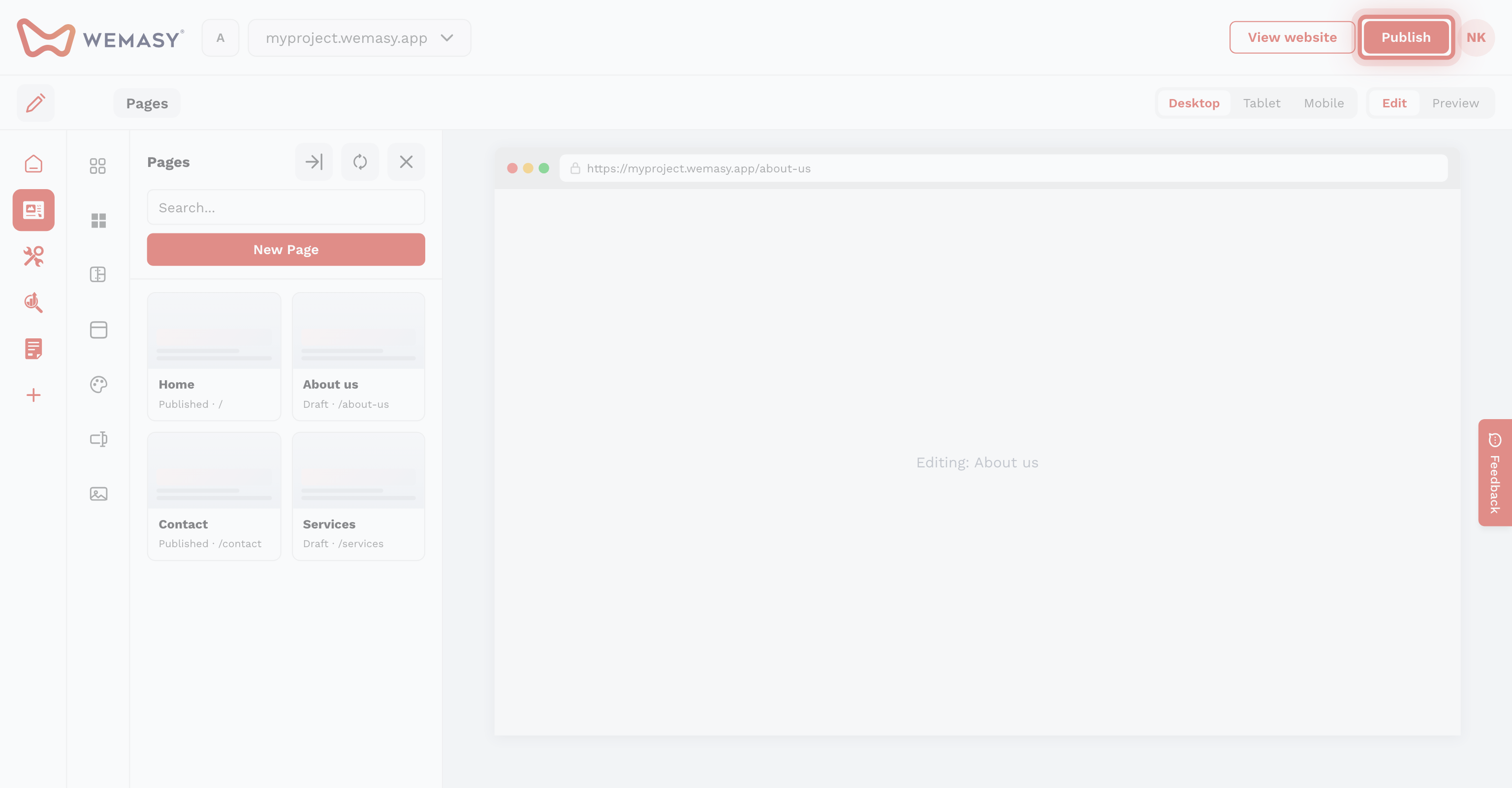
- In Website Builder, click the three-dots menu next to Pages.
- Click Structures.
- Click Create new.
- Type a Title, for example Blog.
- Check the Identifier, the internal name of the structure.
- Set Status, Items per page and Sort by.
- Switch on Are these accessible pages? if every item needs its own page that search engines can find.
- Choose a Standard item layout for those item pages.
- Click Save.
Do not change the identifier later: items made with the old identifier are no longer reachable.
Sort options
Sort by decides the order of items in lists: Created at latest, Created at oldest, Sort number lowest or Sort number highest. With the sort number options, give items numbers in steps of 100, so you can put a new item in between later.
Add items
After saving, the structure gets its own entry in the bar above the canvas.
- Click the structure in the bar, for example Blog.
- Click New Item.
- Fill in the General tab: Title, Page Location (url), Status, Intro, Content, Sort number and Image.
- Fill in the other tabs you need: SEO, Categories, Layout and Advanced.
- Click Save.
You can plan an item for later with Schedule Publication. See Scheduled publication.
Categories and extra fields
- Switch on Enable categories on the structure to group items. See Structure categories.
- Add Items Custom Fields for extra data, such as an author or a price. See Advanced custom fields on structures.
Show items on your website
Place the Structures element on a page to list items, for example the latest three blog posts on your homepage. With Are these accessible pages? switched on, every item also has its own page at its URL.
Tip: plan your custom fields before you add many items. Then every item has the same information from the start.
Frequently asked questions
Can I import many items at once?
Yes. Use the Importer to load items from a CSV, JSON or XML file at a web address. See Data importer for structures.
I deleted an item by mistake
Deleted items are archived. Click the structure in the bar above the canvas, click View archived and use Unarchive on the item.