

Categories group the items of a structure, for example blog posts by topic or projects by type. In WEMASY each category can have its own page with an intro, an image, SEO settings and a layout, and categories can sit inside other categories.
Turn on categories
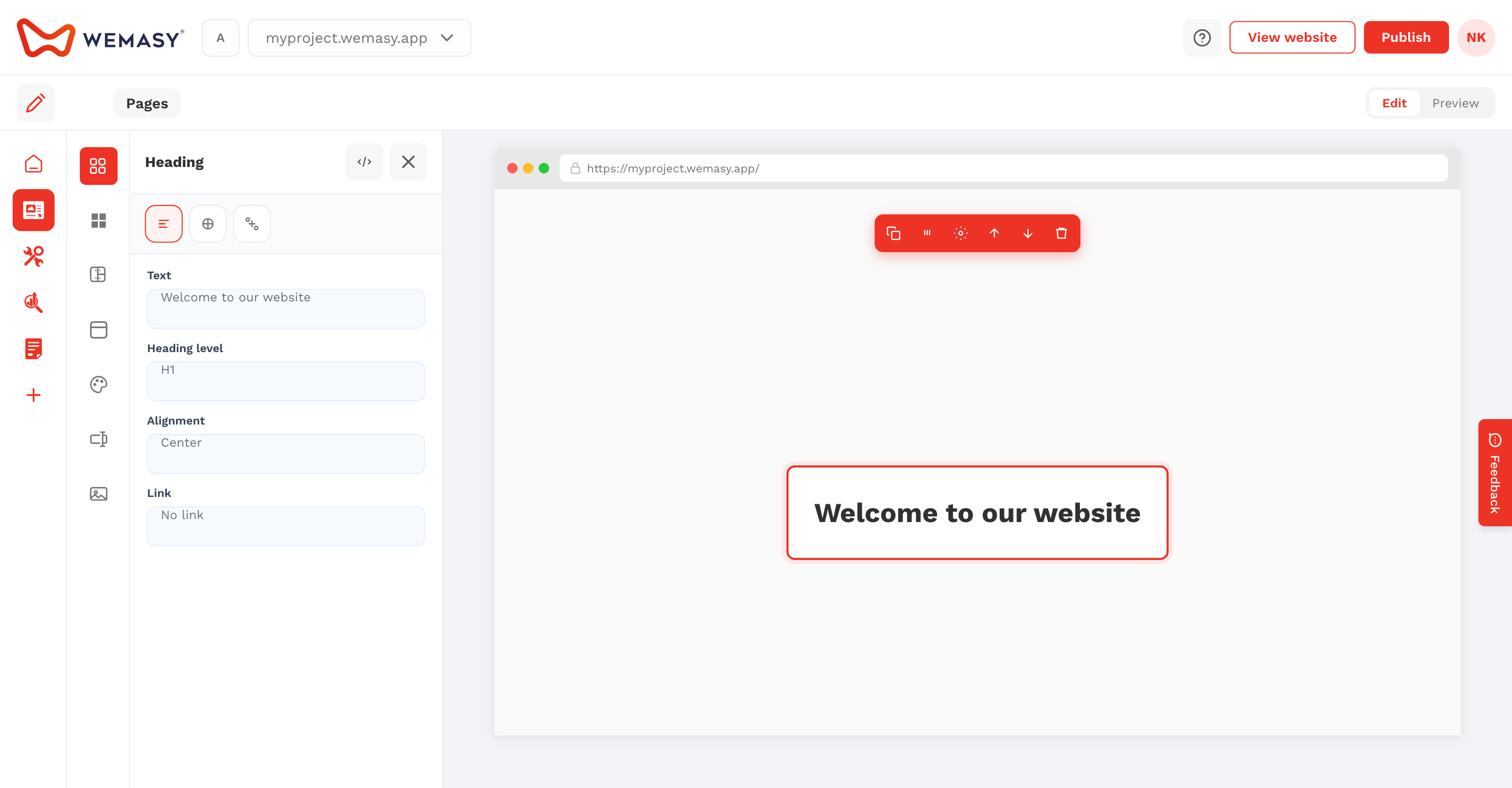
- Click the three-dots menu next to Pages and click Structures.
- Open the structure.
- Switch on Enable categories.
- Choose a Standard category layout for category pages.
- Click Save.
The structure now has Items and Categories under its entry in the bar above the canvas.
Create a category
- Open the structure's Categories.
- Click New Category.
- Fill in the Title and check the Page Location (url).
- Set the Status.
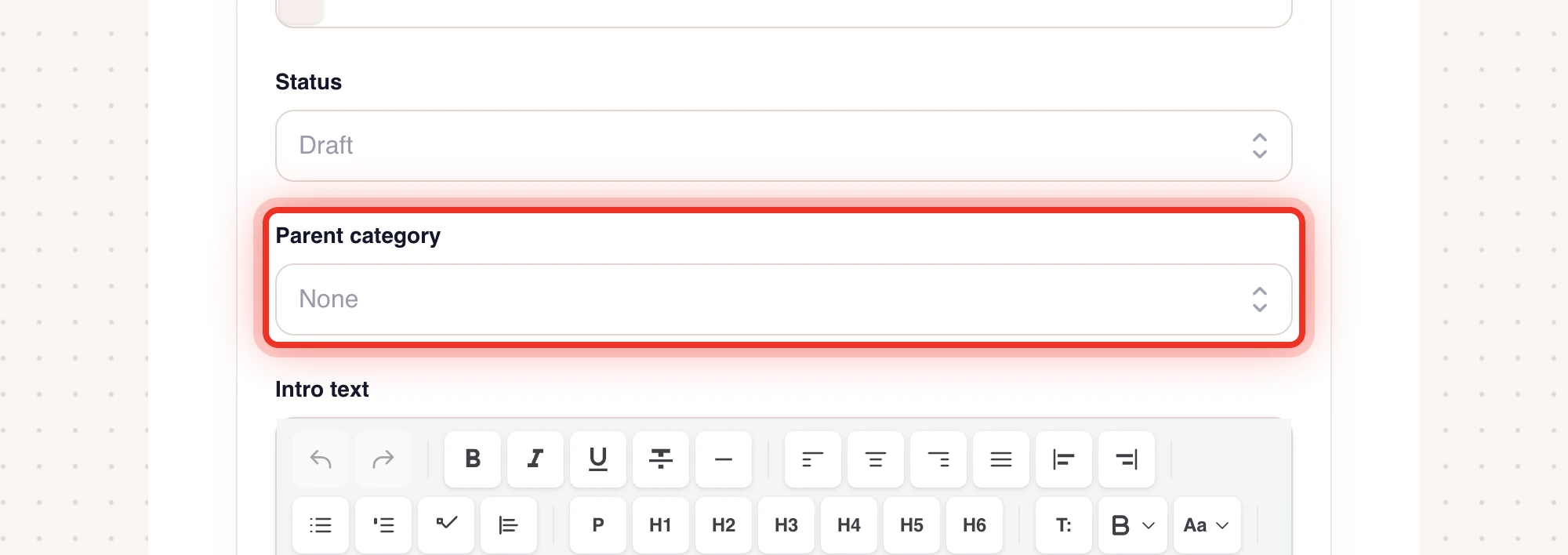
- Pick a Parent category to place it inside another category, or leave it on None.
- Add an Intro, Content, Sort number and Image if you like.
- Click Save.
SEO, layout and advanced options
- Meta settings: meta title, description, keywords, Do not index in search engines, Canonical URL and the share image, like on pages.
- Page Layout: use another layout for this category than the standard category layout.
- Advanced: Disable Single Page and Disable Listing. See Disable single page and listing.
Need extra fields on categories, such as an icon or a color? Add Categories Custom Fields on the structure. See Advanced custom fields on structures.
Assign items to categories
- Open an item of the structure.
- Open the Categories tab.
- Select one or more categories.
- Click Set Primary on the category that fits best. It now shows Primary.
- Click Save.
The primary category is the main category of the item. You can also create a new category right from this tab with the Create Category button.
Tip: keep the number of categories small and clear. A visitor should know at a glance which category to open. To list the items of one category on a page, use the Structures element.
Frequently asked questions
I do not see the Categories tab on my items
Categories are off for this structure. Open the structure, switch on Enable categories and save.