

The Accordion element shows a title that visitors click to reveal the content below it. It is the classic way to build a FAQ, but it also works for opening hours per location, product details or terms. Long pages stay short, and visitors open only what they need.
Add an accordion
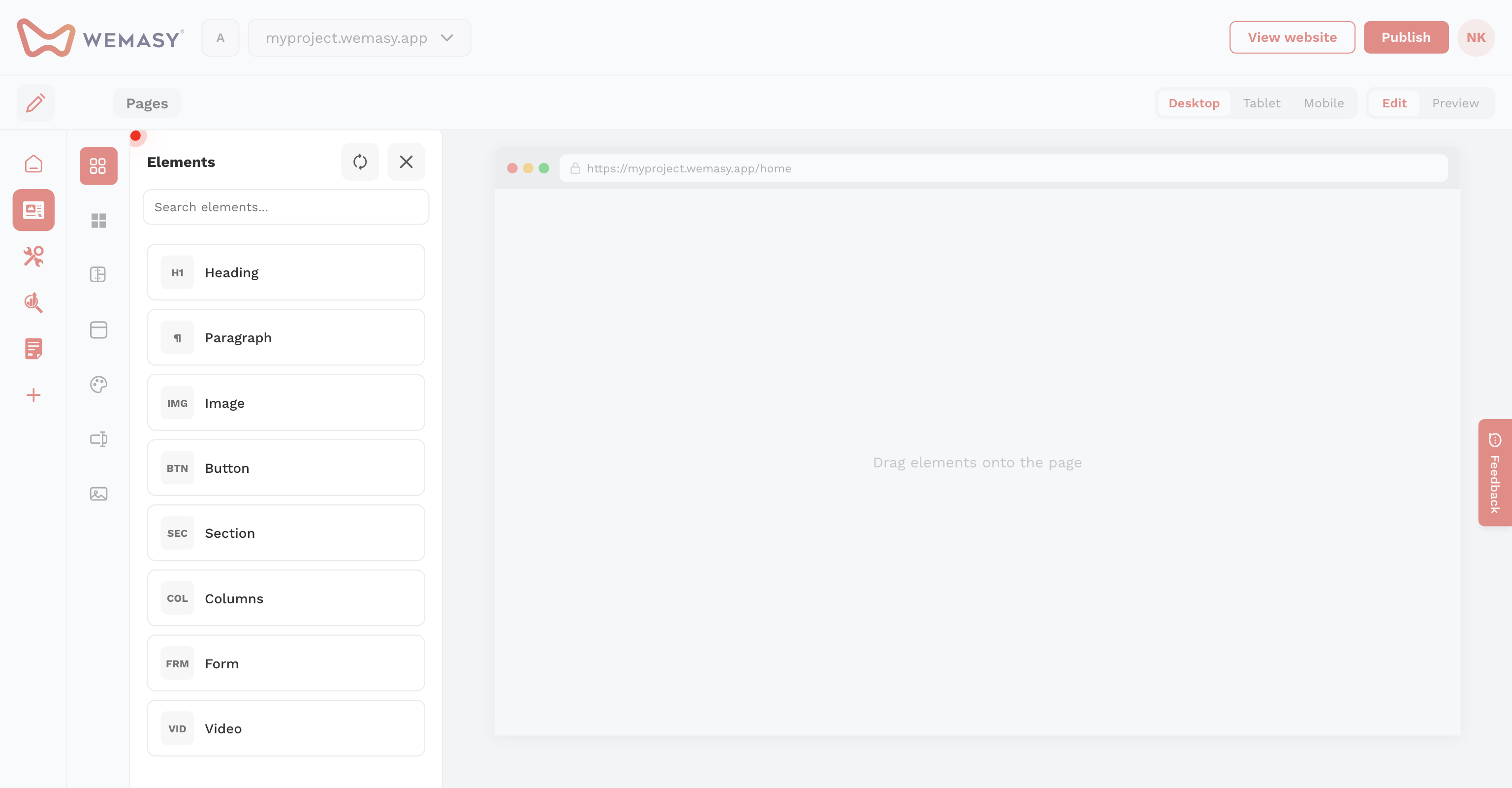
- Click Elements in the left sidebar.
- Drag Accordion into a section.
- Open the element settings.
- Type the question or title in Accordion Title.
- Add the answer in the content area on the canvas.
Each Accordion element is one question. Add one element per question and place them under each other.
Settings
- Accordion Title: the clickable title.
- Accordion Type: Standard uses the default accordion style, Featured the featured style.
- Default Open?: shows the content open when the page loads.
Change the look for all accordions
Colors, padding, borders and the icon are set for the whole site in Customization. See Accordion styles in customization.
Accordions inside text
You can also write an accordion inside a text with a shortcode, for example [wemasy-accordion title="Do you deliver?"] your answer [/wemasy-accordion]. It renders on your published site. See Shortcodes in Website Builder.
Write a good FAQ
- Phrase titles the way visitors ask them, for example How long does delivery take?
- Keep answers to two or three sentences, with a link for more detail.
- Put the most asked questions at the top.
Tip: use Featured for one important question only, so it stands out from the rest.
Frequently asked questions
Can several answers be open at the same time?
Each Accordion element opens and closes on its own, so visitors can open more than one.
How do I change the open and close icon color?
Change Icon text color in the accordion styles in Customization. It applies to every accordion of that type.