

The Importer fills a structure with items from a data file on the web, such as a CSV export, a JSON feed or an XML feed. Instead of adding hundreds of items by hand, you point the Importer at the file once. It can run again on a schedule, so your website stays in sync with the source.
When to use the Importer
- You have a list of vacancies, properties, events or products in another system that can publish a feed.
- You move a blog or catalog to WEMASY and have the content as a file.
- The data changes often and your website should follow automatically.
Open the Importer
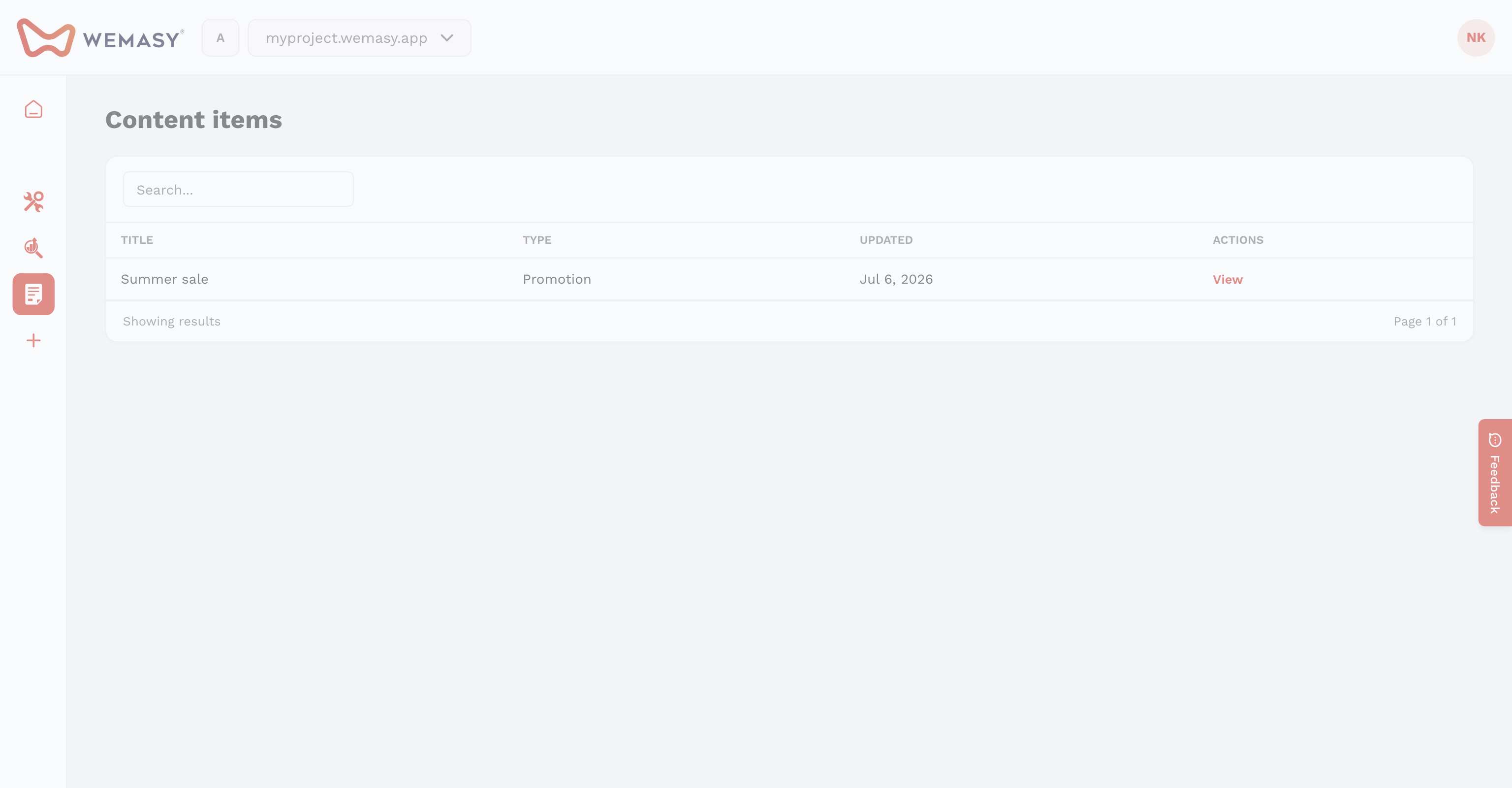
- Open Website Builder.
- Click the three-dots menu next to Pages in the bar above the canvas.
- Click Importer.
You see the list of your importers with their title and identifier. Use the search field to find one.
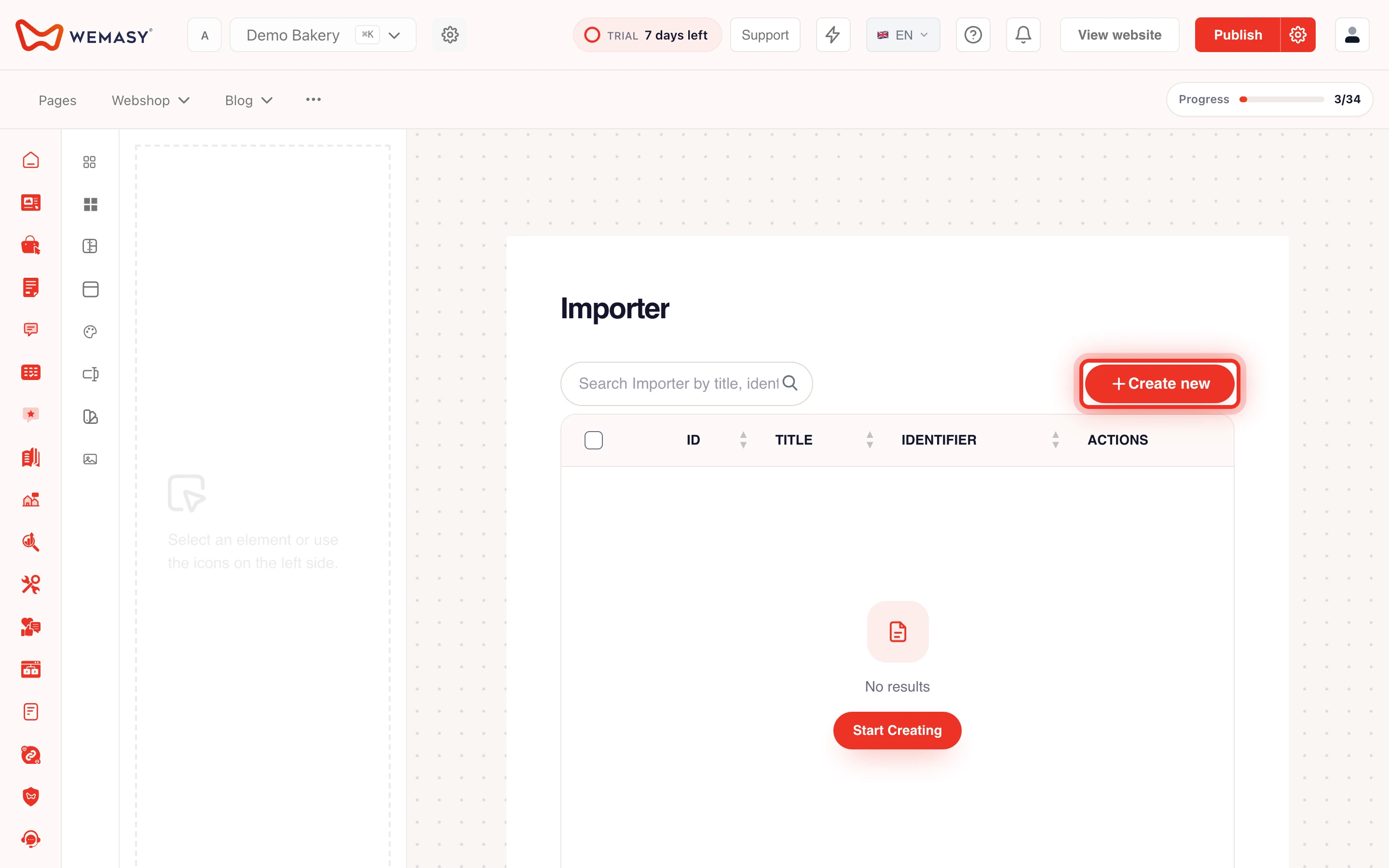
Create an importer
Click Create new and fill in the form: the structure the items go into, the file format and the address of the file, then map the columns of the file to the item fields. The full steps are in Configuring the data importer.
Run an importer
- In the Importer list, open the actions of the importer.
- Click Run Importer.
- Confirm the question Are you sure you want to run importer with its name.
To run several at once, select them and choose Run Selected Importers. Importers with a schedule also run by themselves at the times you set.
Imported items
Items created by an importer appear in the structure like any other item. When you edit such an item yourself, WEMASY warns you that it is Connected to Importer: saving your change disconnects the item from future automatic updates, so the next import does not overwrite your edit.
Delete importers
Use Delete Selected Importers in the list, or delete one from its actions. Check first whether the structure still needs updates from it.
Tip: create the structure and test the importer with a small file first. When the items look right, switch to the full feed. More about structures: Working with structures.