

The 3D Model element shows a 3D object on your page that visitors can turn and look at from every side, such as a product, a piece of furniture or a building. It works with the common 3D file formats GLB and GLTF.
Add a 3D model
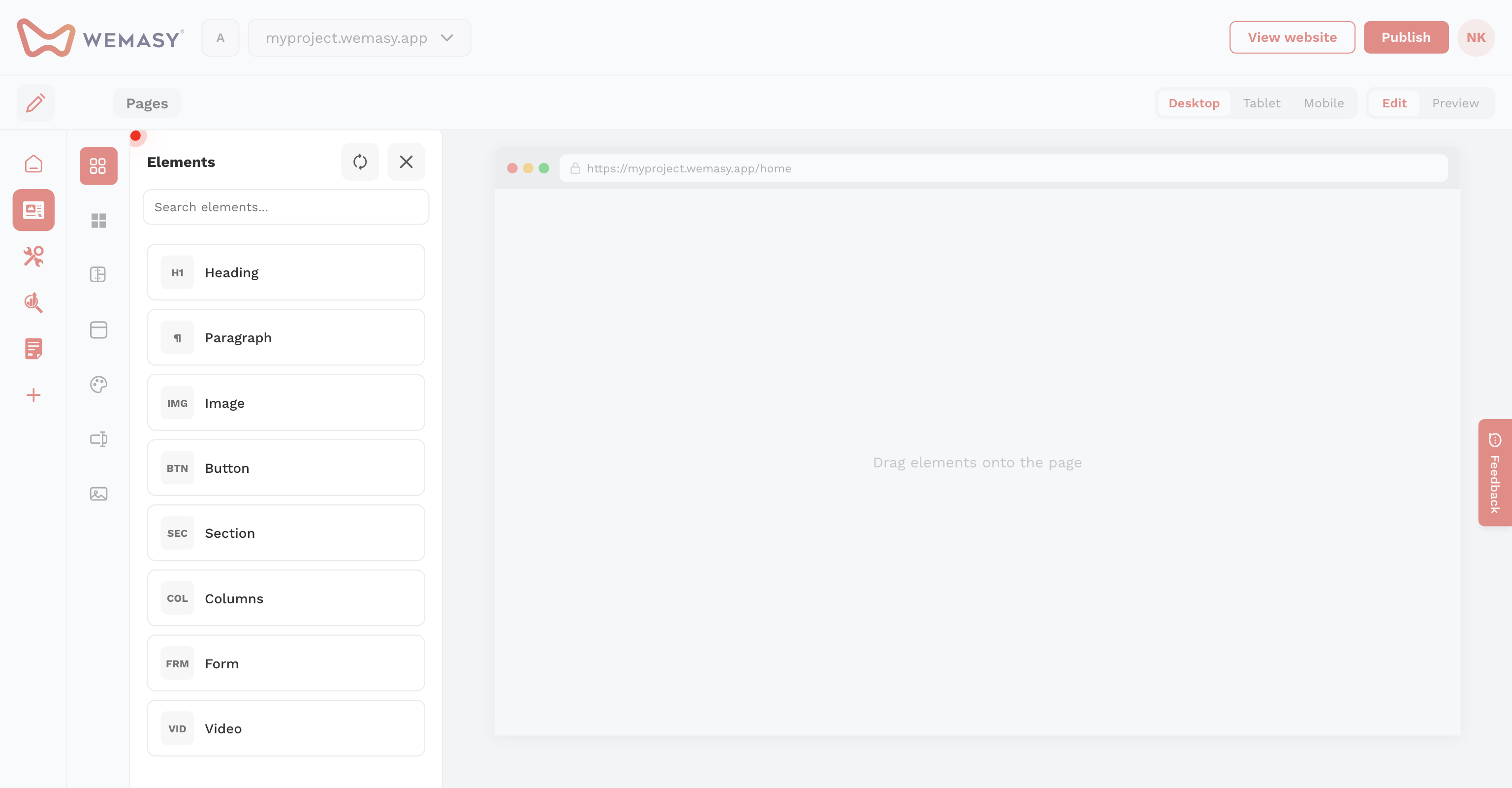
- Click Elements in the left sidebar.
- Drag 3D Model into a section.
- The element shows No model selected. Click it to open the file selector.
- Choose a .glb or .gltf file.
Settings
- 3D model file: the GLB or GLTF file.
- Width and Height: the size of the viewer on the page.
- Alignment: Left, Center or Right.
Get a 3D file
- Many 3D design programs can export to GLB, a single file with the model and its textures. GLB is the easiest to upload.
- A GLTF model can consist of several files. Prefer GLB when you have the choice.
- Keep the file small. Large models load slowly, especially on phones.
Use it well
Place the model next to a short explanation in a two-column section, so visitors know they can rotate it. See Columns and section styling. Check the Mobile view: on phones, the viewer should not be taller than the screen.
Tip: for normal product photos, the Image element loads faster. Use a 3D model where turning the object adds real value.
Frequently asked questions
My model does not show
Check that the file ends in .glb or .gltf. A GLTF model that uses separate texture files can miss them after upload; export it as a single GLB file instead.
Can visitors turn the model on a phone?
Yes. Visitors can rotate the model with a finger on touch screens and with the mouse on a computer.