

Header code and footer code let you add a script to every page of your website, for example a tracking pixel, a verification tag from a search engine, or a chat widget. In the WEMASY Website Builder you add this code once, under Integration in Customization.
Add code in the builder
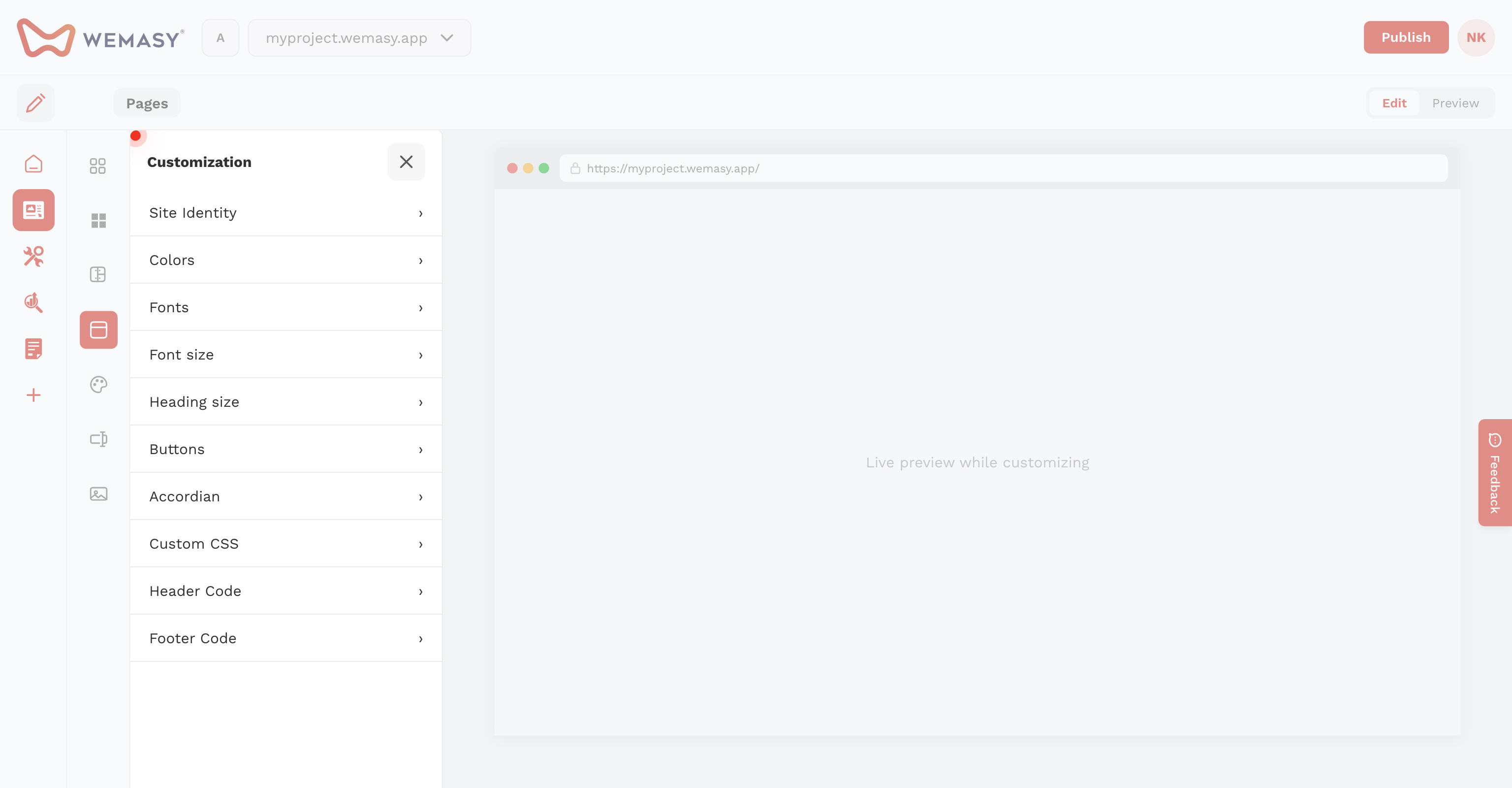
- Open Website Builder.
- Click Customization in the left sidebar.
- Click Integration.
- Paste your code in Header Code or Footer Code.
- Click Save.
- Publish your website.
Header code or footer code?
- Header Code is placed in the head of every page. Use it when a provider asks you to paste code in the head, such as most analytics tags and site verification tags.
- Footer Code is placed at the end of every page. Use it for widgets and scripts that should load after the page content.
Follow the instructions of the service you add. When in doubt, the provider's documentation says where the snippet belongs.
How your scripts run
On your published site, WEMASY runs inline scripts from this code after the page has fully loaded, so they do not break the page. Scripts that wait for the page load event still run. Scripts that load from an external address are added as they are.
Also in project settings
You can edit the same code in your project settings, on the Site Builder tab under Integration. Both places save the same values.
Before you add tracking code
- WEMASY measures visits on your site with its own analytics, so you do not need extra code for that.
- Many tracking tools set cookies. Keep the cookie consent bar switched on, see Cookie consent bar.
- For a WhatsApp button you do not need code: see WhatsApp button on your website.
Tip: add one script at a time and check your site after each publish. If something breaks, you know which script caused it.
Frequently asked questions
My script does not work on the live site
Check that you saved the code and published your website afterwards. Open the live page and look in the browser console for errors from the script.
Can I add code to one page only?
Header and footer code apply to every page. For one page, place an Embed element with the code on that page.