

The Pages panel in the WEMASY Website Builder lists every page of your website. From here you open a page in the editor, change its settings, copy it, delete it, and bring back pages you deleted by mistake.
Open the Pages panel
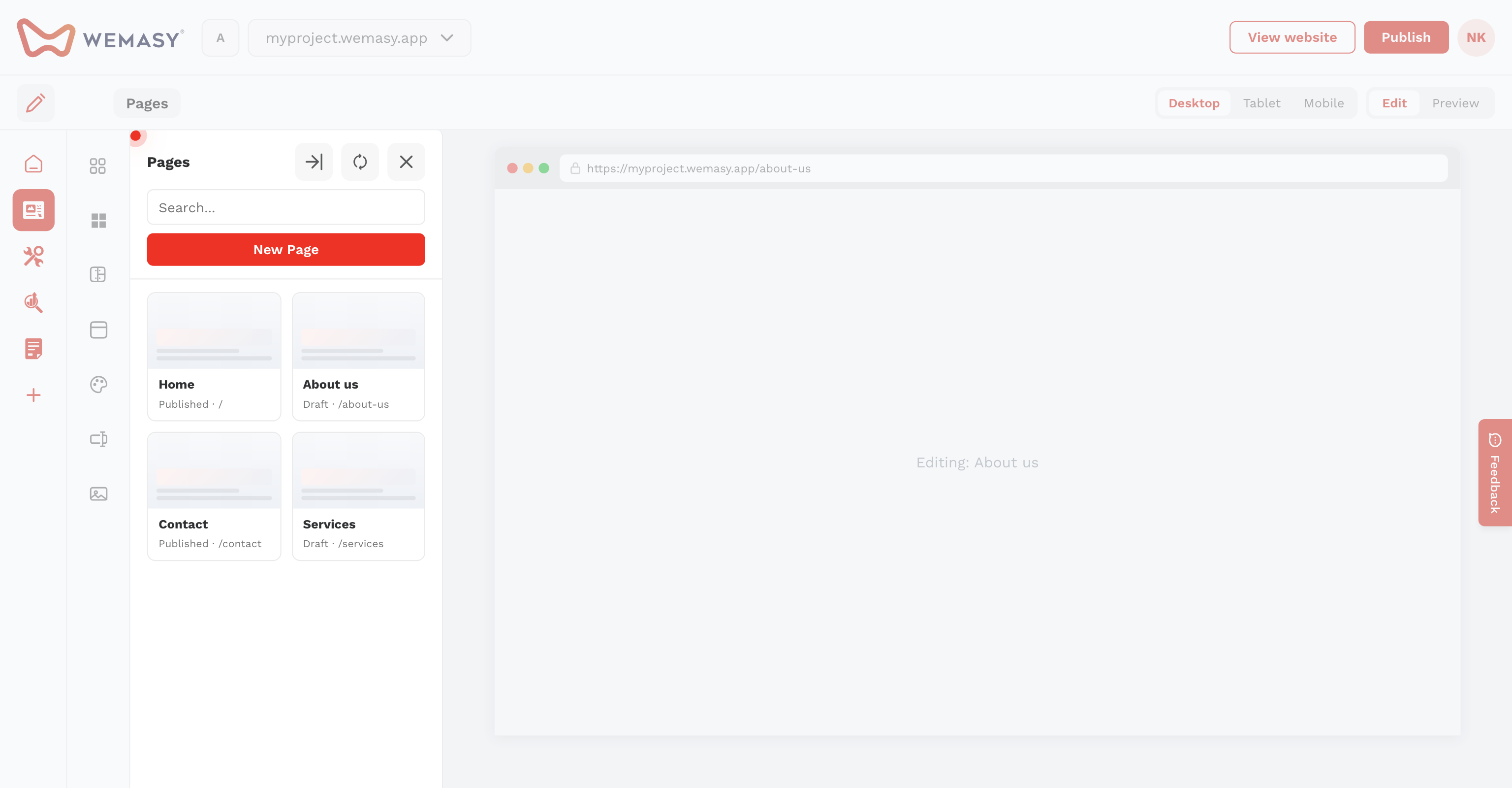
- Open Website Builder.
- Click Pages in the bar above the canvas.
- Click a page in the list to open it on the canvas.
Find a page
- Search: type part of the page title in the search field at the top of the panel.
- Filter by status: use the status filter to show All, Active or Draft pages. Scheduled appears when an item has a publication date in the future.
- Card or list: click Switch to card view to see page previews, or Switch to list view for a compact list.
- Refresh: click the refresh icon to reload the list after changes made elsewhere, for example by the AI chat.
Page actions
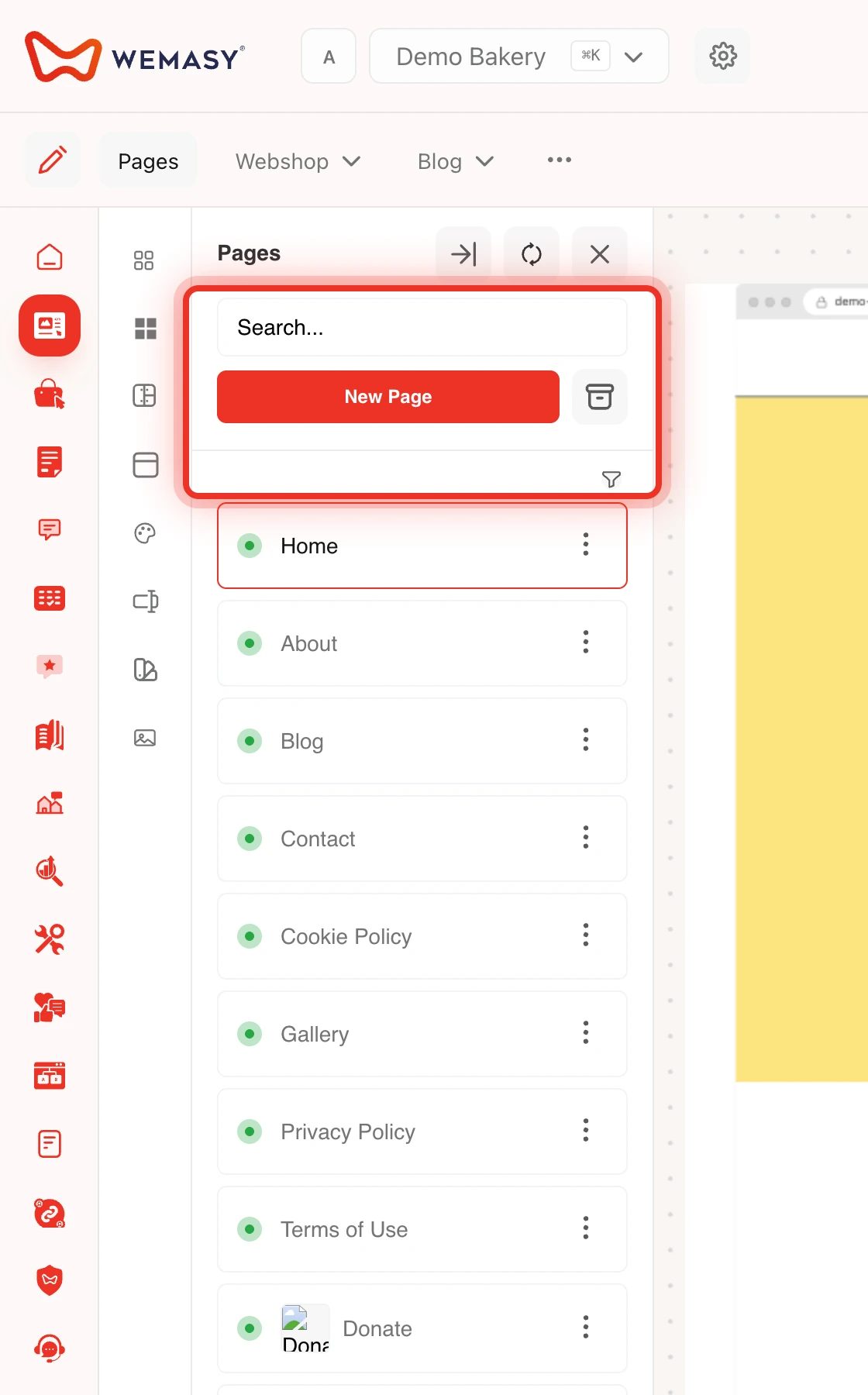
Open the three-dots menu on a page to see its actions.
- Edit: opens the page settings, such as title, URL, status, SEO and layout. See Page settings and SEO.
- Copy to project: copies the page into another project you manage. See Copy to project.
- Delete: removes the page from your site. You confirm first.
Duplicate a page
- Open the three-dots menu on the page and click Edit.
- Open the actions menu on the settings screen.
- Click Duplicate Page and confirm.
WEMASY makes a copy with the same content and a URL that ends in -copy, and opens the copy. Rename the title and URL in its settings. You can also start a new page from a copy: see Creating a new page.
Restore a deleted page
A deleted page is archived, not destroyed, so you can bring it back.
- In the Pages panel, click View archived.
- Find the page and click Unarchive.
- Confirm the message.
If another page took the URL in the meantime, WEMASY offers to restore the page under a new URL. You can change that URL later. Click View active to go back to your normal list.
Change a page URL safely
When you change the Page location (url) of an existing page, the option Redirect old URL to new URL appears. Keep it ticked so visitors and search engines that use the old address land on the new one.
Tip: use Draft instead of deleting a page you may need later. A draft stays off the live site but keeps its place in your list.
Frequently asked questions
Why can I not delete some pages?
Pages the system needs, such as the customer login or account pages of a webshop, cannot be deleted and have no status field. The rest of your site links to them by URL.
Does deleting a page remove it from my live website?
The page is removed from your project at once. Your live website changes after you publish again.