

The Embed element places HTML code from another service on your page, such as a YouTube or Vimeo video, a calendar widget, a review widget or any iframe. You paste the embed code the other service gives you, and it shows in that spot.
Add an embed
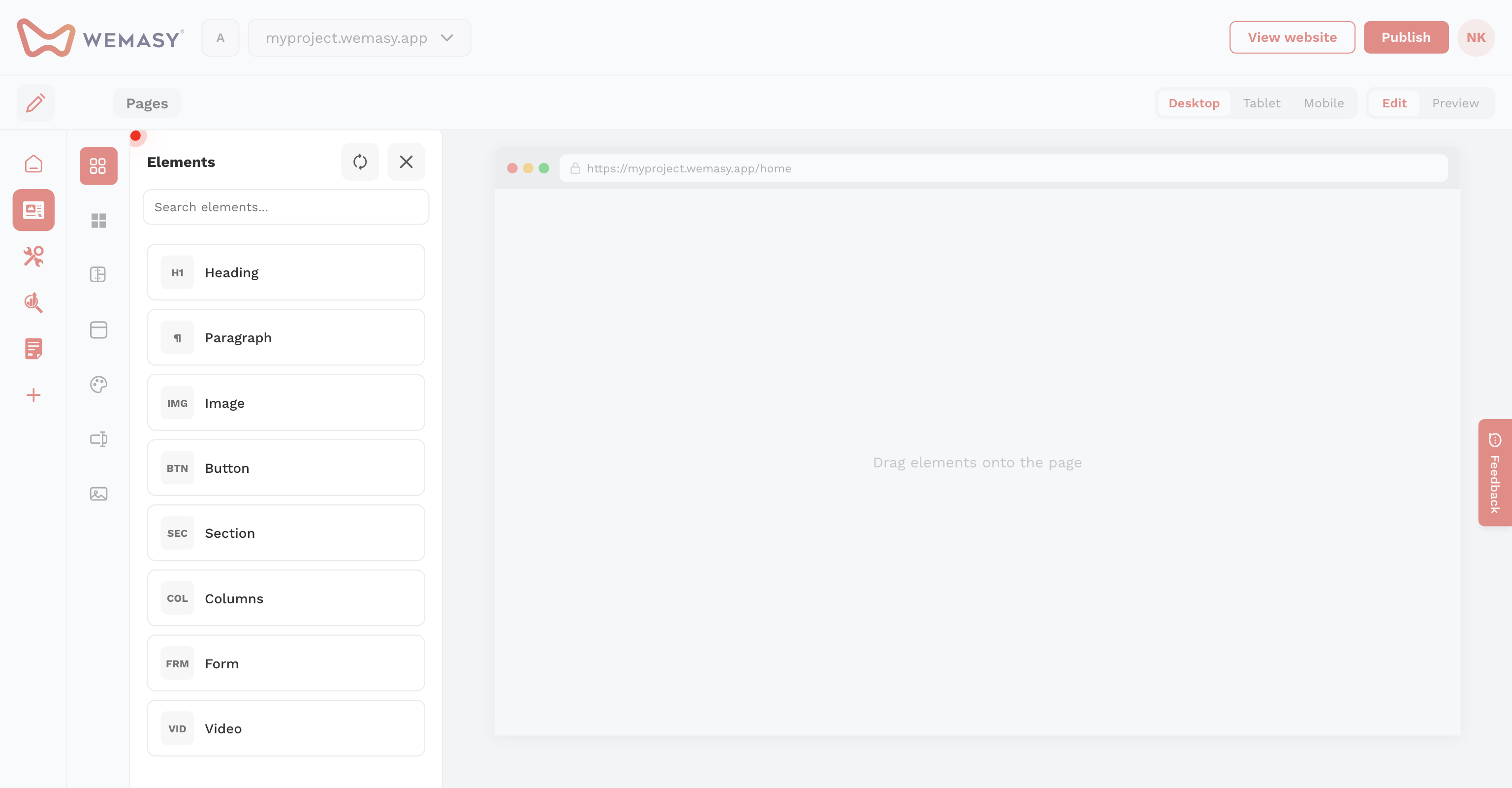
- Copy the embed code from the other service. On YouTube, for example, click Share and then Embed.
- In the Website Builder, click Elements in the left sidebar.
- Drag Embed into a section.
- Open the element settings.
- Paste the code in Embed Code.
What you can embed
- Videos from YouTube or Vimeo.
- Maps, calendars, forms or widgets from other services that offer an iframe or embed snippet.
- Small pieces of your own HTML.
Before you use an embed
- For your own video files, the Video element is better.
- For a map of an address, the Map element needs no code.
- Code that must run on every page, such as a tracking script, belongs in the header or footer code. See Integration header and footer code.
Check the result
Some embedded code only runs on the published site. If the element looks empty in the editor, click View website to check the live page. Look at the Mobile view too: iframes with a fixed width can be too wide for phones.
Tip: only paste code from services you trust. Embedded code runs on your website and can load content from the other service.
Frequently asked questions
The embed shows in the editor but not on my live site
Publish your website again. If it still does not show, the other service may block display on other websites; check its embed settings.
Can I use JavaScript in an embed?
Yes, but only code from services you trust. For site-wide scripts use the header or footer code instead.