

A layout is the frame around your page content: the header at the top and the footer at the bottom. In the WEMASY Website Builder you build a layout once and use it on many pages, so your logo, menu and contact details stay the same everywhere. Change the layout and every page that uses it changes too.
The three parts of a layout
Your layout consists of three parts: the header (top), the content and the footer (bottom). The header and footer are reusable templates, which you can share between layouts. The content is the page itself.
- Header template: usually your logo and menu.
- Content template: optional fixed content around the page content.
- Footer template: usually contact details, links and copyright.
Create a layout
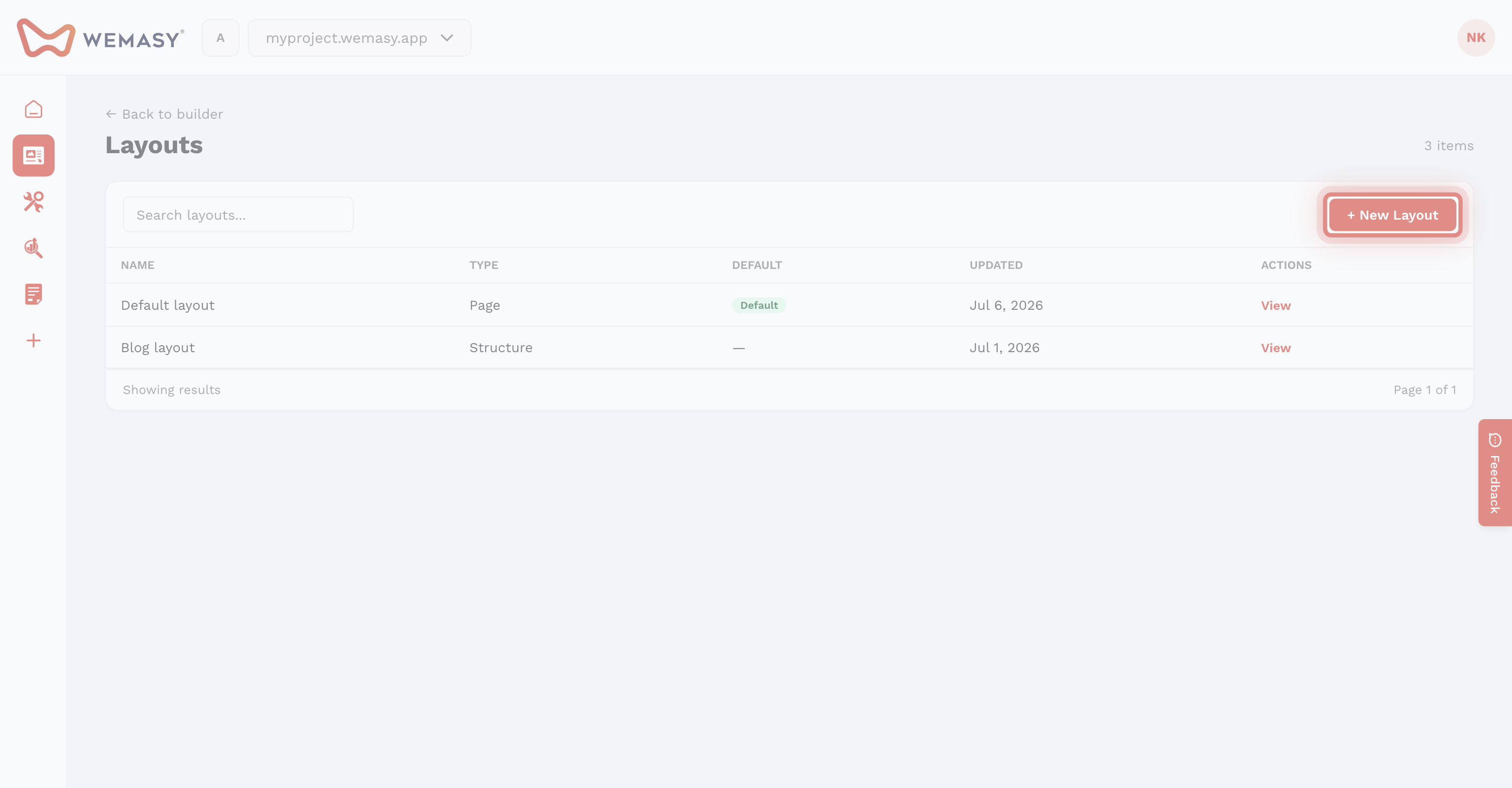
- Click Layouts in the left sidebar.
- Click New Layout.
- If you have installed themes, choose From Scratch or From Theme Layout. Without themes, the empty layout form opens directly.
- Type a Layout title.
- Choose the Template type: Page layout, Product layout, Category layout or Structure page layout.
- Pick the Header template and Footer template.
- Click Save.
Layout types
- Page layout for normal pages.
- Product layout and Category layout for webshop product and category pages.
- Structure page layout for structure items or categories, such as blog posts. Choose the structure under Structure connection and whether it is for an Item or a Category.
Use a layout
- For one page: open the page settings, tab Layout, and pick a Page layout. See Page settings and SEO.
- For all new pages: switch on Set as default layout. See Default menu and default layout.
- For structures: set the Standard item layout on the structure, or override it per item.
Edit the header or footer
Open the layout from the Layouts panel to design its header and footer on the canvas. Because they are reusable templates, a change shows on every page with that layout. See Reusable templates.
Tip: most sites need only one page layout. Make a second one only for pages that need a different frame, such as a landing page without a menu.