

The Map element shows a Google Map for any address, so visitors see where you are and can open directions. Use it on your contact page or in your footer. You only type the address: no API key or code is needed.
Add a map
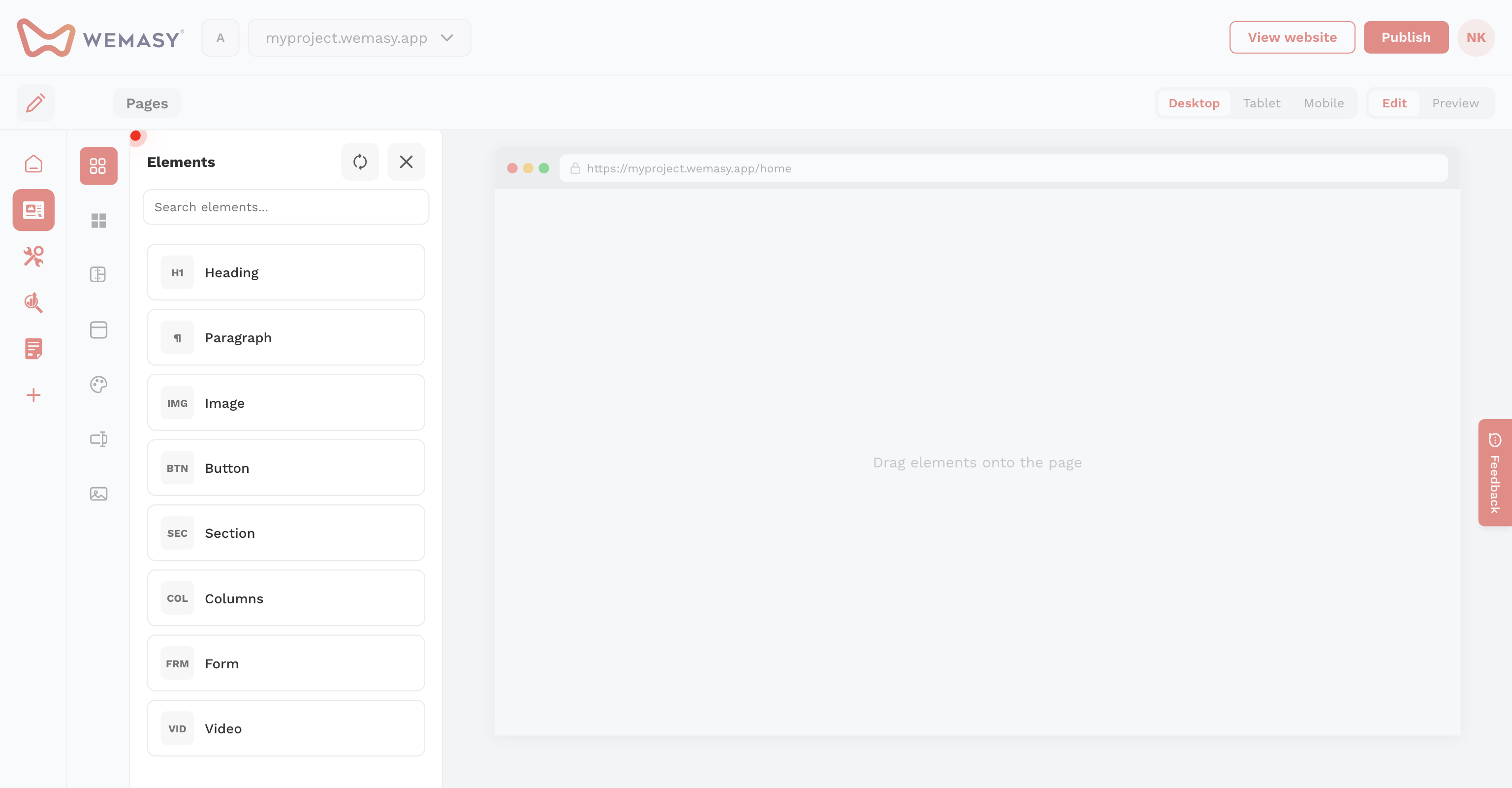
- Click Elements in the left sidebar.
- Drag Map into a section or column.
- Open the element settings.
- Type the Address.
The address field accepts anything Google Maps accepts: a street address such as Damrak 70, Amsterdam, a place name, or coordinates.
Zoom and style
- Zoom level: from 10 (City) and 12 (District) to 14 (Neighborhood), 15 (Street, the default), 17 (Block) and 18 (Building).
- Style: Original, Grayscale, Dark, Light, Blue, Satellite or Terrain. Grayscale and Light blend in with most designs.
Size and frame
- Width and Height, or an Aspect ratio. Use height keeps the height you set.
- Alignment: Left, Center or Right.
- Border radius, Border, Border color and Shadow.
Check the result
Look at the map on the Mobile view as well. A lower height often works better on phones, so the map does not fill the whole screen.
Tip: place the map next to your address and opening hours in a two-column section. See Columns and section styling. For a contact form beside it, use the Contact form element.
Frequently asked questions
The map shows the wrong place
Make the address more specific: add the house number, postal code, city and country, or use coordinates.
Do I need a Google account or API key?
No. The Map element only needs the address.