

The Contact Form element is the fastest way to let visitors contact you. When you drop it on a page, WEMASY creates a complete form for you with the fields Name, Email and Message and a Send Message button. You do not have to build anything first.
Add a contact form
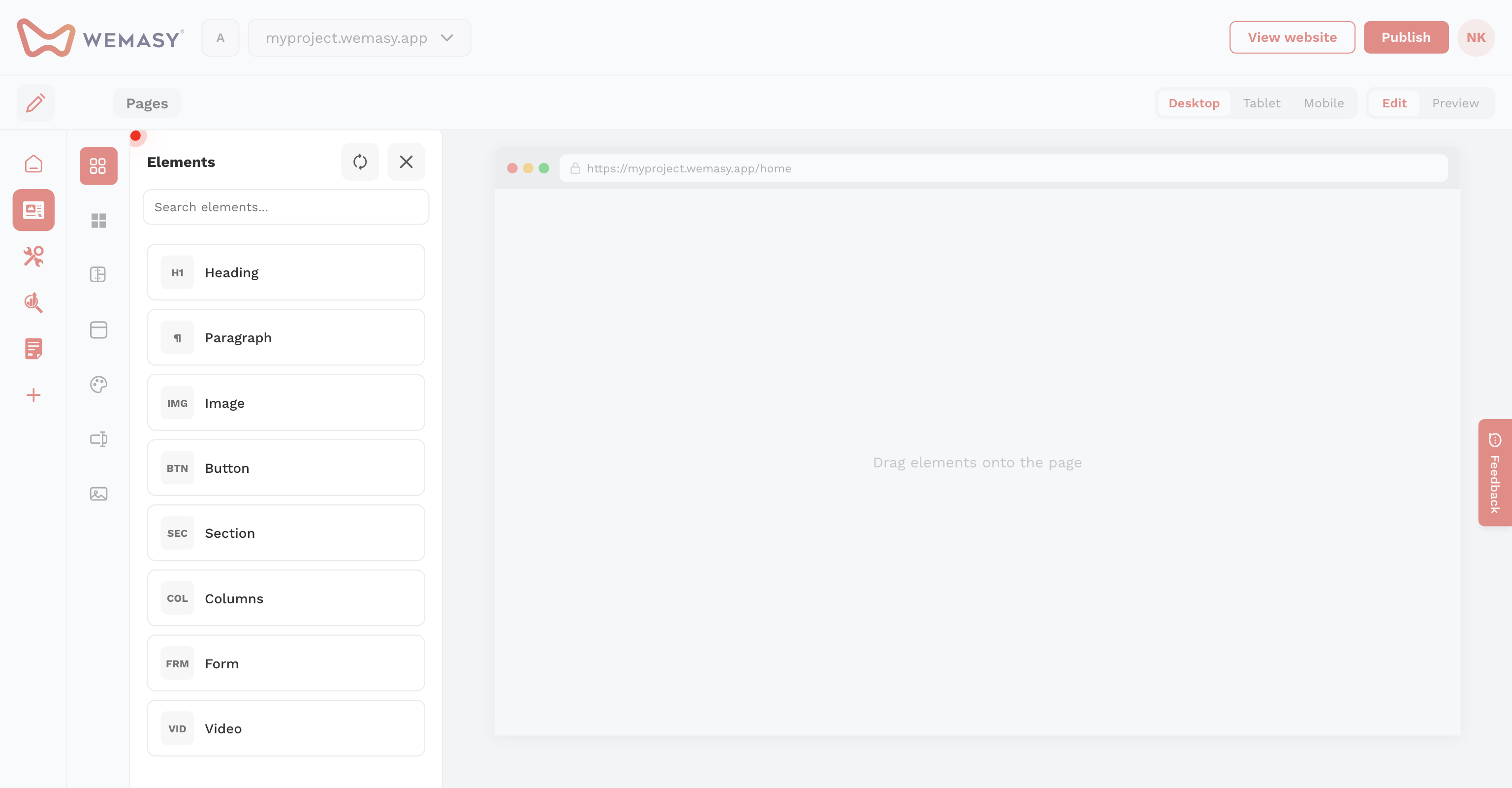
- Click Elements in the left sidebar.
- Drag Contact Form into a section or column.
- Wait a moment while the element shows Creating contact form....
The new form is saved in your Forms tool and shown on the page right away.
Change the look or fields
- Open the element settings to choose the width, alignment and button type, like the Forms element.
- To add or change fields, such as a phone number, edit the form in the Form Builder. See Form builder and fields.
Where submissions go
Every message is saved in Forms, under the submissions of this form. WEMASY also emails you new submissions. Set the address that receives them in your project: see Default email for form submissions.
Test it
- Publish your website.
- Send a test message through the form on the live page.
- Check that it arrives in Forms and in your inbox.
Tip: place the contact form next to your address, phone number and a map, so visitors can choose how they reach you. For a quick chat, add a WhatsApp button.
Frequently asked questions
I added two contact forms. Are they the same form?
Each Contact Form element you drop creates its own form in Forms. To show the same form in two places, use the Forms element and choose the existing form.
Can I remove the Message field?
Yes. Edit the form in the Form Builder and remove or change fields. The form on the page follows your changes.