

The Forms element puts one of your forms on a page, such as a quote request, a booking request or a newsletter signup. You build the form in the Forms tool, and the element shows it with the width, alignment and button style you choose. Submissions are saved in Forms.
Add a form to a page
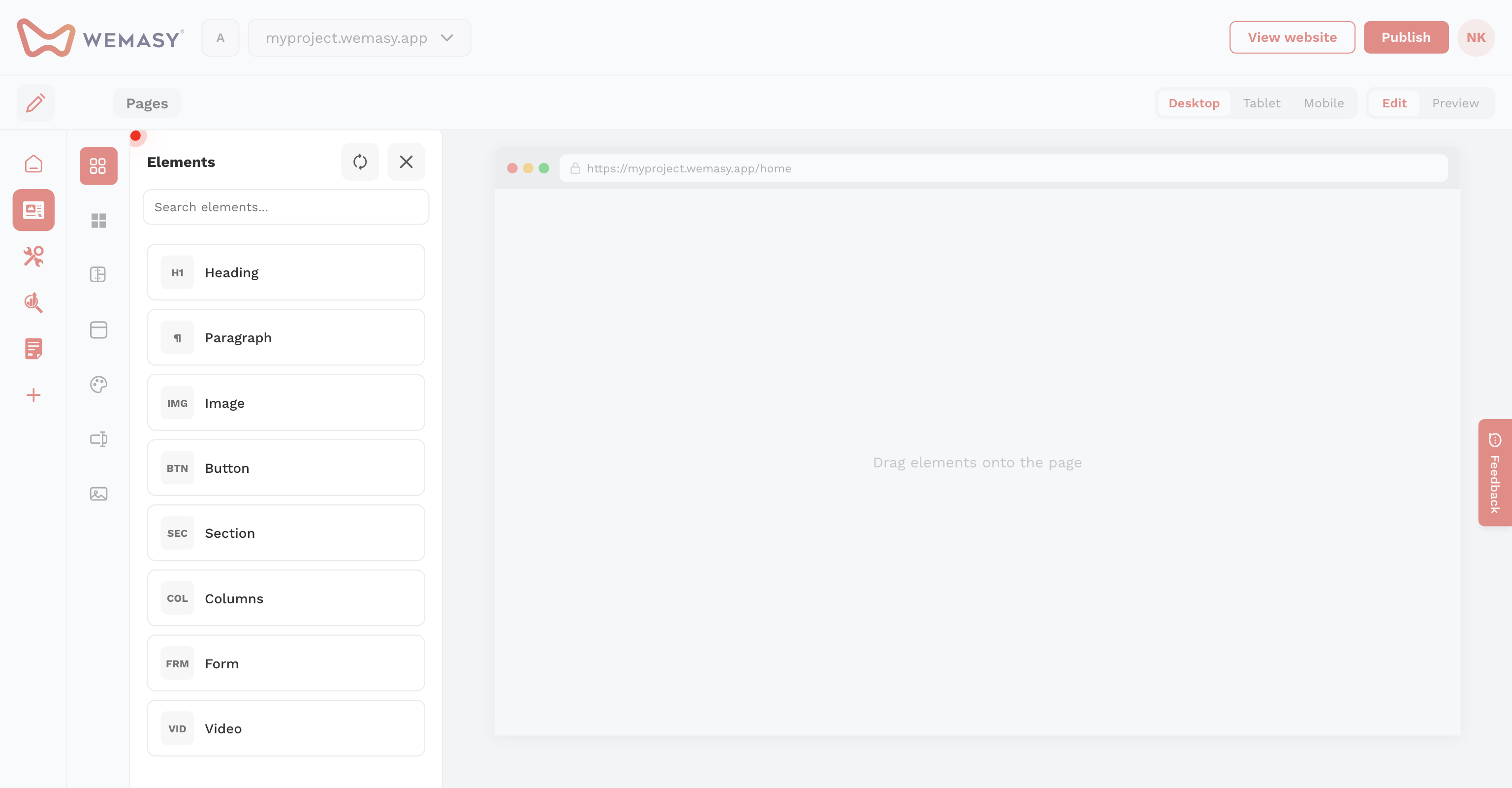
- Click Elements in the left sidebar.
- Drag Forms into a section or column.
- Open the element settings.
- Choose the form under Form.
Until you choose one, the element says No form selected. No form yet? Create one from the three-dots menu next to Pages: see Creating forms from the Pages menu.
Look settings
- Width: Full Width or a part such as 1/2 or 2/3.
- Block Alignment: where the form sits in the section.
- Label Alignment and Button Alignment.
- Button Type: Standard, Featured or Secondary, from your button styles.
- Transparency: how see-through the form background is, from 0% to 100%.
- Padding: the space inside the form.
Edit the form fields
Click Edit Form in the element settings to open the Form Builder for this form. Fields, validation, spam protection and notifications are explained in Form builder and fields.
Test the form
- Publish your website.
- Fill in the form on the live page.
- Check that the submission arrives in Forms and in your email.
Tip: for a quick form with only name, email and message, the Contact Form element creates the form for you.
Frequently asked questions
I do not receive submissions by email
Check the email notification settings of the form in Forms and your spam folder. See Form emails or submissions not arriving.
Can I show the same form on several pages?
Yes. Place a Forms element on each page and choose the same form. All submissions are collected in one place in Forms.