

The form builder is where you decide which fields your form has. You drag fields from the left sidebar onto the canvas, click a field to change it, and preview the form the way visitors see it.
Open the form builder
- Open Forms and click Forms in the top menu.
- Find your form in the list.
- Click Form builder in its row.
A new form opens in the form builder right after you create it.
Add fields
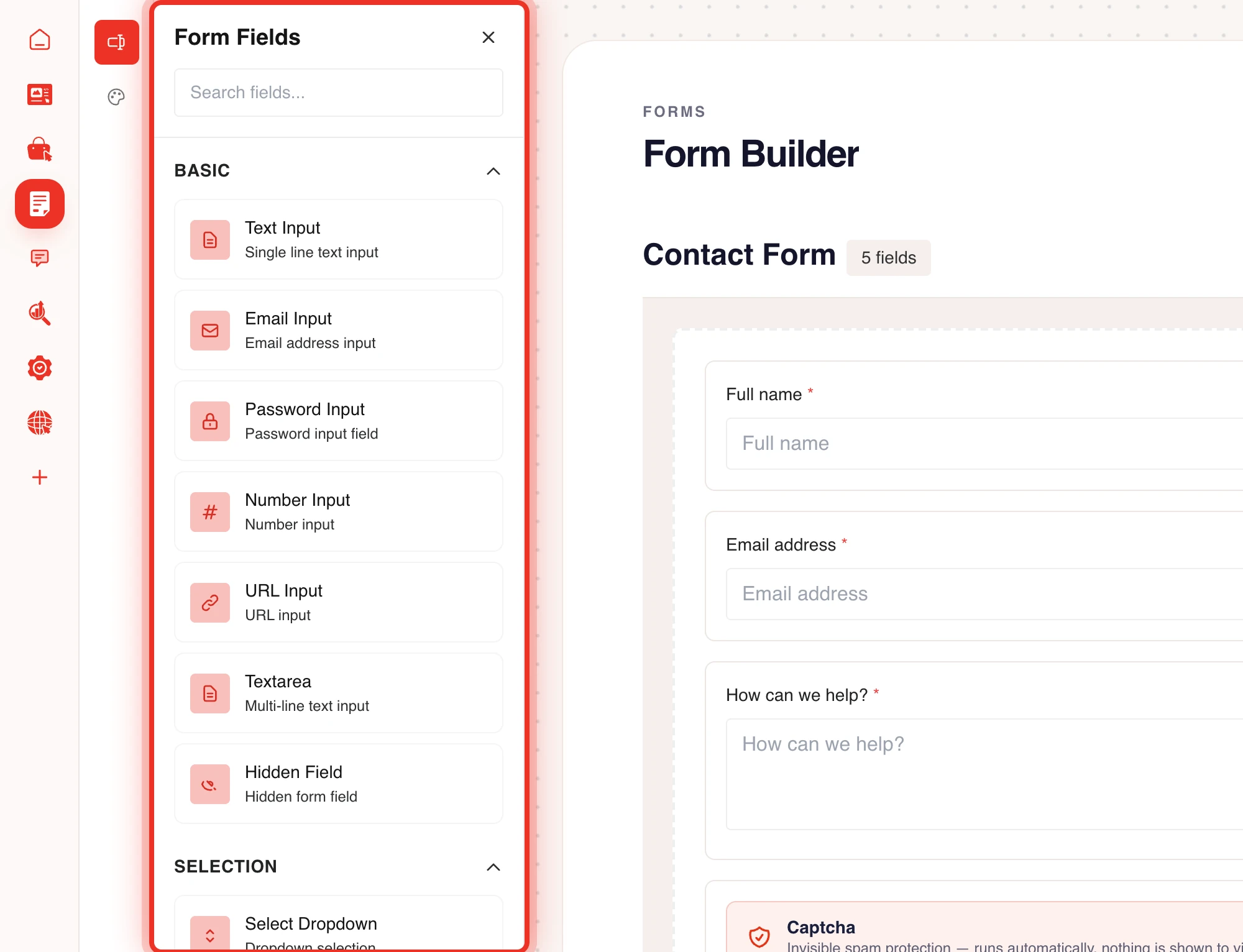
- Find a field under Form Fields in the left sidebar, or type in Search fields....
- Drag the field onto the canvas. On a phone, tap the field to add it.
- Drag fields up or down on the canvas to change their order.
- Drag in a Submit Button. Without it visitors cannot send the form. A form has one submit button.
The fields are grouped in categories:
- Basic: Text Input, Email Input, Password Input, Number Input, URL Input, Textarea and Hidden Field.
- Selection: Select Dropdown, Checkbox, Checkbox (True/False), Radio Buttons, Radio and Toggle Switch.
- Advanced: Date Picker, OTP Code, Rich Text Editor, Code Editor, Color Picker and Captcha.
- Media: Image Upload and File Upload.
- Content: Title/Heading and Content / HTML Block, for text in the form.
- Actions: Button and Submit Button.
- Layout: Field Group, Column Layout, Tab Container and Step Container.
Change a field
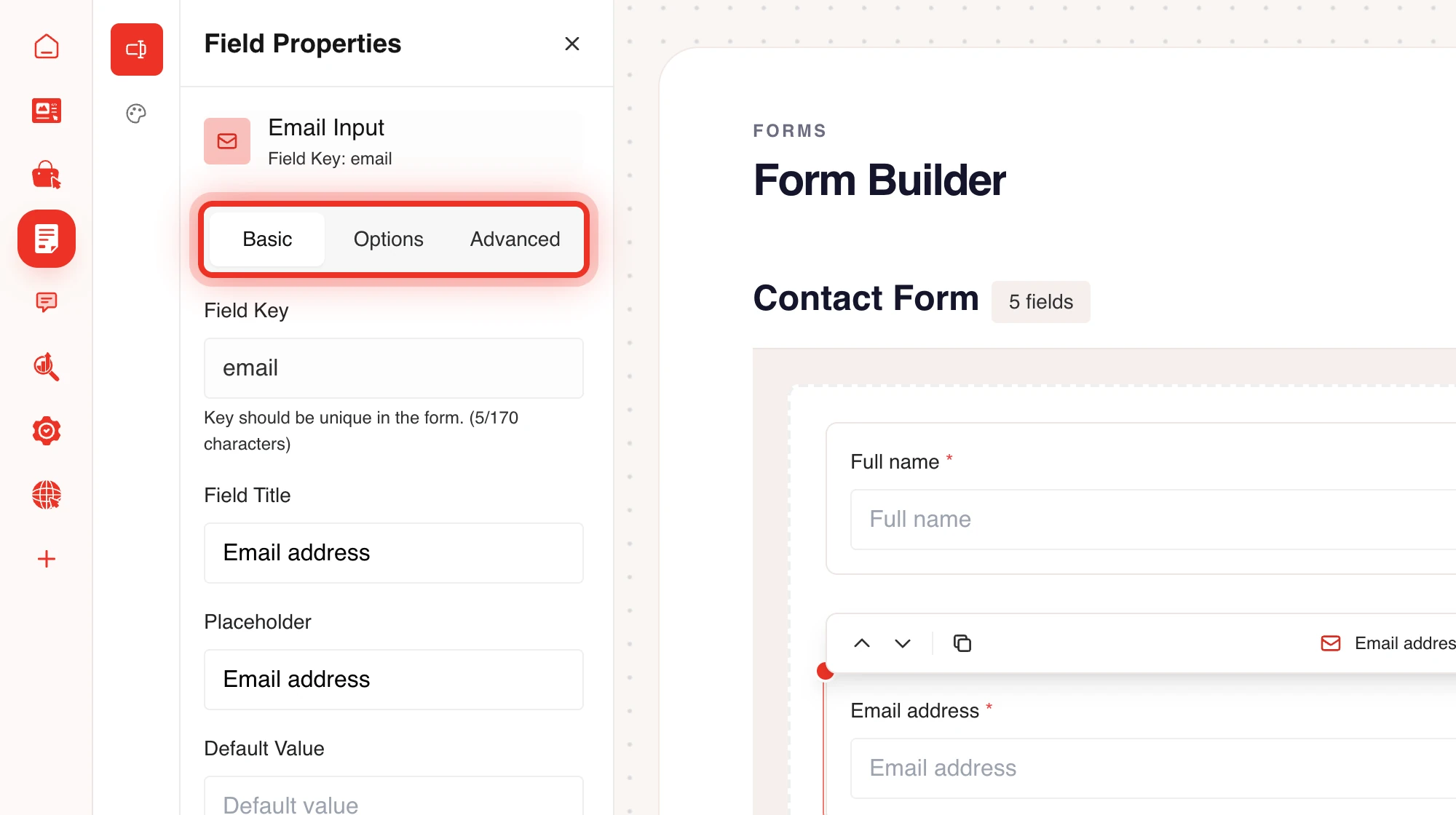
Click a field on the canvas to open Field Properties on the right. It has three tabs:
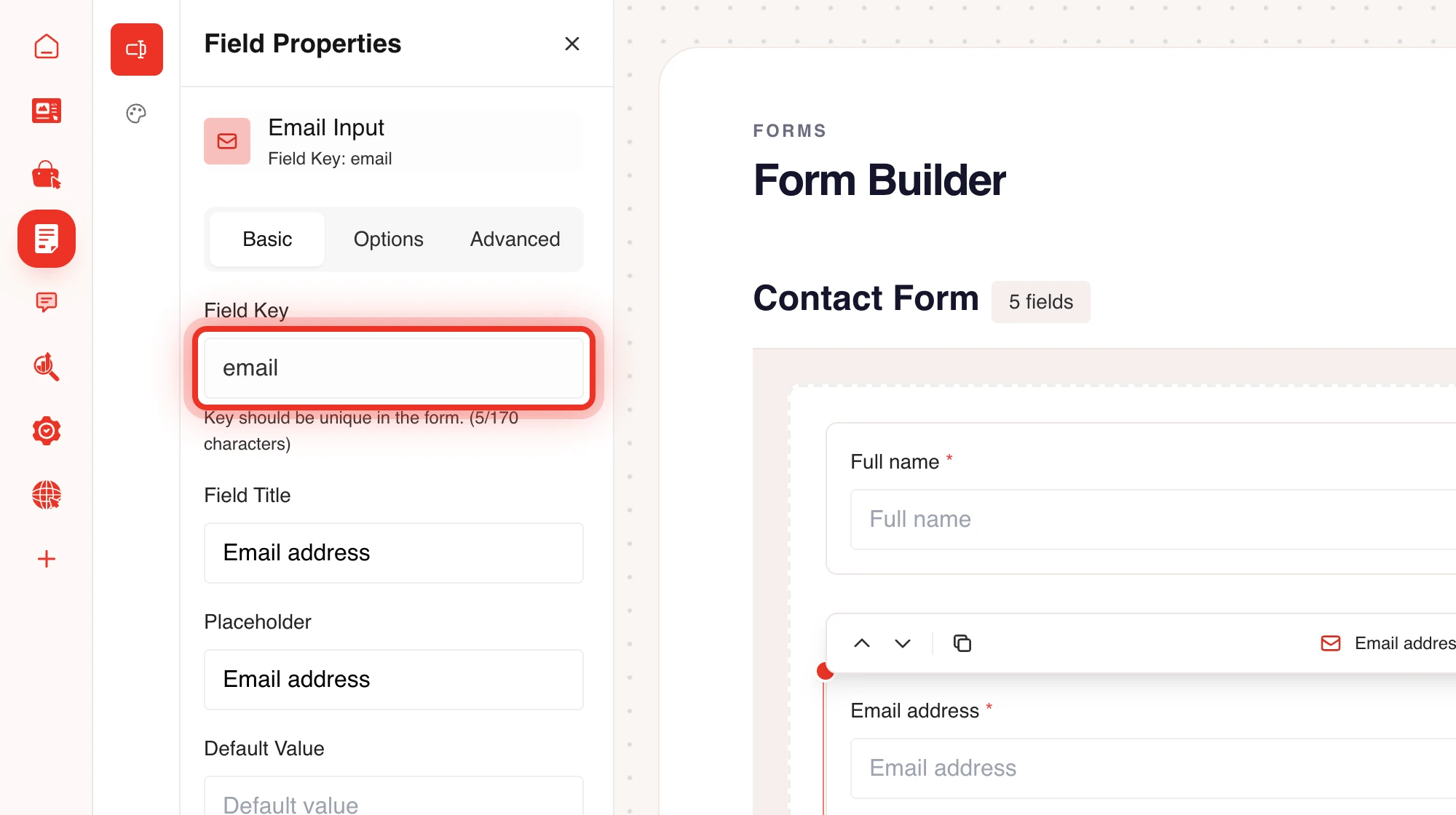
- Basic: Field Key, Field Title, Placeholder, Default Value, Help Text, Help Tooltip, Required field, Exclude from summary and Hide Title.
- Options: the choices of a dropdown, checkbox or radio field. Click Add Option for each choice.
- Advanced: settings per field type (for example the accepted file types of a File Upload), Conditional Logic, actions and Validation Rules.
Field keys
The Field Key is the name of the field's value. It must be unique in the form. You use it in emails, for example {{email}} to send a confirmation to the address a visitor typed, and it is the name of the value in a webhook. Give fields short keys such as name, email and phone before the form goes live, and keep them the same afterwards.
Show a field only when needed
Conditional Logic on the Advanced tab shows or hides a field based on the other answers. You write it as a short JavaScript function that receives the form values and returns true to show the field. A hidden field is not checked when the form is sent.
Preview, save, import and export
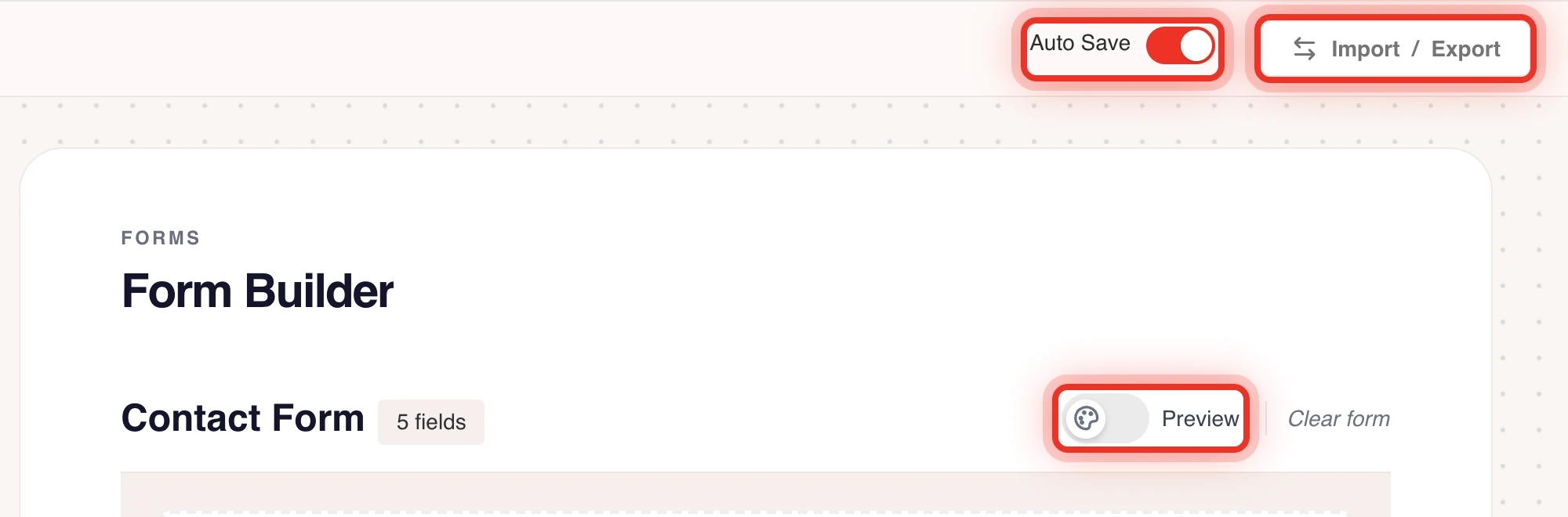
- Preview: switch between design mode and preview mode to try the form.
- Auto Save: when it is on, changes save automatically a moment after you make them. Click Save Form to save by hand.
- Clear form: remove every field. This cannot be undone.
- Import/Export: download the form's fields as a file, or import a file. An import replaces the current fields.
Next, make fields required or add checks in Required fields and validation rules, and place the form with Embedding forms on pages.
Tip: Changes to a form show on your website after you publish it again.