

Copy and paste in the WEMASY Website Builder lets you reuse a section you already designed, on the same page or on another page, without building it again. The same section toolbar also lets you duplicate, move, delete and convert sections into templates.
The section toolbar
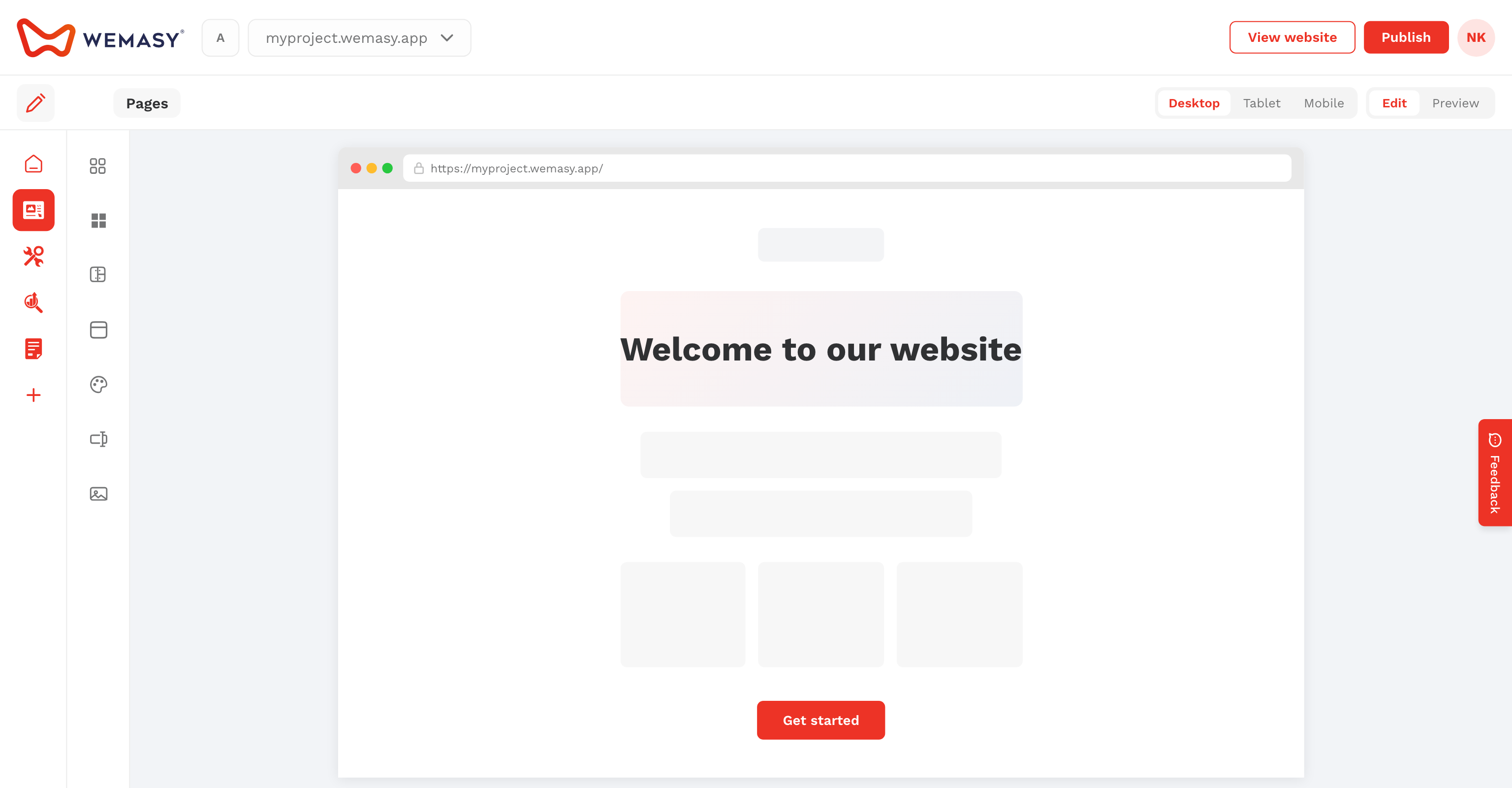
Make sure the editor is in edit mode, then hover over a section on the canvas. A toolbar appears on the section with these controls:
- Move up and Move down arrows to change the order of sections.
- A delete icon to remove the section. You confirm in the Delete block window.
- The Advanced Options menu with Copy, Duplicate, Settings, Change and the template options.
Copy a section to another place
- Hover over the section and open Advanced Options.
- Click Copy. A message confirms the block is copied.
- Go to the page where you want the section. This can be the same page or another page.
- Click the red plus between two sections where you want to insert it.
- Click the paste button next to the plus. Its tooltip says Paste the copied template.
The pasted section is an independent copy: changes to one do not change the other. The copied section stays ready to paste again until you copy something else or click Uncopy in the same menu.
Duplicate a section
To repeat a section on the same page, open Advanced Options and click Duplicate. The copy appears directly below the original.
Change the style or type of a section
- Settings opens the section style, such as background, spacing and borders. See Columns and section styling.
- Change swaps the block for another block.
Reuse a section on many pages
Copying makes separate copies. When you want one section that stays the same everywhere, convert it instead:
- Convert to Template saves the section as a template you can insert again later.
- Convert to Reusable Template creates a shared section. Changes you make to it show on every page that uses it.
See Reusable templates. A section that comes from a linked template shows Detach / Unlink in the same menu, which turns it back into a normal section on this page only.
Restore deleted pages
A deleted section cannot be restored from an archive. A deleted page can: open Pages, click View archived and use Unarchive. See Managing your pages list.
Tip: the copied section is kept in your browser. Copy and paste in the same browser window, and do not clear your browser data in between.
Frequently asked questions
I do not see the paste button
The paste button only appears after you click Copy on a section, and only in edit mode. Switch the editor to edit mode, copy the section again and open the red plus.
Can I undo deleting a section?
Deleting a section asks for confirmation first, because there is no archive for sections. If your project uses site versions, you can go back to an earlier moment in the History of the site.