

Every time you publish, WEMASY keeps the finished build of your website. On the Publish page you can see these builds, download one, or put an earlier build back online. The same page lets you set up Auto-publish, which rebuilds and publishes your website on a schedule.
A build is not the same as a site version. A build is a published copy of your website. A site version is a working copy you edit before it goes live, chosen in the header of the dashboard. See Site versions.
See your builds
- Click Publish in the top right. After your first publish, click the gear icon next to it, Deployment settings.
- Open the Versions tab.
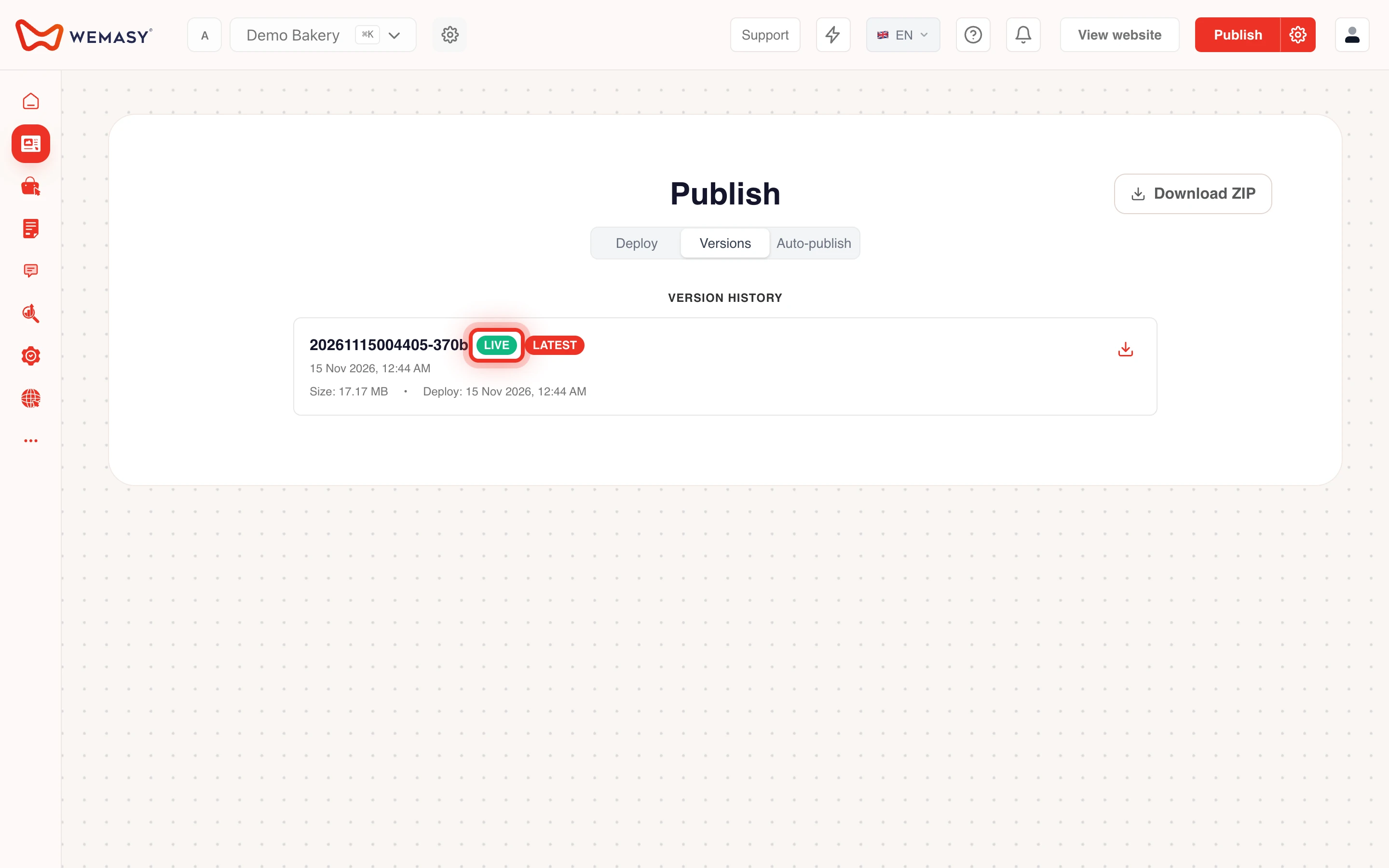
Under Version History each build shows its date, its size and when it was deployed. Badges tell you which build is LIVE and which is LATEST. A build that did not finish is marked Failed: it cannot be deployed, so publish again to make a new one.
Put an earlier build back online
- Open the Versions tab.
- Find the build you want to bring back.
- Click Deploy version.
- Click Deploy to confirm.
That build becomes the live version of your website. Your content in the dashboard does not change. The next time you publish, WEMASY builds your current content again.
Download a build
Click the download icon on a build, Download version, to save its files as a ZIP. The Download ZIP button at the top of the page downloads the latest build.
Set up Auto-publish
Auto-publish republishes your website on a recurring schedule. It helps when your site shows content that changes by itself, such as items with a scheduled publication date.
- Open the Auto-publish tab.
- Pick a preset: Daily at 07:00 or Every Monday at 09:00, or set your own interval.
- Click Start auto-publishing.
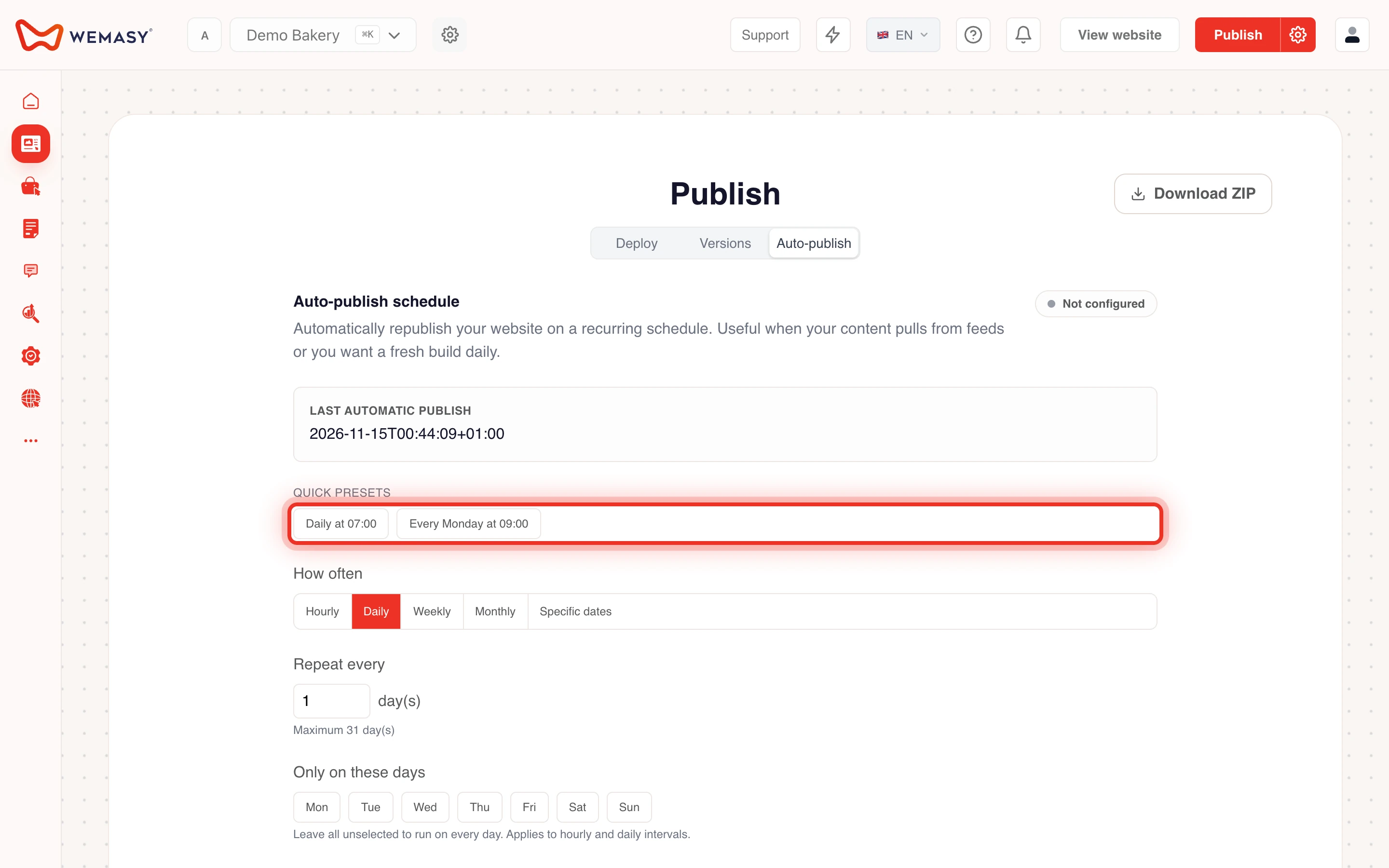
The status pill shows Active, Paused or Not configured. Your changes take effect within a minute.
Pause or change the schedule
- Click Pause to stop the schedule. Your settings stay saved.
- Click Resume auto-publishing to start it again.
- Change the interval and click Save changes.
Under Last automatic publish you see when the last scheduled run happened and whether it was a Success, Failed or Skipped. If a scheduled publish fails, your live website is not replaced.
Related: Scheduled publication and Generator and publish troubleshooting.
Frequently asked questions
Does deploying an earlier build undo my edits?
No. It only changes what visitors see. Your pages in the dashboard stay as they are, and your next publish puts your current content online again. To bring back earlier content itself, use the Versions page in the dashboard header.
Why is the Deploy version link missing on a build?
The link only shows on builds that can be deployed. It does not show on the build that is already live or on a build marked Failed.