

A reusable template is a section you keep in one place and use on many pages. Headers and footers are the most common ones, but a call to action, an opening hours block or a newsletter signup work just as well. When you change a reusable template, every page that uses it shows the change.
Open Reusable Templates
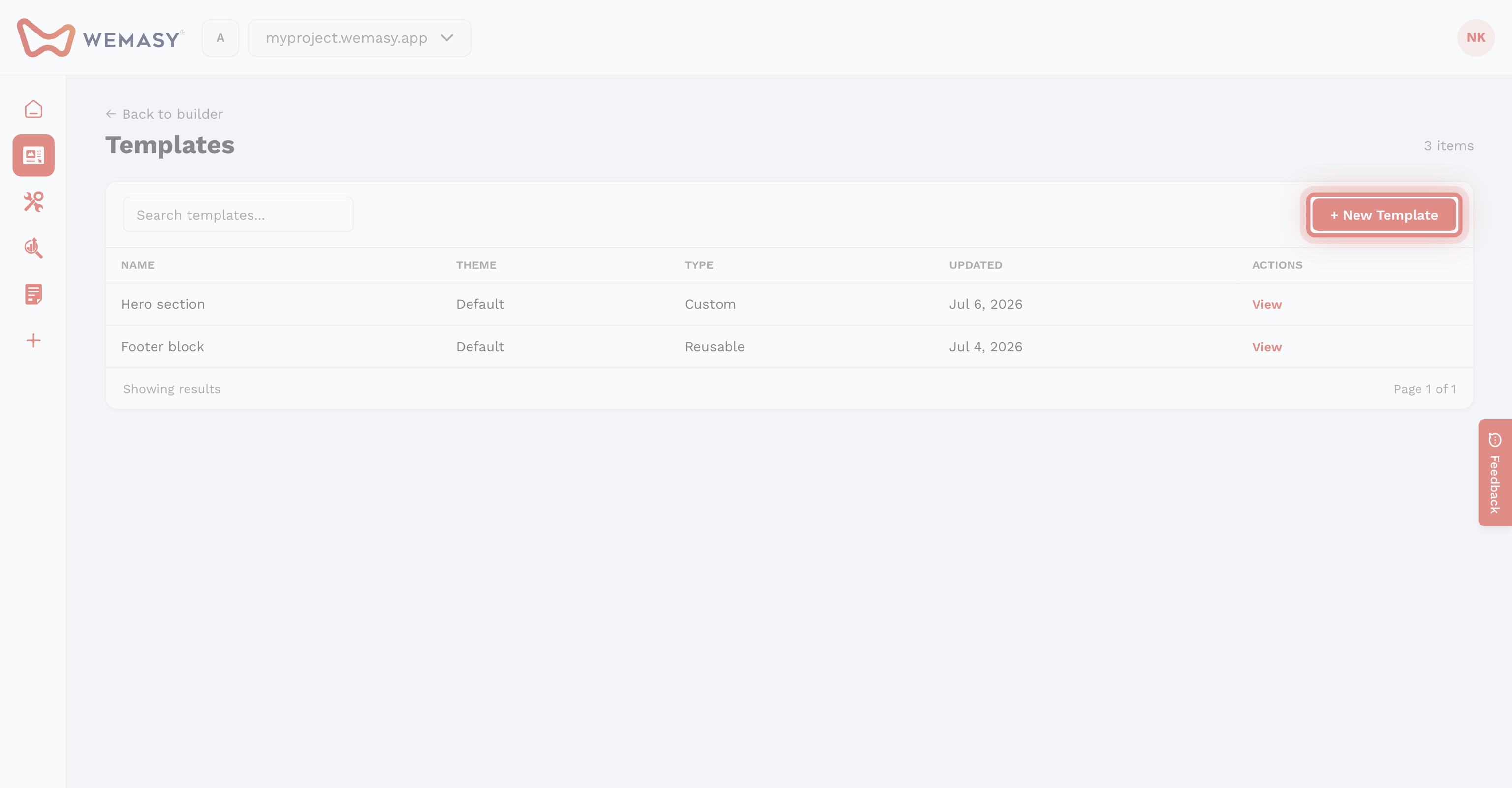
- Open Website Builder.
- Click Reusable Templates in the left sidebar.
The panel lists your reusable templates. Use Search reusable templates... to find one.
Create a reusable template
There are two ways:
- Click Create Reusable Template in the panel, give it a name and design it on the canvas.
- Or turn an existing section into one: hover over the section, open Advanced Options and click Convert to Reusable Template. Enter a Template Name and click Convert.
Use it on a page
- Drag the reusable template from the Reusable Templates panel onto the page.
- Or click the red plus between two sections, open More options in the library and choose Use reusable template.
The section is linked: edit its content and the change appears everywhere it is used.
Headers and footers
Reusable templates are the building blocks of layouts. A layout picks one as its Header template and one as its Footer template. See Layouts explained.
Unlink a section
When one page needs a different version, hover over the section, open Advanced Options and click Detach / Unlink. Confirm with Detach/Unlink. The section becomes a normal section on this page only, and later changes to the template no longer reach it.
Tip: name reusable templates by what they are, such as Footer main or CTA free quote, so you find the right one later. Templates you only want to copy, not link, are explained in Inserting templates on the canvas.
Frequently asked questions
I changed a section and other pages changed too
That section is a linked reusable template. Use Detach / Unlink on the page where it should be different.