

Button styles decide how every button on your website looks before you change a single button on a page. WEMASY has three button types: Default button, Featured button and Secondary button. Style them once in Customization and all buttons of that type follow.
Open the button styles
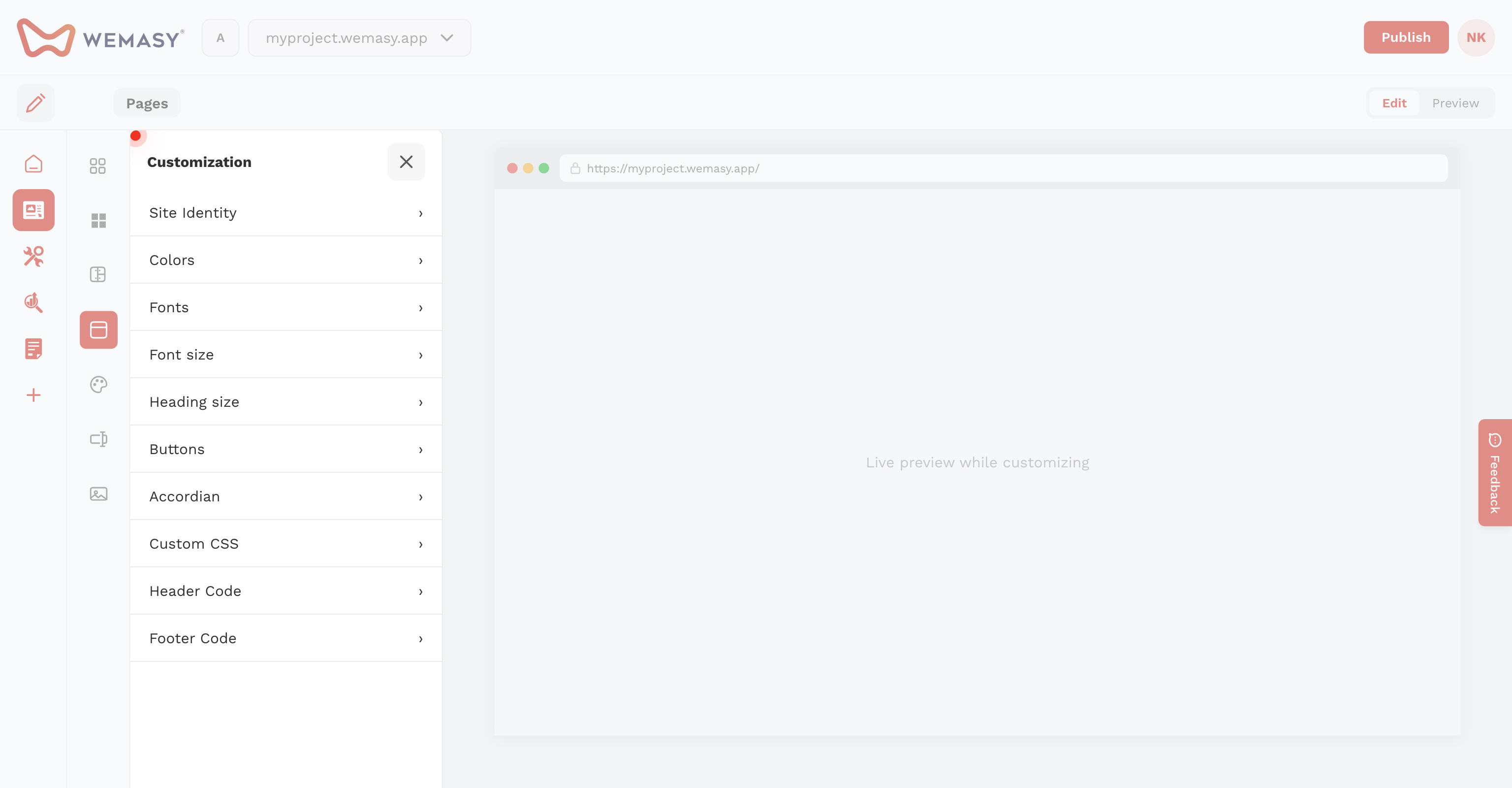
- Open Website Builder.
- Click Customization in the left sidebar.
- Click Buttons.
- Click the button type you want to change.
The three button types
- Featured button: your main call to action, such as Book now or Get a quote. Give it your strongest brand color.
- Secondary button: a second action next to the featured one, such as Learn more.
- Default button: a calm button for less important actions.
When you add a Button element, you choose its Button Style: Primary uses the featured button style and Secondary the secondary button style. Default uses the default button style.
Change a button style
Each button type has the same settings:
- Background color, Text color and Border color.
- Padding top, Padding right, Padding bottom and Padding left for the space around the text.
- Border top, Border right, Border bottom and Border left for the border width.
- Radius for rounded corners. A high value makes a pill-shaped button.
- Shadow for a shadow under the button.
- Change a setting.
- Look at the canvas: buttons of that type update right away.
- Repeat for the other settings and button types.
Quick looks in the setup wizard
When you set up your site, the onboarding step Style your buttons offers ready looks: Sharp, Rounded, Pill and Minimal. They fill in the same settings you see here, so you can fine-tune them afterwards in Buttons.
Tip: use the palette colors for buttons. When you change your brand colors in Colors in customization, the buttons change with them.
Frequently asked questions
One button looks different from the rest
That button probably has its own style set in its element settings, or uses another button type. Select it on the canvas and check which type and style it uses.
Do button styles also apply to form buttons?
Buttons that use one of the three button types follow these styles. If a form or template button looks different, check its own settings.