

A form only collects submissions once it is on a page of your website. You place it with the Forms element in Website Builder, pick which form it shows, and publish. The same form can be on as many pages as you like, and all submissions end up in one place.
Place a form with the Forms element
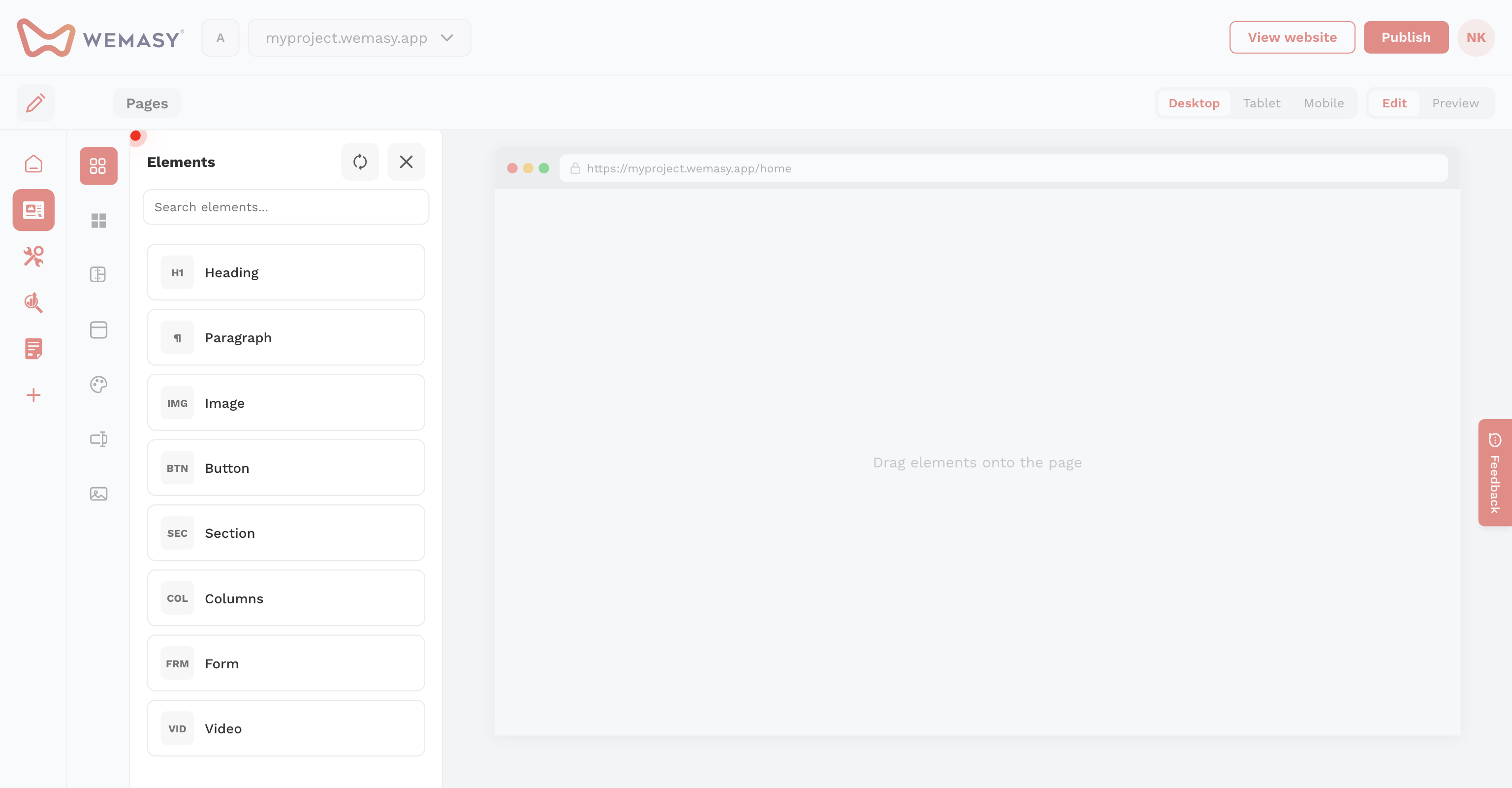
- Open Website Builder and go to the page where the form belongs.
- Open the elements panel.
- Drag the Forms element onto the page.
- Choose your form in the Form field of the element.
- Publish your website.
Until you choose a form, the element shows "Please select a form to display".
Change how the form looks
The Forms element has its own settings for the look of the form on that page:
- Width and Padding.
- Block Alignment and Label Alignment.
- Button Type and Button Alignment for the submit button.
- Transparency of the form background.
Colors and fonts come from your website's customization, so the form matches the rest of your site.
Edit the form from the page
Click Edit Form in the element settings to open the form builder for the selected form. Changes to the fields apply everywhere the form is used. Publish again to show them on your live site.
Other ways to add a form
- Contact Form element: adds a ready-made contact form in one step. See the Contact form element.
- From the Pages menu: create and open forms without leaving Website Builder. See Creating forms from the Pages menu.
- In a popup: show a form inside a popup with the Popups tool.
- As a shortcode: the Forms element is also available as the wemasy-forms shortcode. See Shortcodes in Website Builder.
Test the form
- Open the published page in a private browser window.
- Fill in the form and send it.
- Check that the submission appears under Submissions in Forms.
- Check your inbox if Notify owner is on.
More on the element itself: Forms element.
Tip: Put your contact form on its own contact page and link to it from your menu, so visitors always find it.