

Two buttons in the top right of the dashboard take you from editing to a live website. View website opens a preview of your site with all your latest changes, before anyone else sees them. Publish puts those changes online. After your first publish, it does that in one short step, called quick deploy.
Preview your website
- Click View website in the top right.
- Browse your site in the new tab.
The preview shows your website as it is in the dashboard right now, including changes you have not published. It runs on a separate preview address, so visitors and search engines do not see it. To see a site version you are working on, use Preview in the version switcher instead. See Site versions.

Publish again with quick deploy
Once your site has been published, the Publish button remembers where it went live.
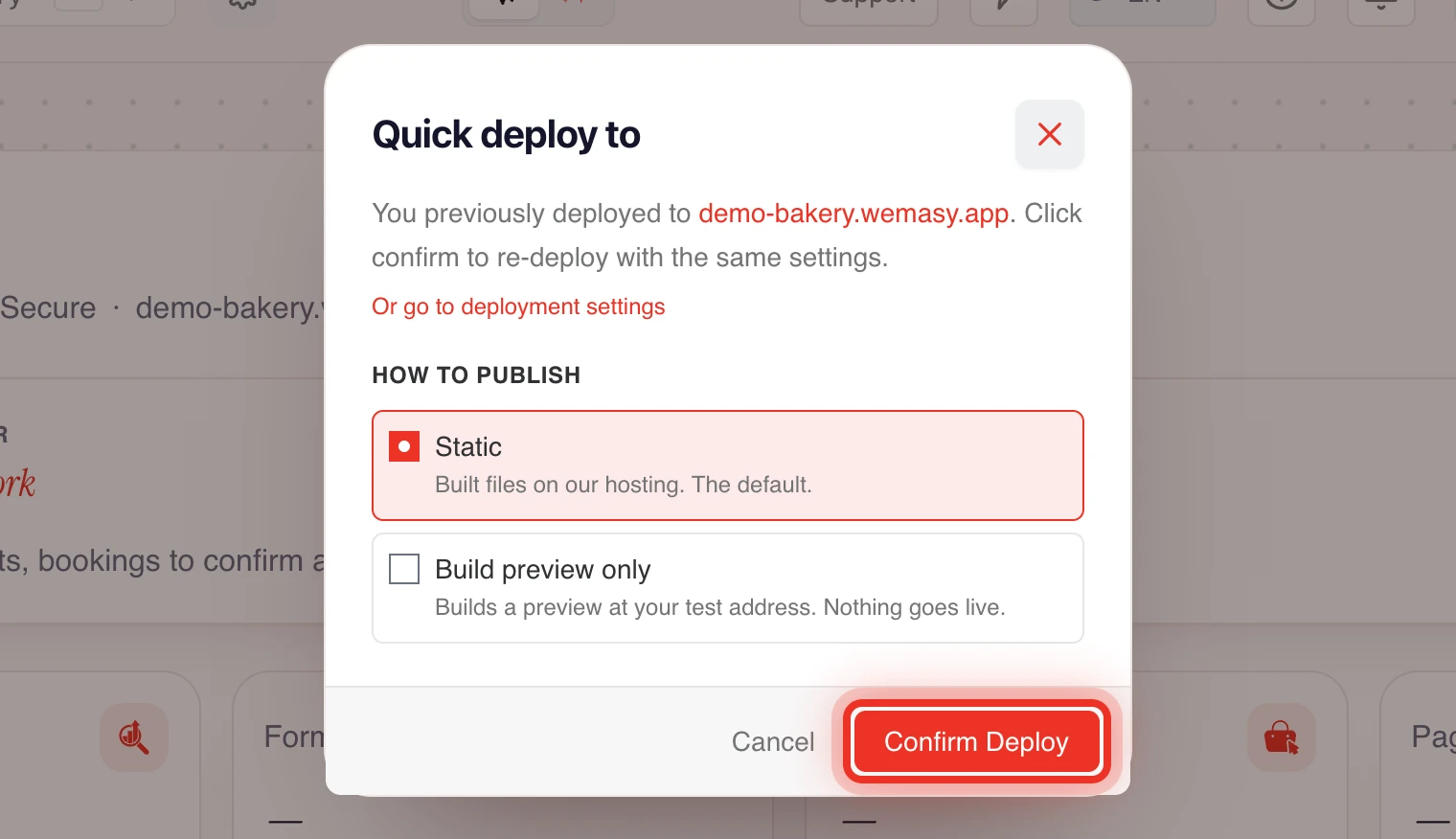
- Click Publish in the top right. The popup Quick deploy to opens.
- Check the address in the popup. It is the domain you published to last time.
- If the popup shows How to publish, choose an option. Most websites do not need to change it.
- Click Confirm Deploy. Click Cancel to close the popup without publishing.
WEMASY builds your site and shows Deployment completed successfully when the new version is live.
How to publish
These choices only show for websites on the newer WEMASY generator. The first choice is selected for you.
- Static: WEMASY builds the files and puts them on its hosting. This is the default.
- Dynamic render: your site is served straight from your website's files, so changes are live right after publishing. You only see this choice when WEMASY can serve your website this way.
- Build preview only: WEMASY builds a preview at your test address. Nothing goes live. WEMASY tells you the address when the preview is ready.
Open the full Publish page
Use the full Publish page when you want to change where your site goes live, put an earlier build back, download your site or set up Auto-publish.
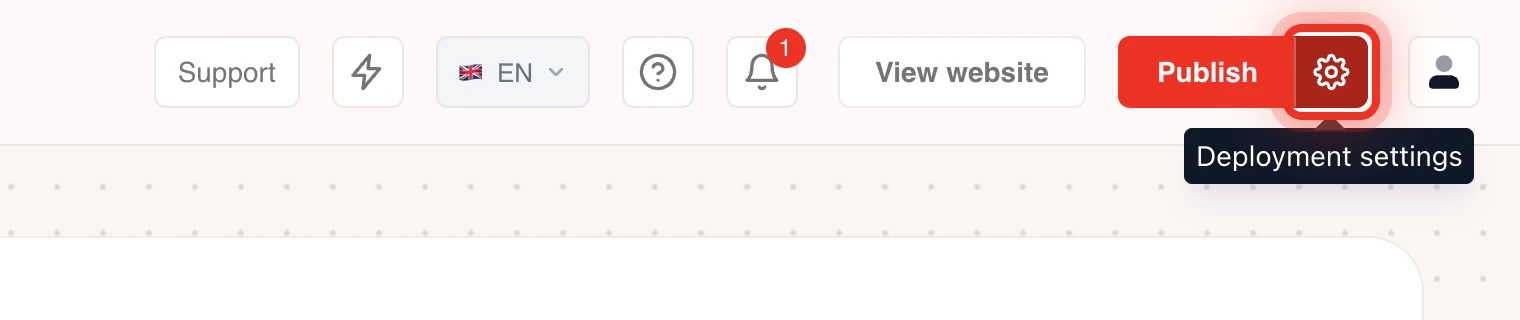
- Click the gear icon next to Publish. Its tooltip says Deployment settings.
- Choose the Deploy, Versions or Auto-publish tab.
In the quick deploy popup you can also click Or go to deployment settings.
See Publishing your website and Auto-publish and deploy versions.
Tip: check your changes with View website first, then publish. If the preview looks right but the live site does not change, see Generator and publish troubleshooting.
Frequently asked questions
Why does Publish open the full page instead of the quick popup?
Quick deploy needs an earlier publish to a domain. On your first publish, WEMASY opens the publish screen with your free address and the Publish my website button. See Publishing your website.
Can I share the preview link with someone?
The preview is meant for checking your work. To show your website to others, publish it and share the live address.