

Publishing puts your website online so visitors can see it. In WEMASY you edit your site in the dashboard and click Publish when you are ready. The publish screen shows the address your site goes to and one button. WEMASY then builds your site and puts the new build online. Your live site stays as it is until the new build has finished without errors.
Before your first publish
- Create at least one page. A site without pages cannot be published.
- Your free address works without a verified email address. To publish on your own domain, verify your email address first.
- Click View website in the top right to check your pages before they go live.
Publish your website for the first time
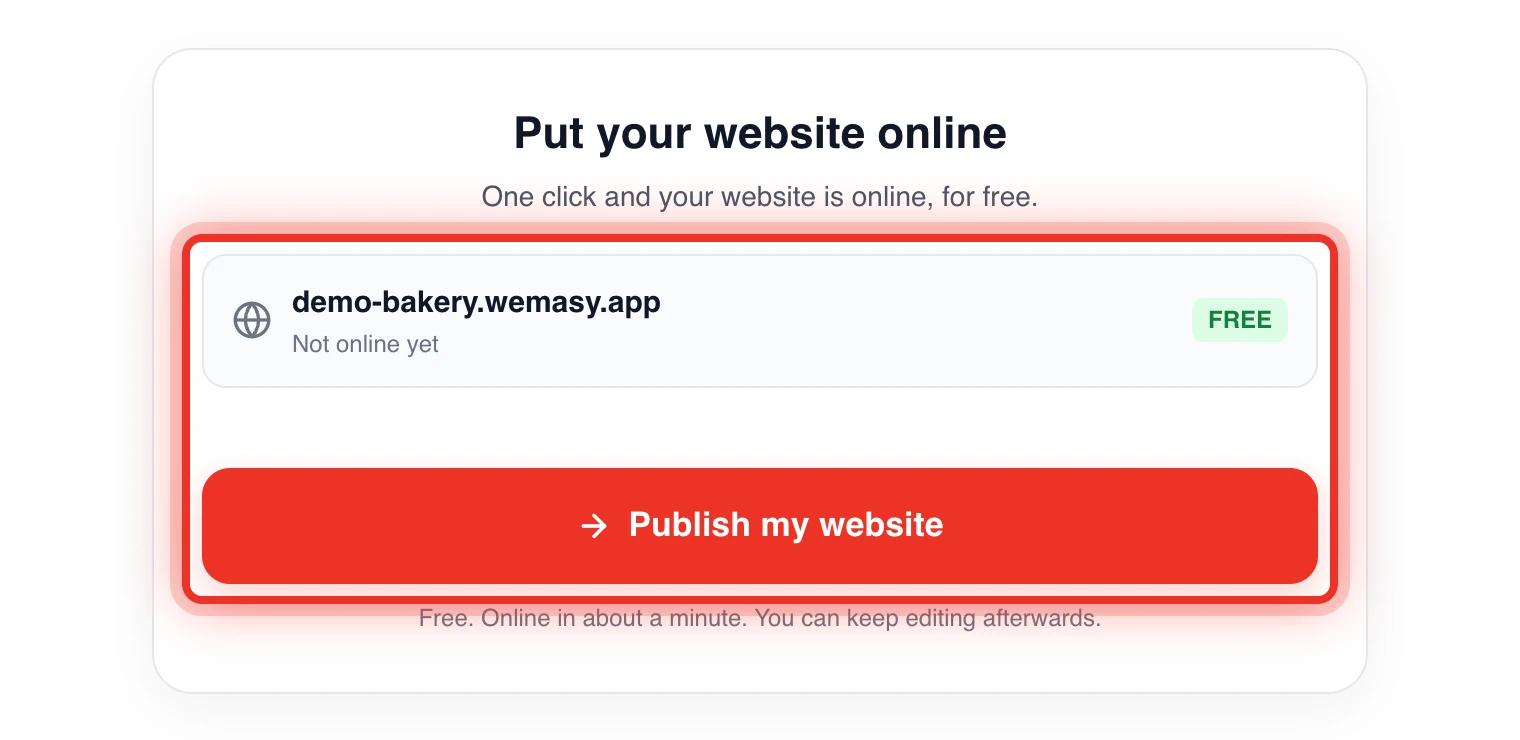
- Click Publish in the top right of the dashboard. The screen Put your website online opens.
- Check the address. A new site goes to a free *.wemasy.app address with the FREE badge. It shows Not online yet until the first publish is done.
- If WEMASY asks for Your free address, enter the name you want before .wemasy.app.
- If you see First, make it yours, add at least one of Business name, Phone number or Logo. WEMASY saves these details on your website.
- Click Publish my website.
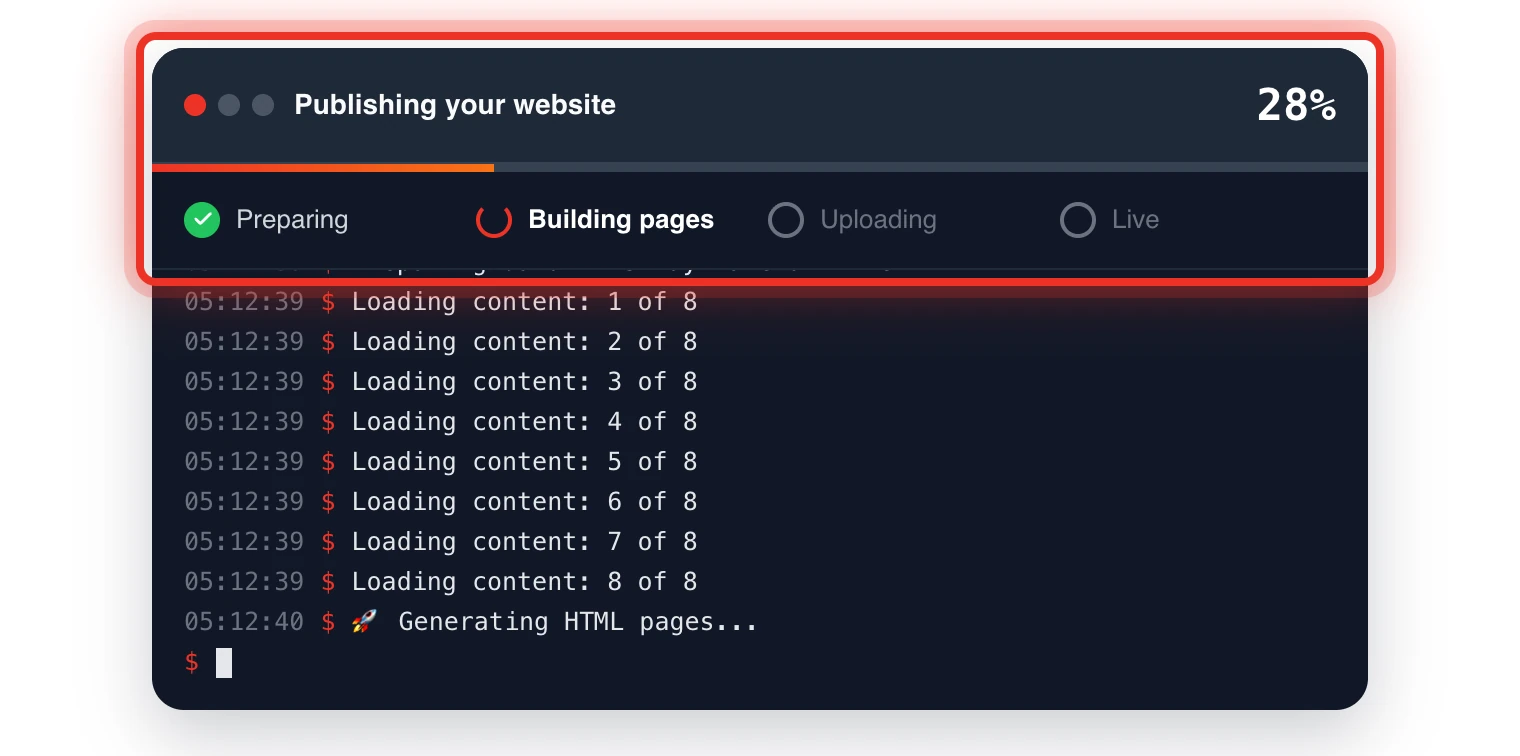
While WEMASY publishes, you see the steps Preparing, Building pages, Uploading and Live, a percentage and the build log. It usually takes about a minute. You can keep editing afterwards.
Your website is live
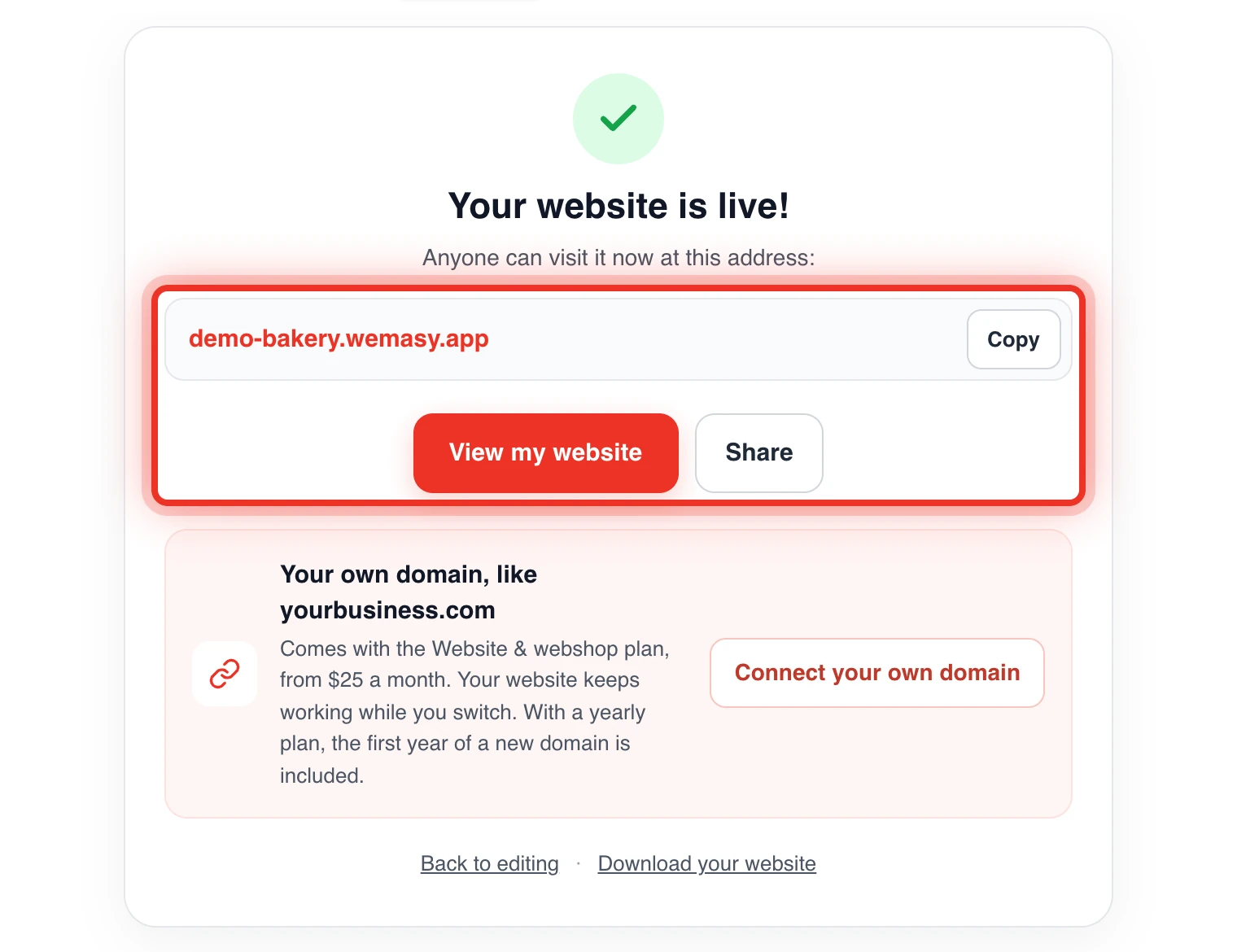
When the build is done, you see Your website is live! with your address.
- Copy: copies the address so you can paste it anywhere.
- Share: opens the share options of your phone, or copies the link on a computer.
- View my website: opens the live site.
- Connect your own domain or Get my own domain: starts the steps for an address like yourbusiness.com. A custom domain needs a paid plan. See Custom domain publishing.
- Back to editing takes you back to the editor. Download your website downloads the build as one archive file.
After your very first publish, this screen also has WhatsApp and QR code to share your address, and Next: help people find you with the first steps to get visitors.
Publish your changes
Visitors only see changes after you publish again. After the first publish, the Publish button in the top right opens a short confirmation: click Confirm Deploy. See Quick deploy and view website.
You can also open the publish screen with the gear icon next to Publish. It now says Publish your changes and shows Last published with the date. Click Publish changes.
Once your site is live, the publish screen also has a Versions tab with every build and an Auto-publish tab to publish on a schedule. See Auto-publish and deploy versions.
Check your pages before they go live
Once your site is live, the publish screen has the option Check my pages before going live. When you tick it, WEMASY first compares your most important pages in the new version with your live website, on a phone and on a computer. If a page looks clearly broken, your live website stays as it is and you choose what happens. The publish then takes about a minute longer.
- Open the publish screen with the gear icon next to Publish.
- Tick Check my pages before going live. WEMASY remembers your choice for this website on this computer.
- Under Pages we check, keep the suggested pages or change them. WEMASY suggests pages from your visitors of the last 14 days: your home page, ad landing pages, your most visited pages with their share of visits and pages with a form. Click Add a page to add one, or remove one. You can check up to 6 pages. Use the suggested pages brings the suggestion back.
- Click Publish changes.
If some pages look different, you see Your live website is unchanged with each page next to the live version and the reason, for example Form missing or Page mostly empty. Pages you changed yourself are marked, because your own edits make them look different. Click Keep the live version to leave your live website as it is (the new version stays in your versions), or Publish anyway.
The number of checks a month depends on your plan: 5 on the free plan, 30 on Website & webshop and 100 on All-in-one. The screen shows how many checks you have left. When they are used up, your website is published without the check.
Warnings and errors
- Part of your site is hidden from search engines: more than one in five of your pages is set to noindex. Those pages are left out of search results and the sitemap. The warning never stops the publish. Check the SEO settings of those pages if they should be found. See Page settings and SEO.
- Your website could not be published: nothing changed on your live site. Click Try Again. Click Show details to see the build log. If it keeps failing, contact support.
Frequently asked questions
What happens to my live site if a publish fails?
Nothing. The new build only replaces your live site when it finishes without errors. Visitors keep seeing the previous version.
Where did the Static and Build preview only options go?
The publish screen does not ask how to publish. You only click one button. On some websites, the short confirmation that opens from the Publish button shows How to publish with Static, Dynamic render and Build preview only. See Quick deploy and view website.
Can I download my website?
Yes, once it has been published. Click Download your website on the screen you see after a publish. Or open the Versions tab of the publish screen and click Download ZIP at the top, or the download icon of one build. The download always includes your images.