

The Product Carousel element shows a row of images that visitors slide through, for example several photos of one product, the rooms of your holiday home or examples of your work. Despite its name it works with any images: you add the pictures yourself and choose how many are visible at once.
Add a carousel
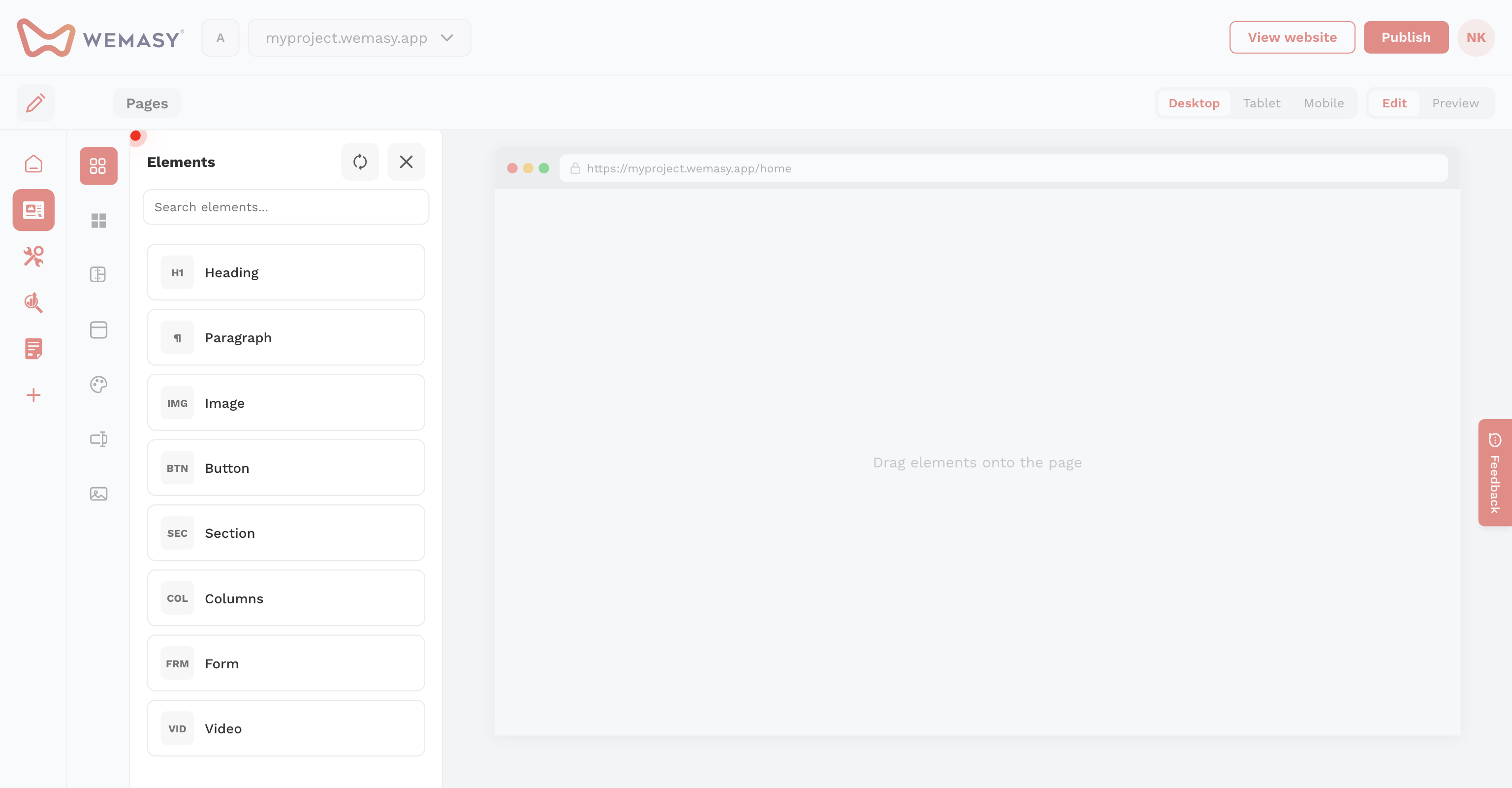
- Click Elements in the left sidebar.
- Drag Product Carousel into a section.
- Click the placeholder Add carousel images.
- Upload images or choose them from the media library under Product Images.
- Fill in an Image Description (Alt) for each image.
How many images show at once
- Number on Desktop: slides visible on desktop.
- Number on Tablet: optional. Leave it on Default (same as desktop) to use the desktop number.
- Number on Mobile: slides visible on phones. One is usually best.
Size and style
- Carousel Width and Carousel Height.
- Border Radius for rounded corners.
- Border Width and Border Color for a frame.
- Shadow for depth.
Carousel, slider or gallery?
- Product Carousel: a row of images only, quick to set up.
- Slider element: slides with any content, such as text and buttons, and autoplay settings.
- Gallery element: all images visible at once in a grid.
Tip: use images with the same shape so the carousel keeps an even height while it moves.
Frequently asked questions
Does this element show my webshop products automatically?
No. It shows the images you add to it. To list webshop products, use the Products element.
How many images can I add?
Add as many as you need. Keep it to a handful per carousel so visitors see them all, and compress large photos for fast loading.
Can visitors swipe on a phone?
The carousel is made for sliding through images. Check it on your phone after publishing.