

The Product Categories element shows categories from your webshop as clickable cards, such as Women, Men and Accessories, or Bread, Cakes and Coffee. Visitors pick a category and land on its page with all products in it. It is a good way to start your homepage or shop page.
Before you start
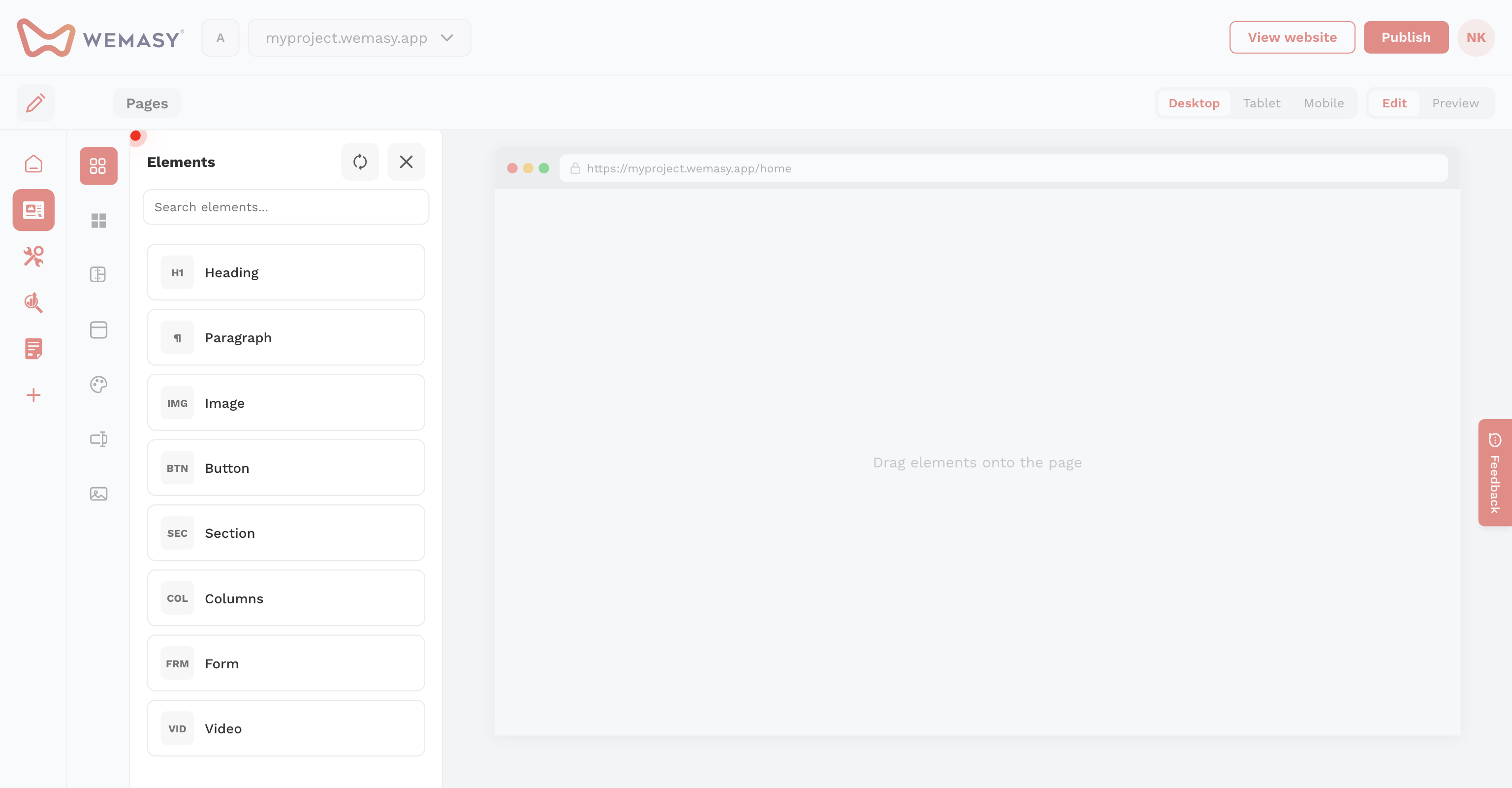
This is a webshop element: it appears in the Elements panel when the webshop is on. Create your categories first. See Product categories.
Add categories to a page
- Click Elements in the left sidebar.
- Drag Product Categories into a section.
- The element says No categories selected. Click here to choose categories. Click it.
- Choose the categories in Select categories....
- Click Update preview.
Make the cards look good
- Give every category an image in the webshop. The cards use it.
- Keep category names short, so they fit on one line on phones.
- Choose an even number of categories, such as four or six, for a balanced grid.
Change the selection
Open the element settings to add or remove categories, then click Update preview. New categories do not appear by themselves: add them to the element when you create them.
Tip: combine categories at the top of the page with a Products element of best sellers below.
Frequently asked questions
I do not see the Product Categories element
The webshop is not turned on for this project. Turn it on and the webshop elements appear in the Elements panel.
Can I show subcategories?
Choose the categories you want to show in the selection, including subcategories you created in the webshop.