

The Gallery element shows a set of images in a tidy grid, for example photos of your work, your team or your venue. You pick the images once, choose how many columns, and visitors can open each image large on their screen.
Add a gallery
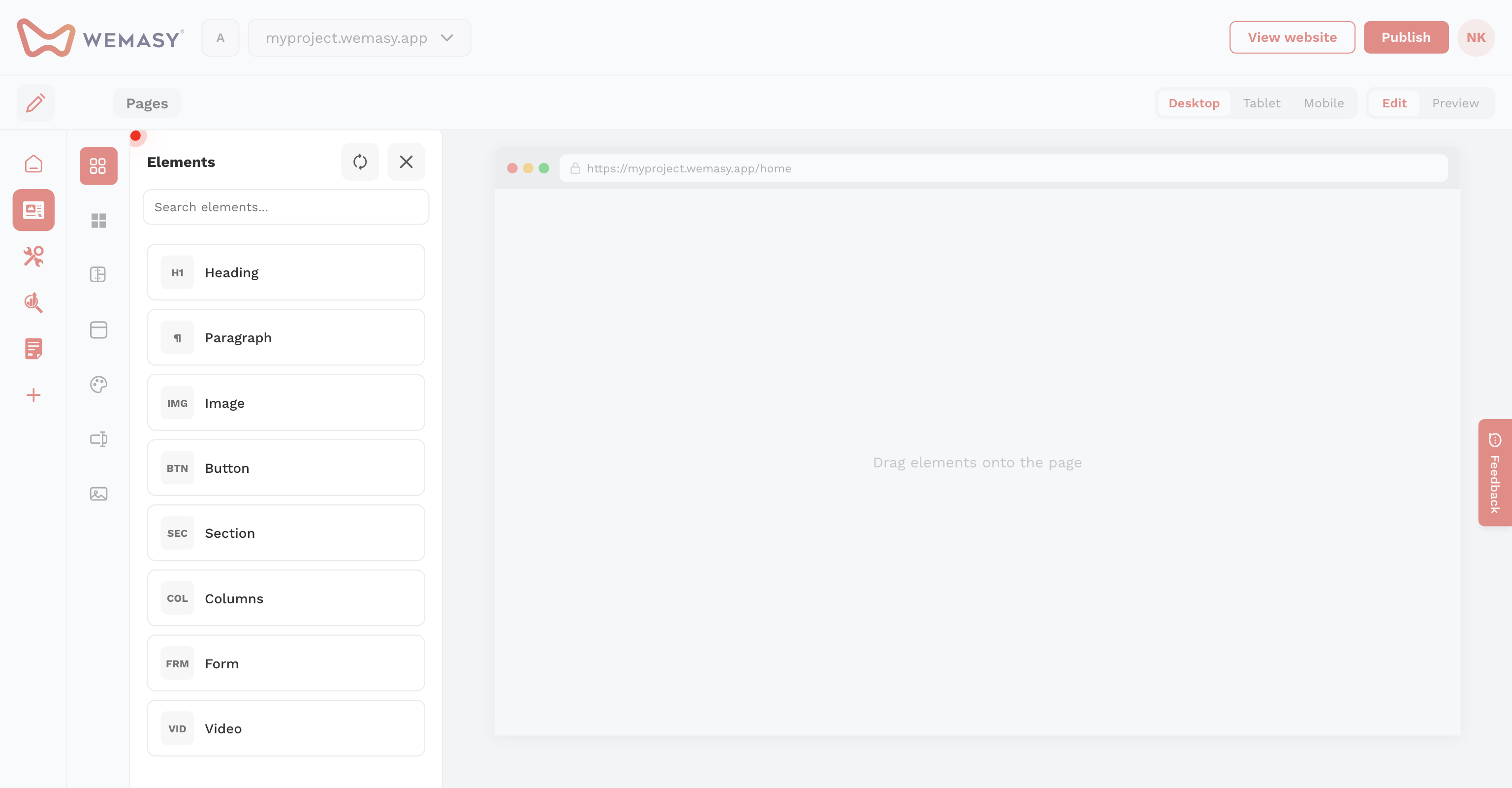
- Click Elements in the left sidebar.
- Drag Gallery into a section.
- Click the placeholder Add your gallery images.
- Upload images or pick them from the media library.
Layout settings
- Number of Columns: from Full Width to 6 Columns.
- Gap Between Columns: the space between images.
- Fit: Cover (crop to fill) makes all tiles the same size by cropping; Contain (show whole image) shows each image completely.
- Width and Height of the images.
- Alignment: Left, Center or Right.
Style settings
Give the images rounded corners with Radius, a frame with Border and Border Color, and depth with Shadow. The settings apply to every image in the gallery, so the grid stays consistent.
Click behavior and descriptions
- Click Event: Full Screen opens the image large; None does nothing.
- Image Description: the alt text of each image, read by screen readers and search engines.
- Link: a link for an image, where you want an image to lead to another page.
Change the images later
Select the gallery and open its settings to add, remove or reorder images. Upload new photos through the Media library, so you can reuse them elsewhere.
Tip: use photos with the same shape, for example all landscape, and set Fit to Cover (crop to fill) for an even grid. For images that move, use the Slider element.
Frequently asked questions
How many images can a gallery hold?
Add as many as you need, but keep it to what a visitor will look at. Large galleries load slower, so split very big sets over several pages or sections.
Can visitors swipe through the images on a phone?
Full Screen opens one image large. For images that visitors swipe through, use the Slider element instead.