

WEMASY lets you mark one menu and one layout as the default. The default menu is the primary navigation of your website. The default layout is the header and footer that new pages get. Setting both saves you from choosing them again for every page.
Set the default layout
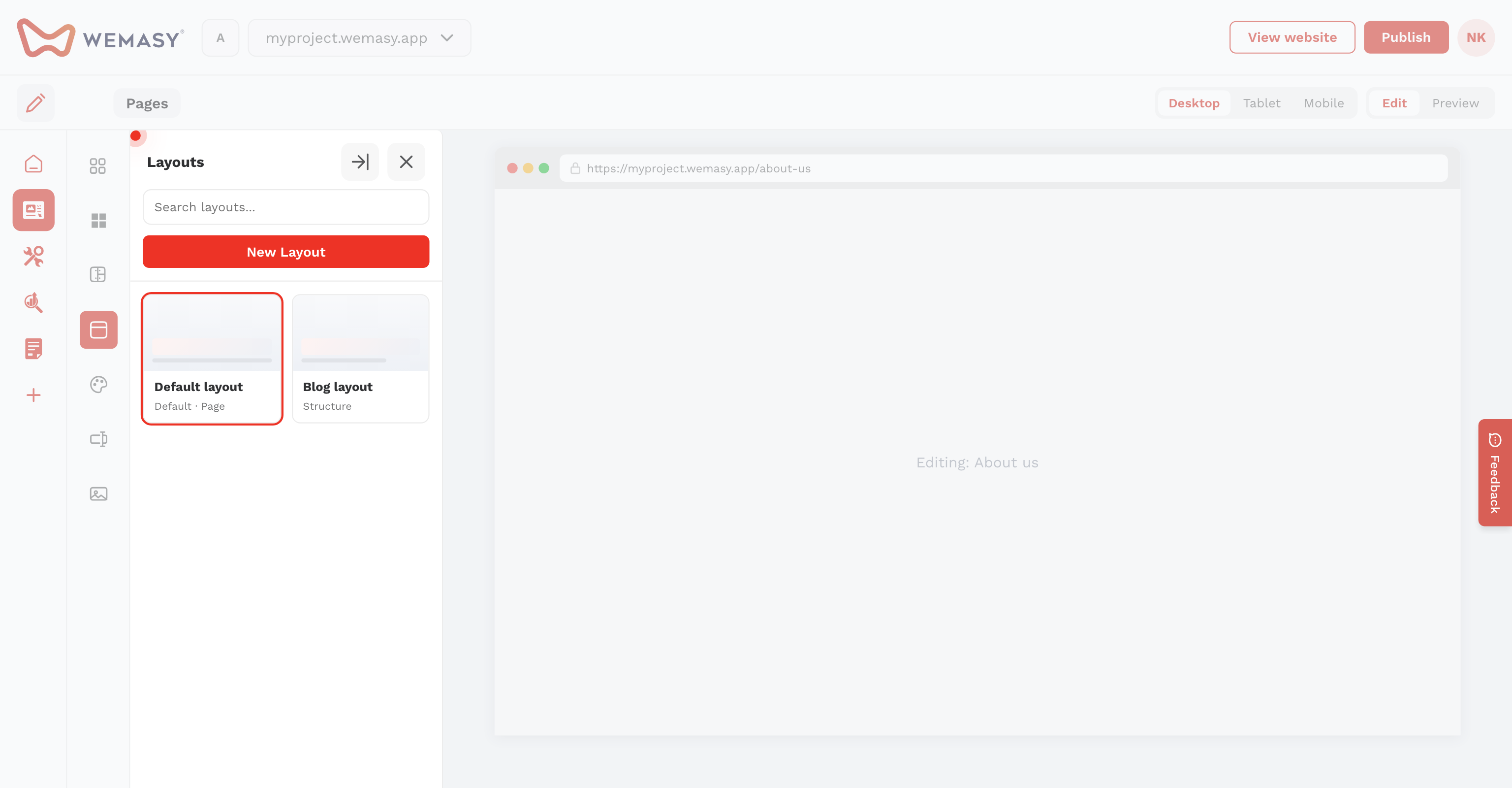
- Click Layouts in the left sidebar of the Website Builder.
- Open the layout you want to use as the default.
- Switch on Set as default layout.
- If another layout is the default now, WEMASY asks Change default layout. Click Yes, set as default.
- Save the layout.
All new pages use this layout unless you select another one. Existing pages keep the layout they have. To change the layout of one page, open its settings and pick a Page layout on the Layout tab. See Layouts explained.
Set the default menu
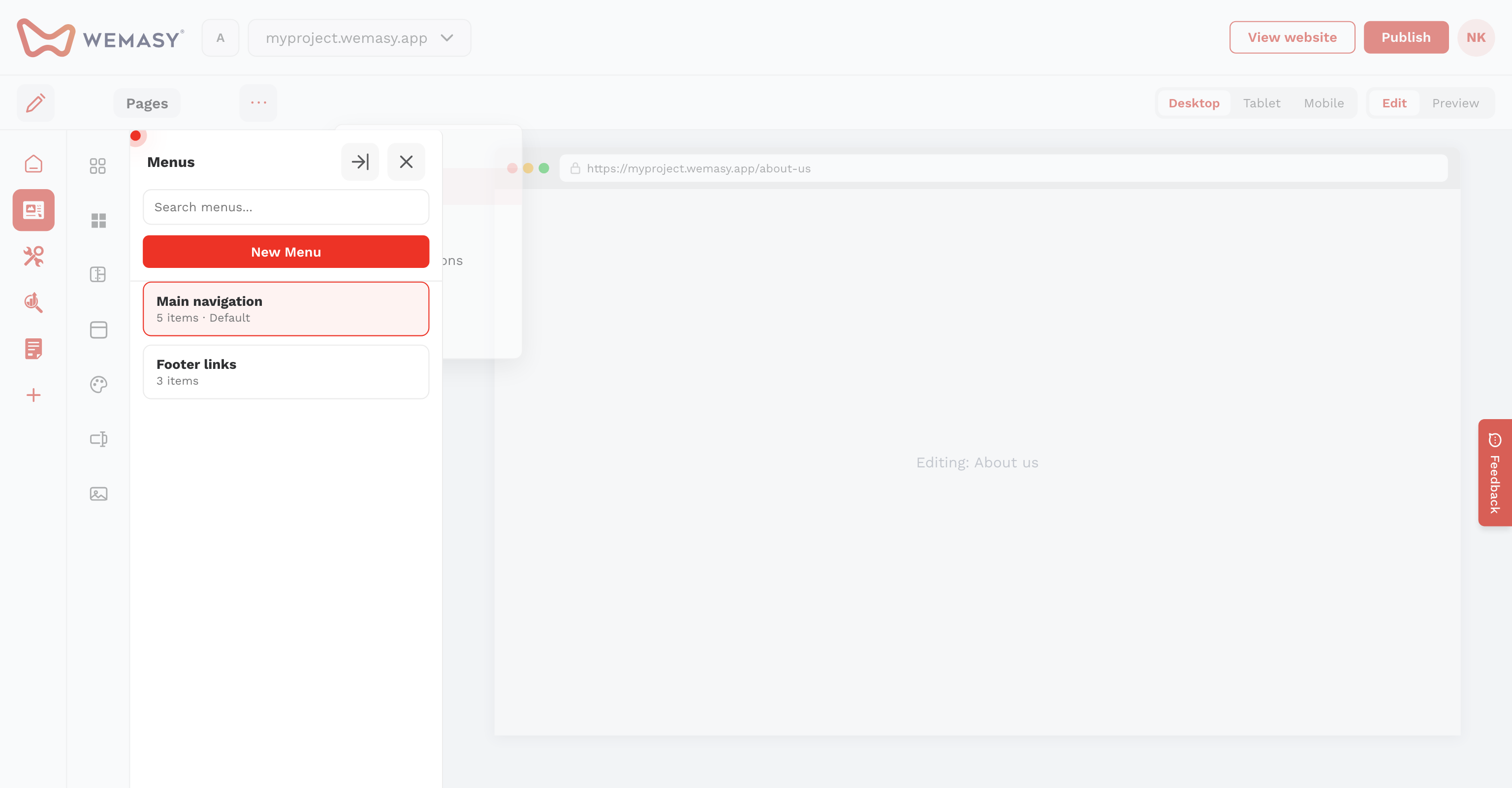
- Click the three-dots menu next to Pages and click Menus.
- Open the menu you want as your main navigation.
- Switch on Set as default menu.
- If another menu is the default now, WEMASY asks Change default menu. Click Yes, set as default.
- Save the menu.
Headers from themes show the default menu, so switching the default changes the navigation on every page that uses such a header. See Menus and navigation.
Only one default at a time
A project has one default menu and one default layout. Setting a new default replaces the old one, which is why WEMASY asks you to confirm. The old menu or layout is not deleted.
Tip: create a separate footer menu and place it with a Menu element in your footer. Keep the default menu for the header.
Frequently asked questions
I changed the default layout but my pages look the same
The default layout is used for new pages. Existing pages keep their own layout. Change it per page on the Layout tab of the page settings.