

When you install a theme in WEMASY, you decide how much of it lands in your project. You can copy its sample pages, structures, style settings and webshop data, so your site looks like the demo right away, or install only the theme reference and pick sections yourself later.
Open the install window
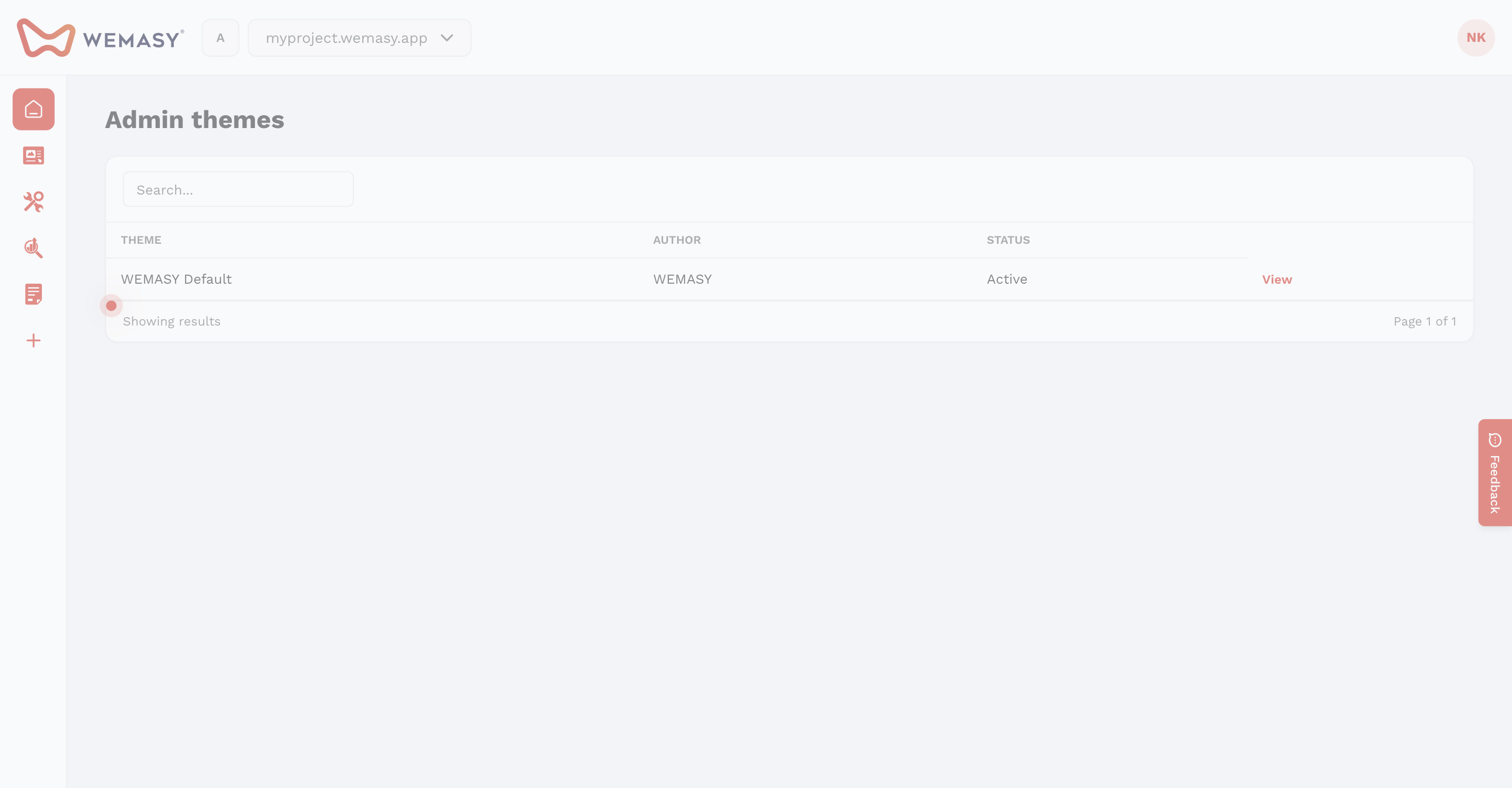
- Click Themes in the left sidebar.
- Click Install New Theme.
- Click Install Theme on the theme you want.
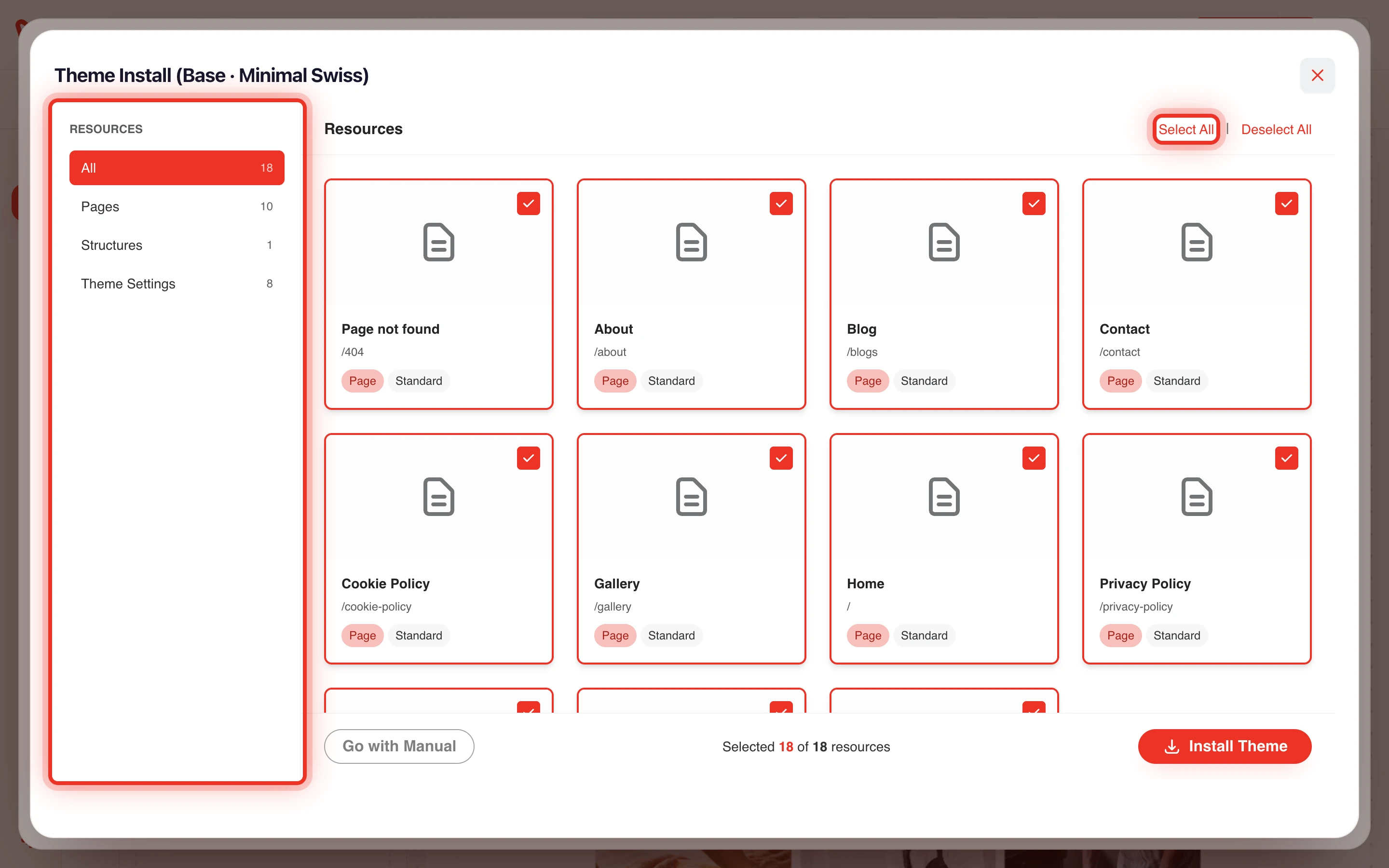
The window Theme Install opens with the theme name and a list of Resources.
Choose the resources
Use the filters to see each kind of resource. Tick what you want to copy, or use Select All and Deselect All.
- Pages: the sample pages of the theme. The page marked Homepage is the home page of the theme.
- Structures: collections such as a blog, with their Pages and Categories.
- Theme Settings: colors, fonts, buttons and other customization. A setting marked Will override replaces your current setting. Not configured in theme means the theme has no value for it.
- Webshop: sample Products, Categories and Filters.
The counter at the top shows how many resources are selected.
Install
- Click Install Theme.
- Read the confirmation Install theme?. If you selected theme settings, it lists the settings that will replace your current customization.
- Click Install.
Selecting theme settings overrides your existing project customizations for the chosen options. Leave them unticked to keep your own colors and fonts.
Install manually
Click Go with Manual to install only the theme reference. All the theme pages and templates are then available in your project, and you choose yourself what you use: add sections from the template library, or create pages and layouts from the theme. Confirm the question and click Install.
What stays in your project
Pages, sections and content you already built stay where they are. Copied sample pages are normal pages afterwards: change their text and images, or delete the ones you do not need. See Managing your pages list.
Tip: on an existing site, install with Go with Manual or tick only the pages you need. That avoids replacing your style settings by accident. Browsing themes: Theme marketplace.