

Templates are ready-made sections you add to a page and then fill with your own text and images. In the WEMASY Website Builder you add them from the template library or drag them from the sidebar. Before you add one, you decide whether it stays linked to the original or becomes an independent copy.
Add a section from the library
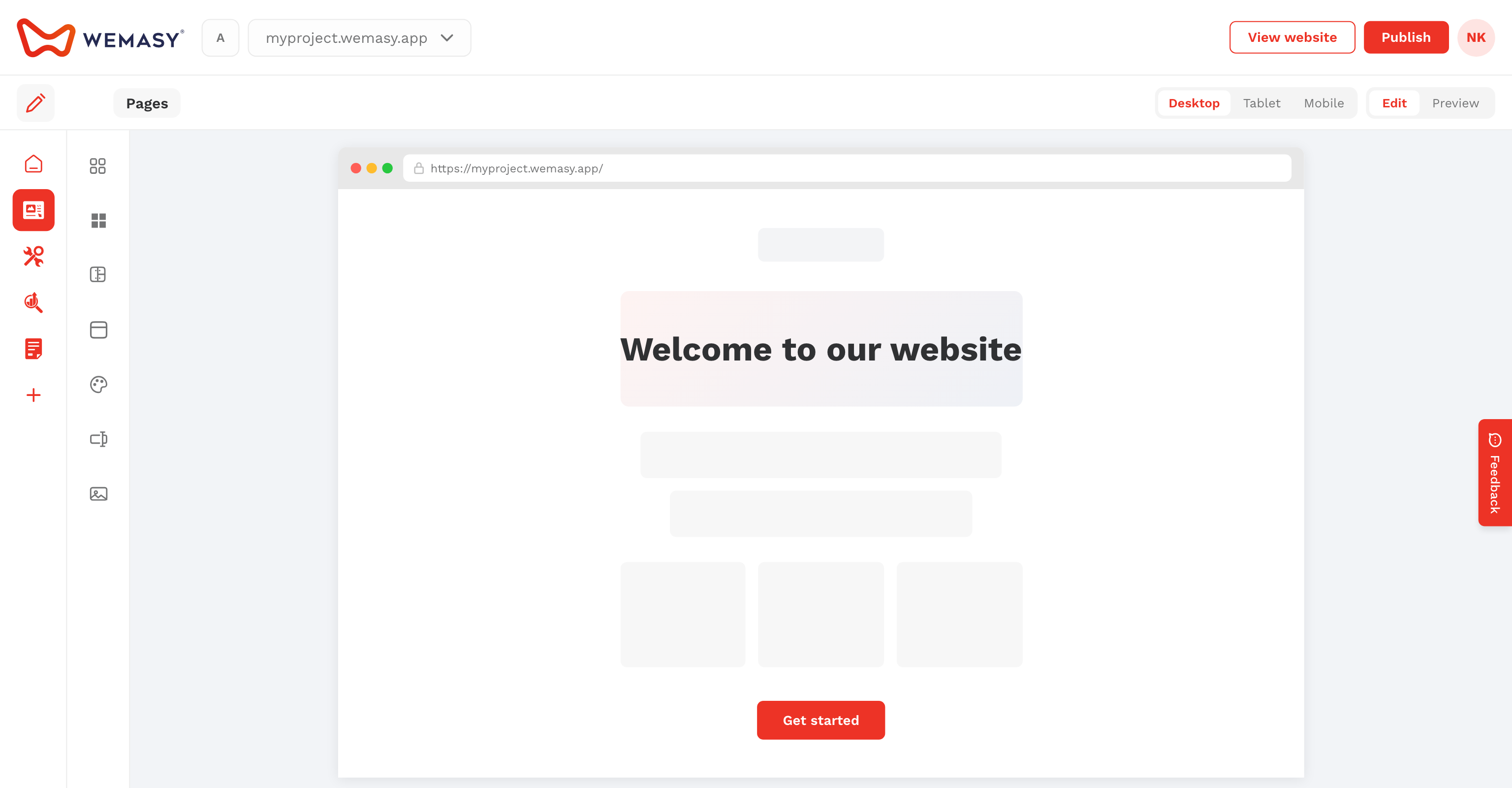
- Make sure the editor is in Edit mode.
- Hover between two sections and click the red plus.
- Find a section in the Add a section window. Use the filters or the search field.
- Set the link switch on the section: copy or linked.
- Click the section to add it to the page.
Copy or linked?
- Copy: edits only apply to this page. Use this for almost every section: you change the text and images for this page only.
- Linked: edits apply everywhere this section is used. Use this for parts that must stay identical on several pages.
You can unlink a linked section later with Detach / Unlink in its Advanced Options.
Drag from the sidebar
- Click Templates or Reusable Templates in the left sidebar.
- Find the template in the list. Use the search field at the top.
- Drag it onto the canvas to the place where you want it.
The Templates panel holds the templates you saved in this project. The Reusable Templates panel holds linked shared sections. See Reusable templates.
After you add a section
- Click a text to change it, or click an image to replace it.
- Hover over the section and open Settings in Advanced Options to change its background and spacing. See Columns and section styling.
- Use the arrows to move it up or down.
Save your own section as a template
When you designed a section you want to use again, hover over it, open Advanced Options and click Convert to Template. It then appears under Saved by me in the library. See Template library and filters.
Tip: you cannot drag sections in Preview mode. Switch back to Edit first.