

The WEMASY Website Builder is where you design the pages of your website. The screen has three parts: the top bar with your project and publishing buttons, a page bar above the canvas, and a sidebar on the left with everything you can add or change. This article walks you through each part.
Edit mode and preview mode
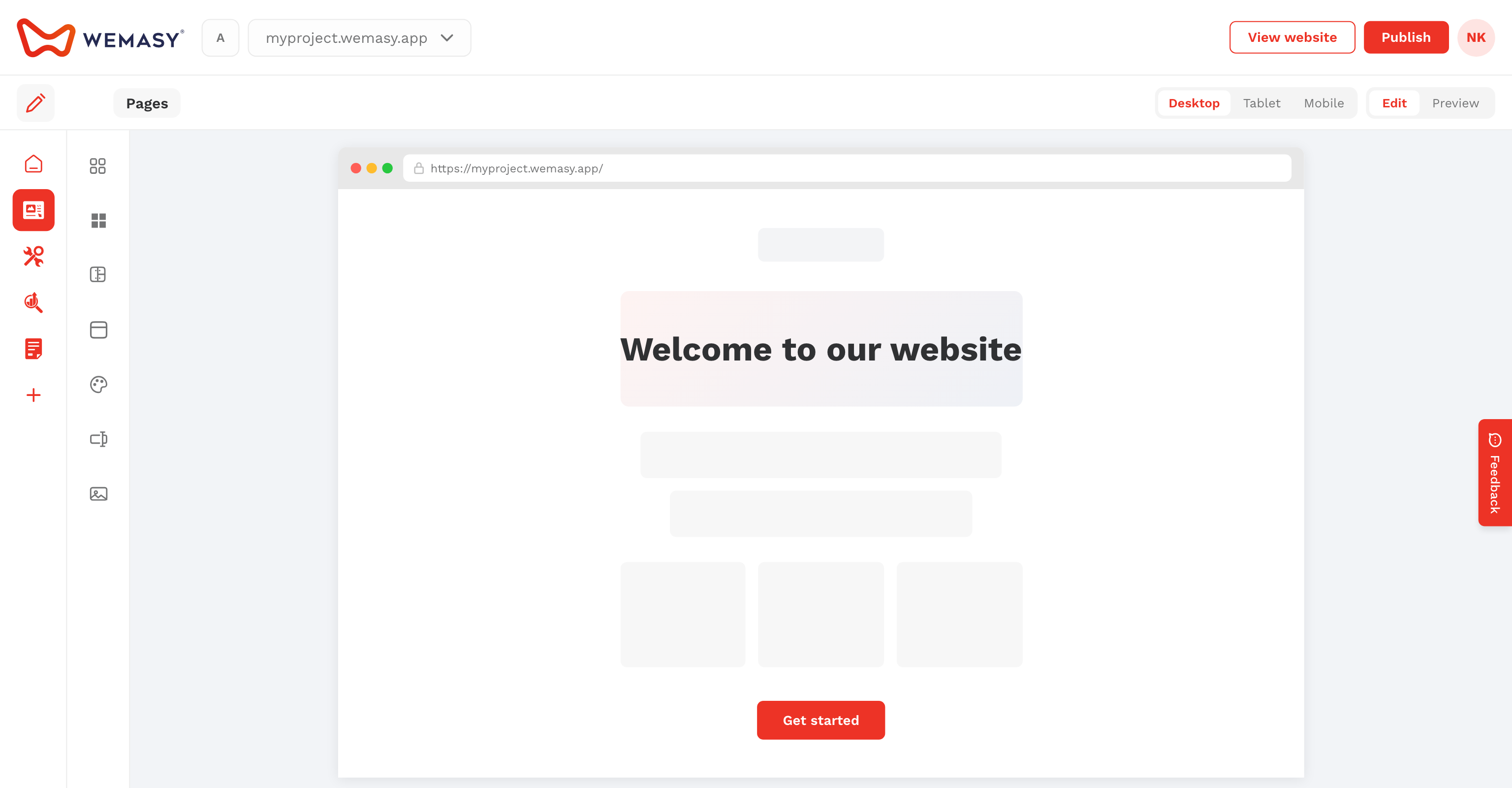
On the right of the page bar is the switch between Edit and Preview.
- Edit shows the section toolbars and lets you drag elements, change text and open settings.
- Preview hides the editing tools, so you can click through the page like a visitor without changing anything by accident. You cannot drag elements in preview mode.
Next to it, a save indicator shows whether your last change is saved. Changes are saved automatically.
Device views
Use the device switcher in the page bar to view the page as Desktop, Tablet or Mobile (up to 767 pixels wide). Check every important page on mobile before you publish.
The left sidebar
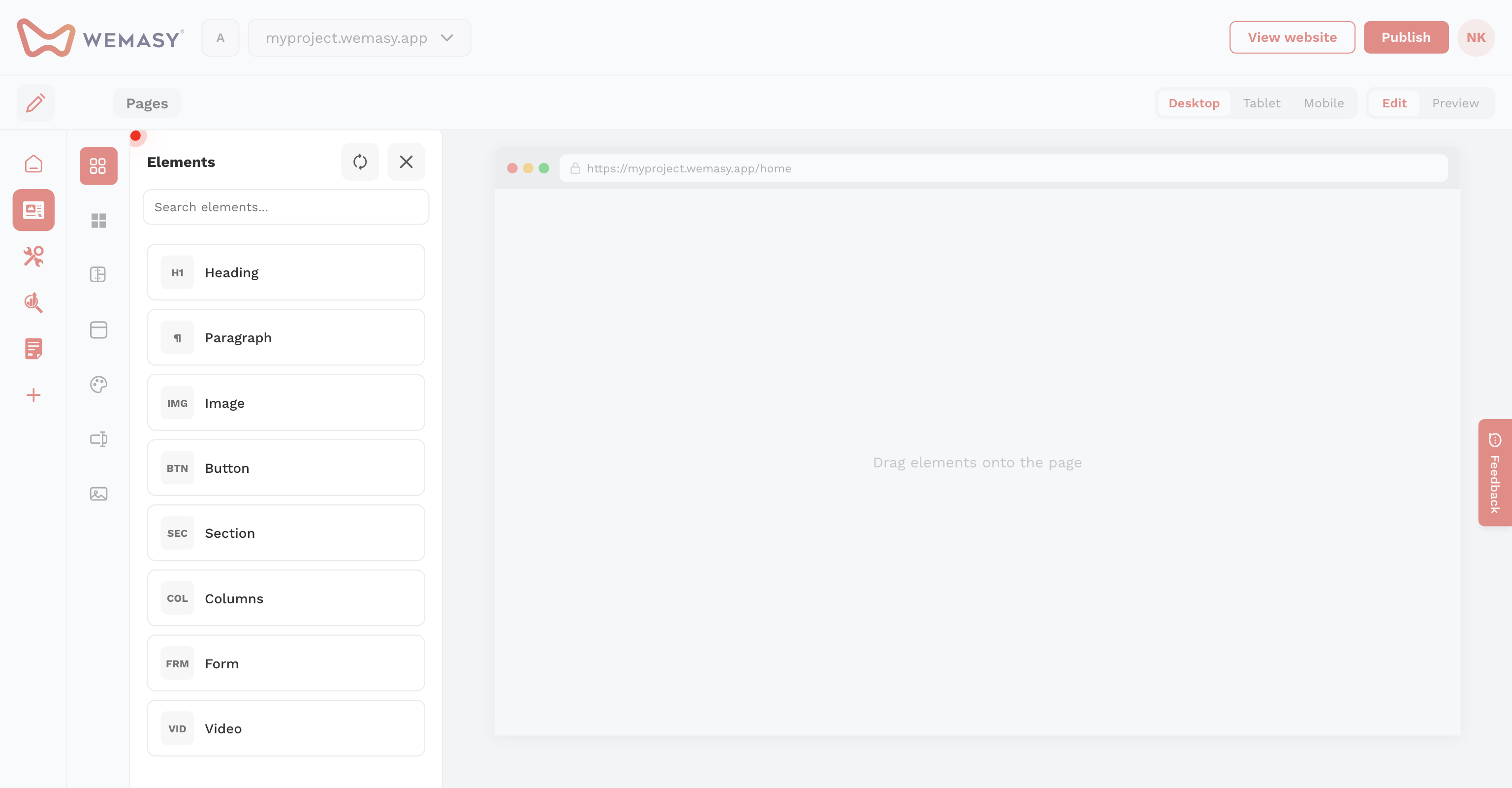
Hover over an icon to see its name. Click it to open the panel.
- Elements: drag blocks such as text, images and buttons onto the canvas.
- Templates: ready-made sections you can insert. See Inserting templates on the canvas.
- Reusable Templates: shared sections, such as a call to action you use on many pages.
- Layouts: the header and footer around your pages.
- Customization: site-wide identity, colors, fonts, sizes, buttons and code.
- Content Blocks: small saved pieces of content you can place anywhere.
- Themes: your installed themes and the theme marketplace.
- Media Library: upload and manage images and files.
The page bar
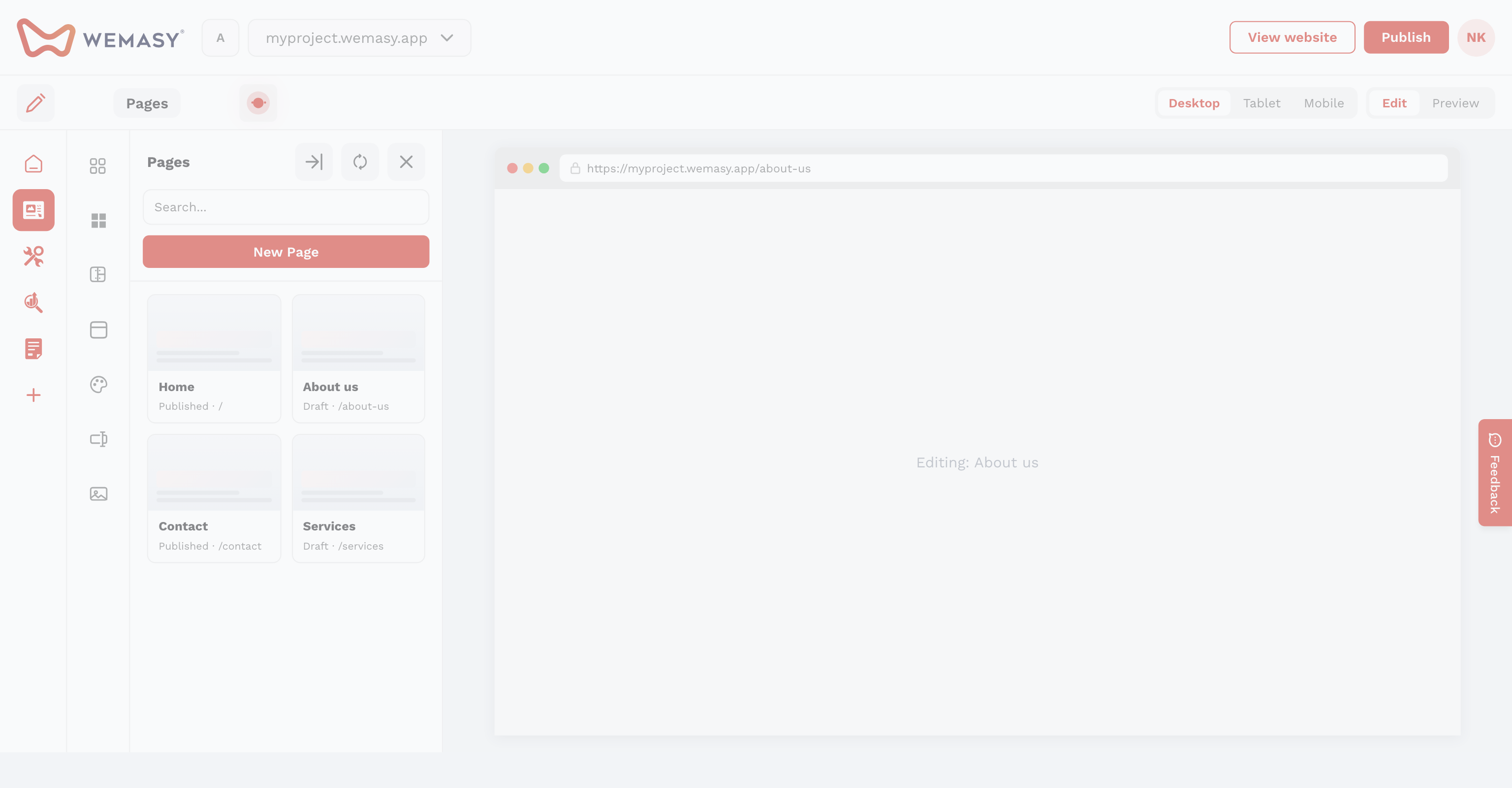
- Pages: hover to jump to a page, or click to open the Pages panel. See Managing your pages list.
- Webshop: products and categories, when your project has a webshop.
- Your structures: each structure you create, such as a blog, gets its own entry.
- Three-dots menu: Forms, Menus, Structures, Site Redirections, Broken Links and Importer.
On a password-protected page, a lock switch also appears here to change between the public and the protected content.
The top bar
- The project switcher, with the settings gear and, on supported projects, the site version button.
- The Manual and AI Magic switch, when AI is turned on for your account. See AI buttons in the Website Builder.
- View website to open your site in a new tab.
- Publish to put your changes live. See Publishing your website.
- Help for the setup guide and the knowledge base.
Tip: when nothing is selected, the sidebar shows Select an element or use the icons on the left side. Click any element on the canvas to open its settings.
Frequently asked questions
Why can I not drag elements onto the page?
Dragging is off in preview mode and while the page is still loading. Switch to Edit and wait until the page is shown. Pages that use an external URL cannot be designed in the builder.
Do I need to save my changes?
No. Changes on the canvas are saved automatically. Settings forms, such as page settings, have their own Save button.