

Buttons lead visitors to the next step: book, call, buy or read more. The WEMASY Button element links to a page or any address, takes its look from your button styles, and can also scroll to a part of the page or show and hide content. This article also covers links in text and click actions on sections.
Add a button
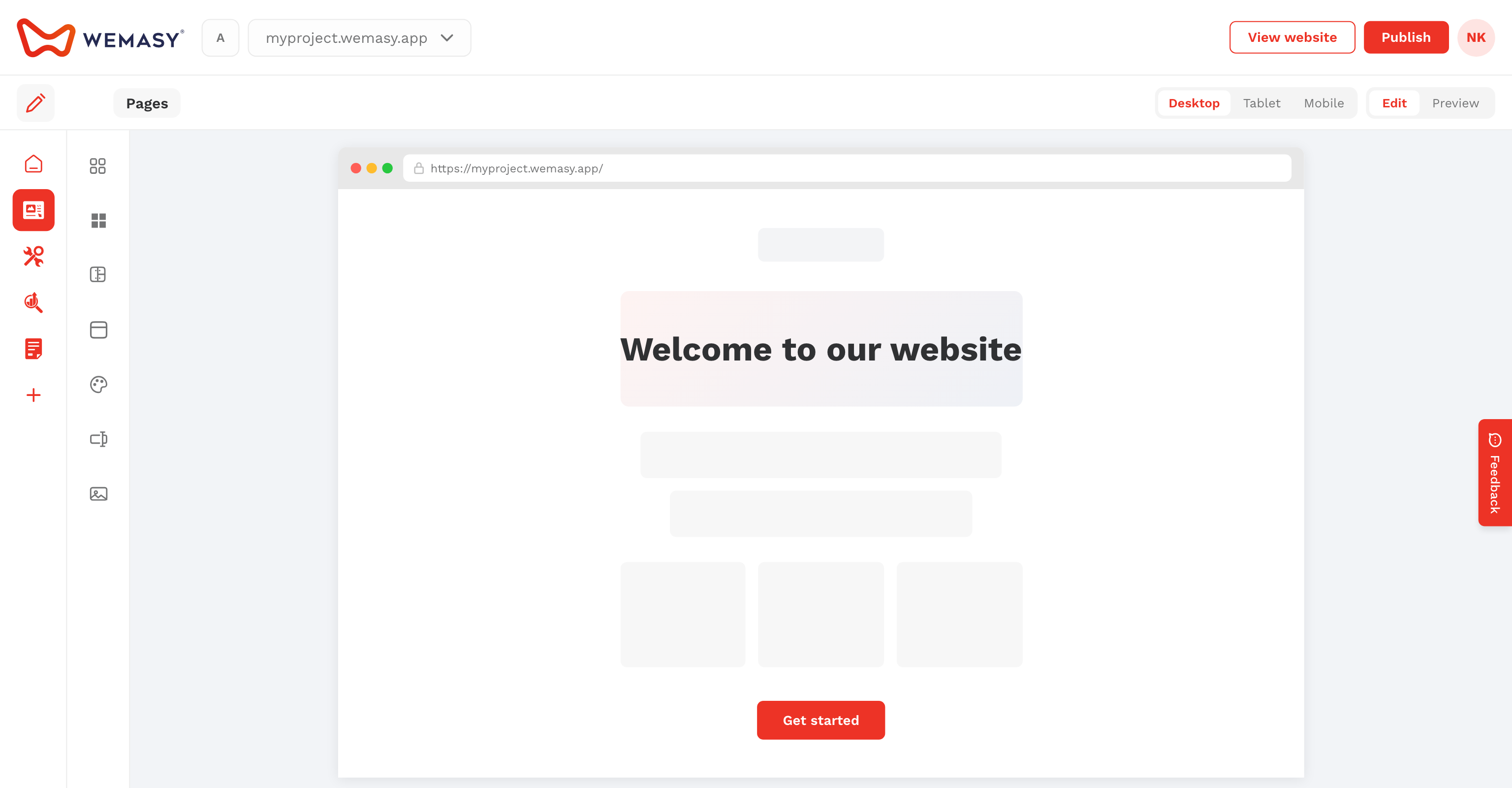
- Click Elements in the left sidebar.
- Drag Button into a section or column.
- Open the element settings.
- Type the Button Text, for example Book now.
- Fill in the Button URL: a page of your site such as /contact, or a full address.
- Choose the Button Style: Default, Primary or Secondary.
The styles come from Button styles in customization.
More button settings
- Alignment, with optional Tablet Alignment and Mobile Alignment.
- Open in New Tab? for links to other websites.
- Do Not Follow by Search Engines for links you do not want to vouch for.
- Link Description (SEO): describe where the link goes, for example Read more about our services instead of Read more.
- Button Div ID to target the button with CSS or a click action.
Links in text
- Select words in a Paragraph element.
- Click the link button in the text toolbar.
- Paste the Link Address, or tick Use internal page and choose a page.
- Set Open in new tab?, Don't let search engines follow or Don't show line under link if needed.
- Click Add Link.
Click actions on sections
Sections have Interactions in their settings. Under When clicked choose Do nothing, Open URL, Scroll to element with a Scroll target (#id), or Show / hide element with a Target element id and a Mode: Show, Hide or Toggle. Give the target a Div ID in its settings first.
Animations
Buttons move in with the section they are in. Set an animation in the section settings under Animations. See Section animations and visibility.
Tip: use one primary button per section. Two equally strong buttons make visitors hesitate.