

Webshop settings decide where your shop is based, which currency it uses, how customers pay, and how orders and invoices are numbered. You find them in your project settings.
Where to find it
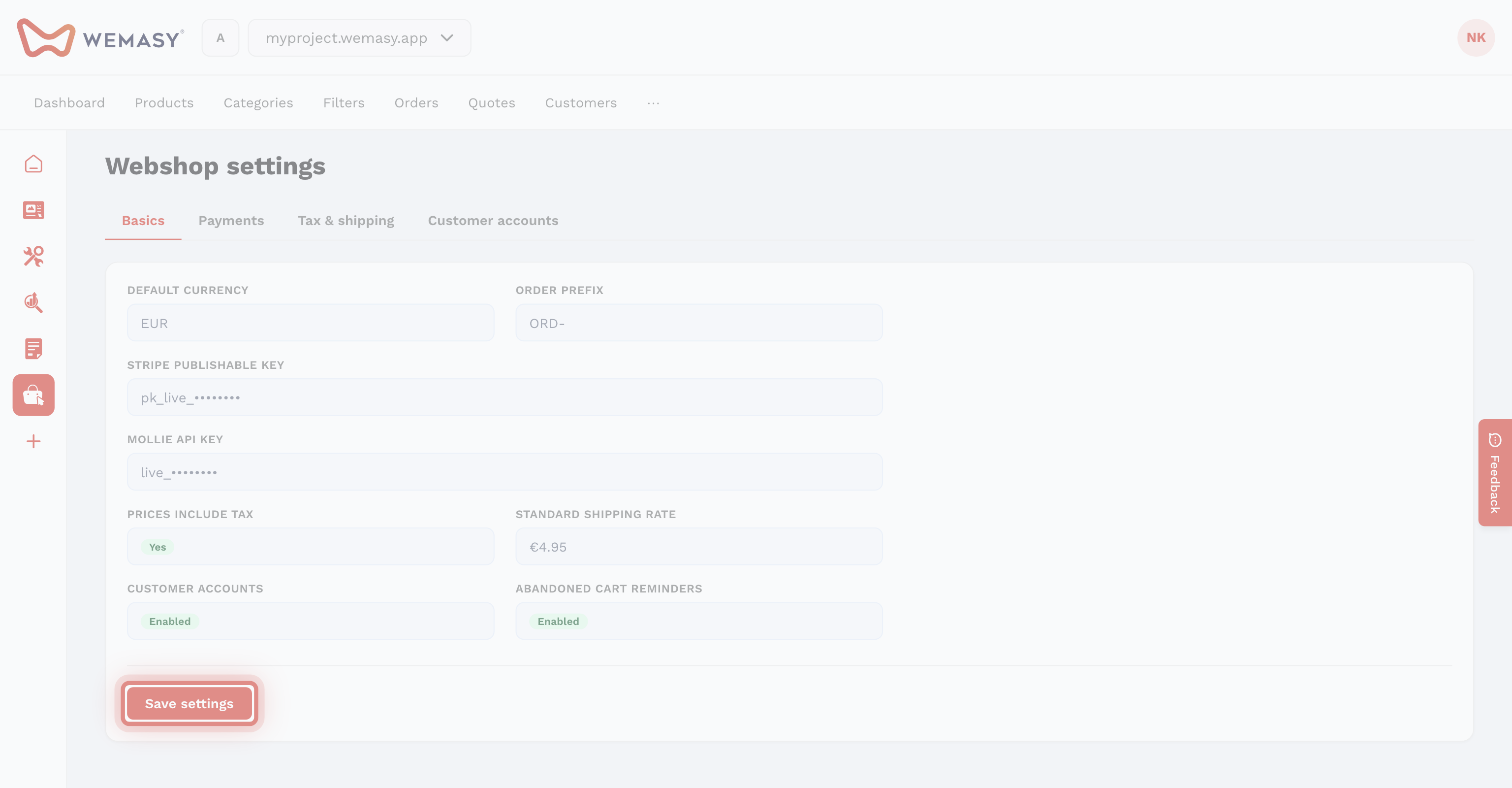
- Click the configuration icon next to the project switcher.
- Click the Webshop tab.
Each section has its own Submit button. See Project settings for the other tabs.
Basics
- Location: the country your shop is based in.
- Currency: the currency of your prices.
- Terms and Conditions URL: the page with your terms.
- Order Setting: Order Prefix and Order Starting Number.
- Invoice Setting: Invoice Prefix and Invoice Starting Number.
The storefront language follows your project language, set under the General tab.
Connect a payment provider
Under Payment Settings you connect one or more providers. Customers pay on your site and the order is marked paid when the provider confirms the payment.
- Open Payment Settings.
- Open Mollie or Stripe.
- Paste your test key, such as Mollie test API key or Stripe test secret key.
- Tick Test mode.
- Click Submit.
- Place a test order on your published site.
- Paste your live keys.
- Untick Test mode.
- Click Submit.
- Mollie: Mollie live API key, Mollie test API key, and Mollie profile ID.
- Stripe: live and test publishable keys and secret keys.
- Razorpay: shown when your Location is India. Use How to get your API keys for the steps. WEMASY creates the webhook after you save valid keys.
- Active manual transfer: customers pay by bank transfer. Set a title and description with your bank details. You mark these orders paid yourself.
- Cash payment: customers pay on pickup or delivery. Set a title and description.
The description you set for bank transfer or cash payment shows at checkout, under the payment method, as soon as the customer picks it. Use it for your bank details or pickup instructions.
Other settings in this tab
- Tax Settings and shipping methods: see Shipping and tax settings.
- Template Settings: products per row and default layouts.
- Email Settings and Invoice Settings: see Invoices, packing slips, and order emails.
- Customer accounts: see Customer accounts.
- Abandoned cart reminder and Payment-completion reminder.
- Advanced Ecommerce Tracking for Google Analytics 4.
Tip: Keep live and test keys apart. A test key with Test mode off does not take real payments.
Frequently asked questions
Which payment methods do my customers see?
The methods you enable: Mollie, Stripe, Razorpay, bank transfer, and cash. The methods inside Mollie or Stripe depend on what is active in your account with that provider.
Does WEMASY take a cut of my sales?
Check the WEMASY pricing page for what your plan includes. Fees of your payment provider are charged by that provider.