

Products are what you sell in the WEMASY Webshop. Each product has a price, images, texts, and settings that decide whether customers can buy it directly, request a quote, or go to an outside link.
Where to find it
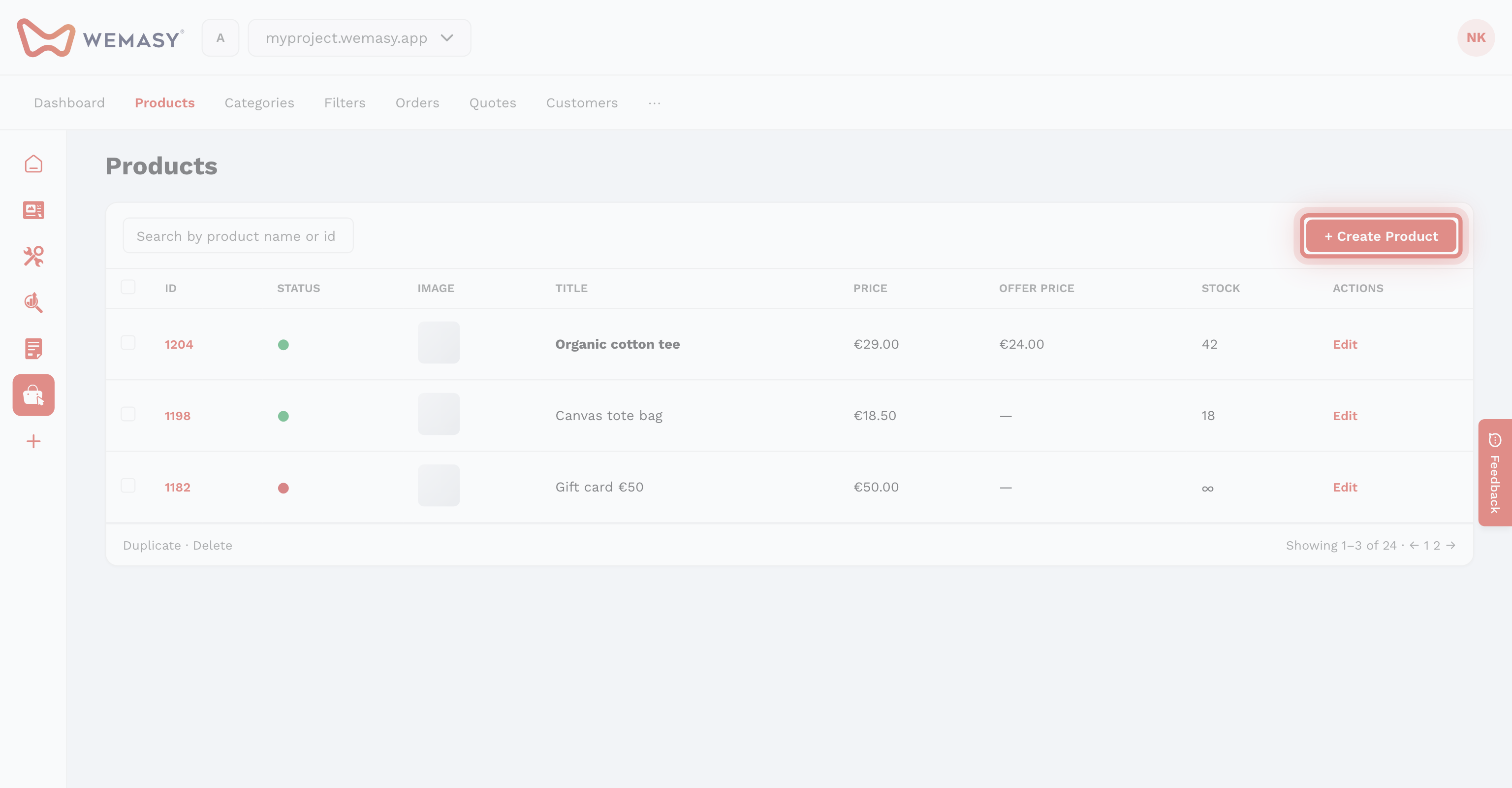
Open Webshop and click Products in the top menu. Search by name or ID, select products to duplicate or delete them, or click Export to download the list.
Create a product
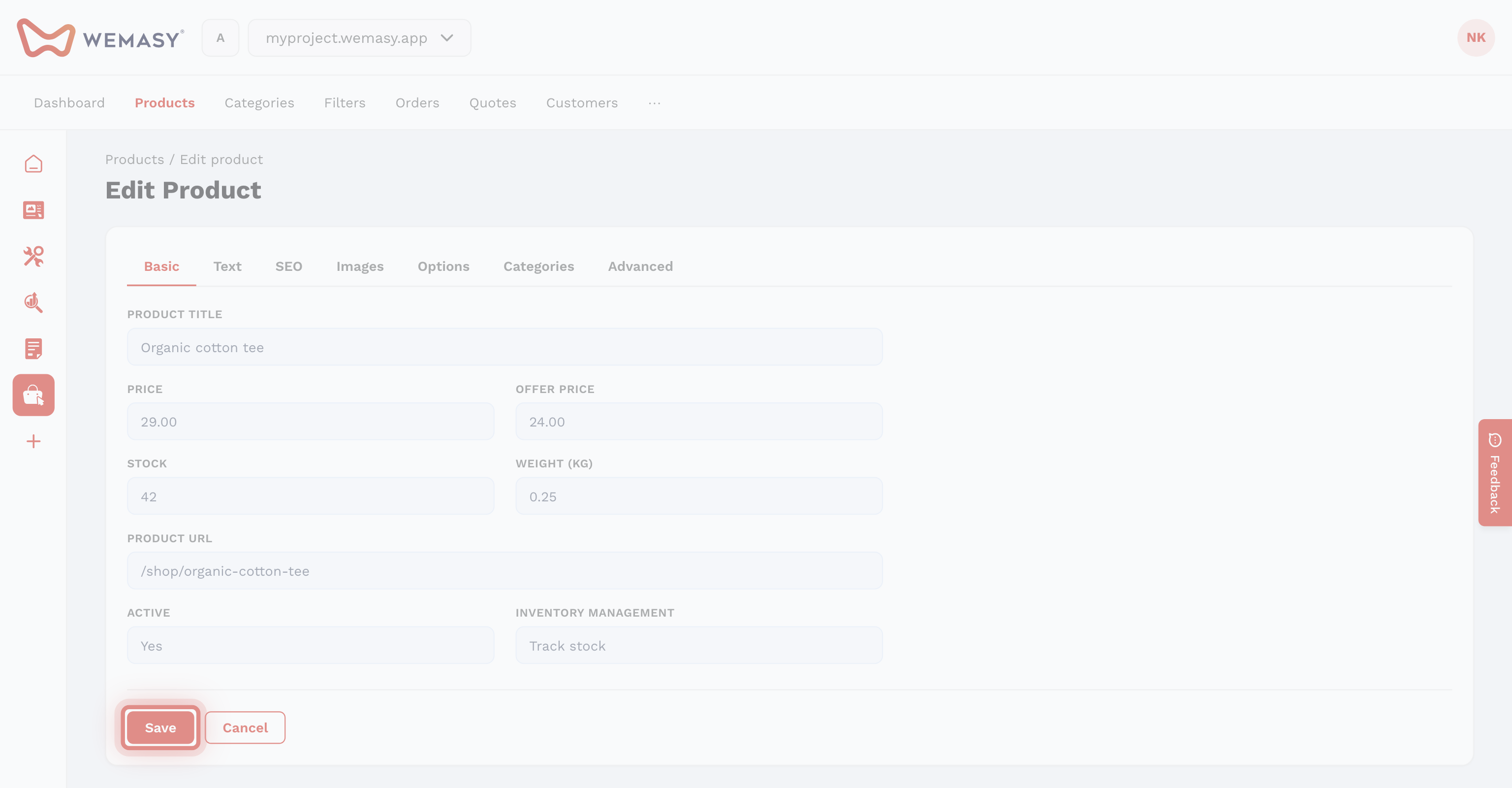
- Click Create Product.
- Enter the Title.
- Check the URL.
- Enter the Price as 0.00.
- Enter an Offer Price if the product is on sale.
- Tick Billable so customers can add it to the cart and pay.
- Tick Active.
- Click Create.
Whether you enter prices including or excluding VAT depends on your tax settings. See Shipping and tax settings.
How customers get the product
- Billable: customers buy it through the cart and checkout.
- Offers: customers send a quote request instead of paying. Requests appear under Quotes. See Orders, fulfillment, and quotes.
- Affiliate: the product links to an outside shop. Enter the link in Affilate link on the Advanced tab.
- Digital product: the product is not shipped. See Digital products and downloads.
Product tabs
- Basic: Sort number, Inventory management and Stock, Weight, BTW percentage, and EAN.
- Text: Intro description, Short description, Description, Properties, and Other information.
- SEO: meta title, meta description, canonical URL, and No index.
- Images: Main image and Other images.
- Files: private files buyers download after payment.
- Options: choices such as size or color, with their own prices. See Product options and price calculations.
- Filters: filter values used on category pages.
- Categories: the categories the product appears in.
- Advanced: hide the price, add Text for the price such as "From", Disable product page, Disable feed listing, Sold as a gift card, Intro offer: new customers only, once, and the page Layout.
Change a product URL
When you edit the URL of an existing product, tick Redirect old URL to new URL so old links and search results still work.
Tip: Use Sort number to control the order. A product with number 1 shows before a product with number 100.
Frequently asked questions
Why can customers not add my product to the cart?
Check that both Active and Billable are ticked, and that the product has stock if you track inventory.
Can I copy a product?
Yes. Select the product in the Products list and use the duplicate action, then edit the copy.