

Tax settings decide whether your prices include VAT and how VAT shows on your site. Shipping methods decide what customers pay for delivery, per country. You set both in the Webshop tab of your project settings.
Set up tax
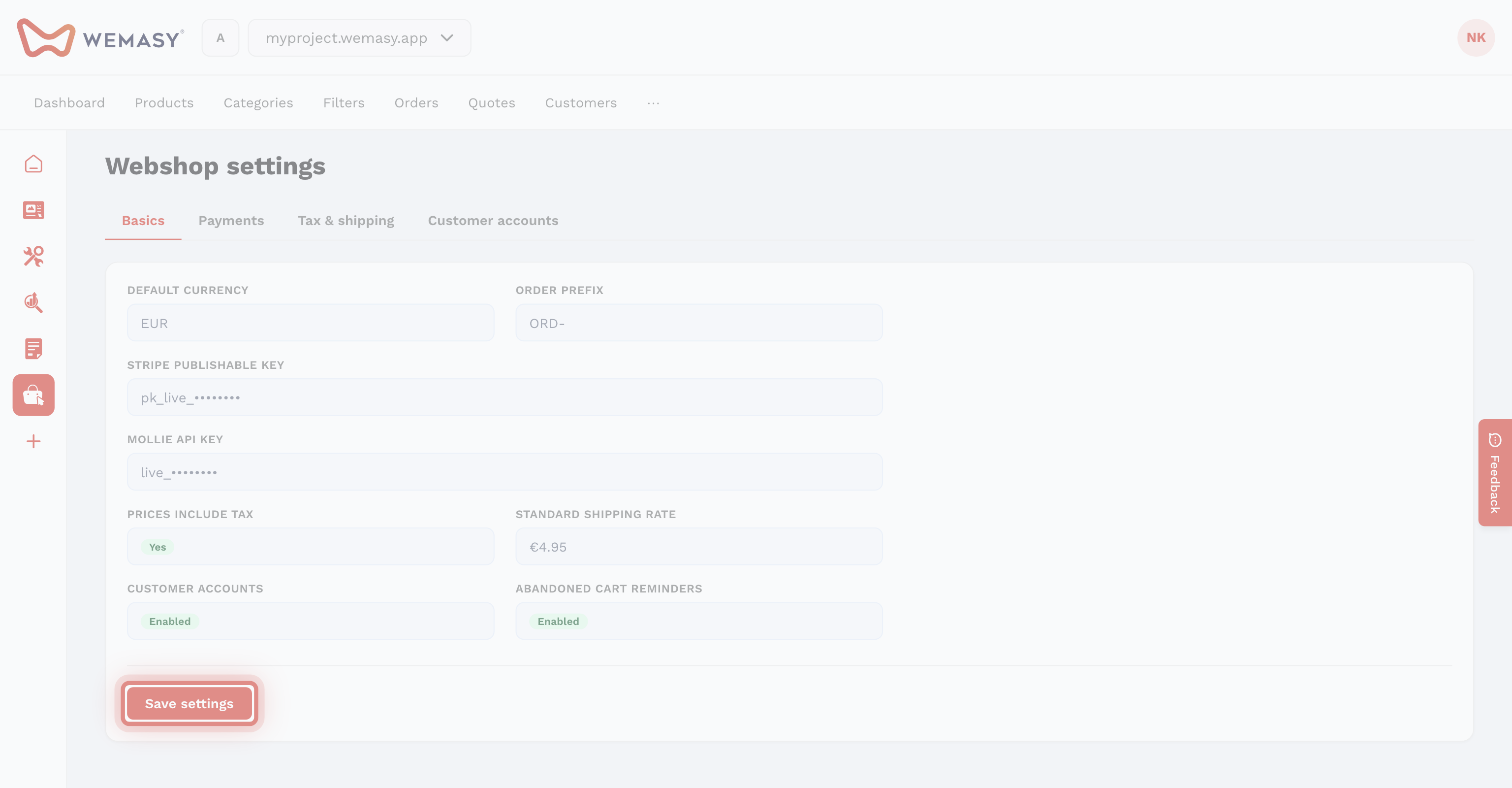
- Click the configuration icon next to the project switcher.
- Click the Webshop tab.
- Find Tax Settings.
- Tick Prices are inclusive of VAT if the prices you enter include VAT.
- Tick Show prices including VAT? to show prices with VAT on your site.
- Tick Add VAT (incl. VAT or excl. VAT) to category view to show the label on category pages.
- Click Submit.
Set the VAT rate per product in BTW percentage on the product Basic tab, for example 21 or 9. See Adding products.
Business customers in the EU
When a business customer from another EU country enters a VAT number at checkout, WEMASY checks it. With a valid number the order gets VAT reverse charge and the order email says so. If the check could not confirm the number, the order shows VAT check needed.
Consumers in other EU countries pay your shop's own VAT rates, unless your business is registered for the EU One-Stop-Shop (OSS). If it is, tick Registered for the EU One-Stop-Shop (OSS) under Tax Settings and click Submit. A consumer in another EU country then pays the VAT rate of their own country: a product with the reduced rate gets that country's reduced rate, every other product its standard rate. Where a country has several reduced rates, WEMASY uses the highest. Sell food or other goods with a lower rate abroad? Check those rates yourself. Customers in your own country and outside the EU keep your shop's rates, and a valid EU VAT number stays at 0% (reverse charge). The setting is off until you tick it.
Add shipping methods
- Find Shipping methods in the Webshop tab.
- Add a Country.
- Add a Shipping method for that country.
- Choose the type of method.
- Enter the Title customers see and the Price.
- Click Submit.
The types are:
- Fixed price: one price per order.
- On a weight basis: price rules by Weight. Products need a Weight on their Basic tab.
- On pickup basis: the customer picks up the order, with an optional price.
- Free shipping: free from a Min order amount (incl. VAT).
Shipping costs always include VAT. WEMASY works out the VAT from the contents of the cart. When every product in the cart is a digital product, checkout skips shipping. See Digital products and downloads.
Connect SendCloud for labels
- Find SendCloud Shipping in the Webshop tab.
- Tick Enable SendCloud integration.
- Paste your Public Key and Secret Key from SendCloud.
- Click Verify Credentials.
- Choose a Default Shipping Method.
- Click Submit.
You then create shipments and labels from your orders. See Orders, fulfillment, and quotes.
Tip: Add a Free shipping method next to your paid method so customers see what they need to spend to ship for free.
Frequently asked questions
Why does a country not see any shipping method?
Each country needs its own entry under Shipping methods. Add the country and at least one method for it.
Do I enter shipping prices with or without VAT?
With VAT. Shipping costs always include VAT.