
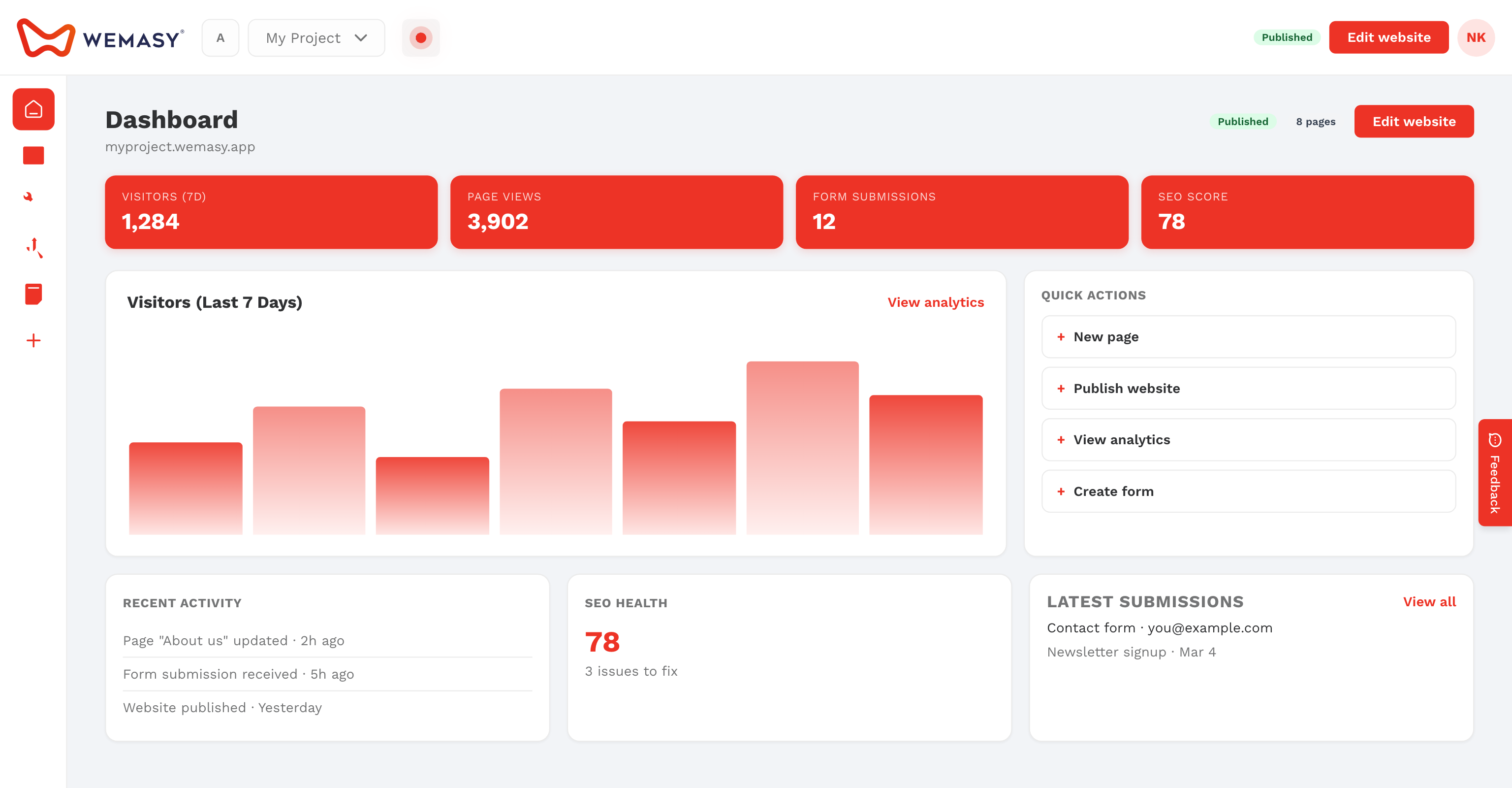
Project settings hold everything that belongs to one project: its title, language, domain, logo, business facts, email look, and the settings of each product you use. Every project has its own settings, so a change here only affects the project you have open.
How to open project settings
- Make sure the right project shows in the project switcher in the top bar.
- Click the gear icon next to the project switcher.
The Project Setting page opens with a menu on the left. You can also open it from the Projects page in the account menu by clicking the gear icon in the row of a project.
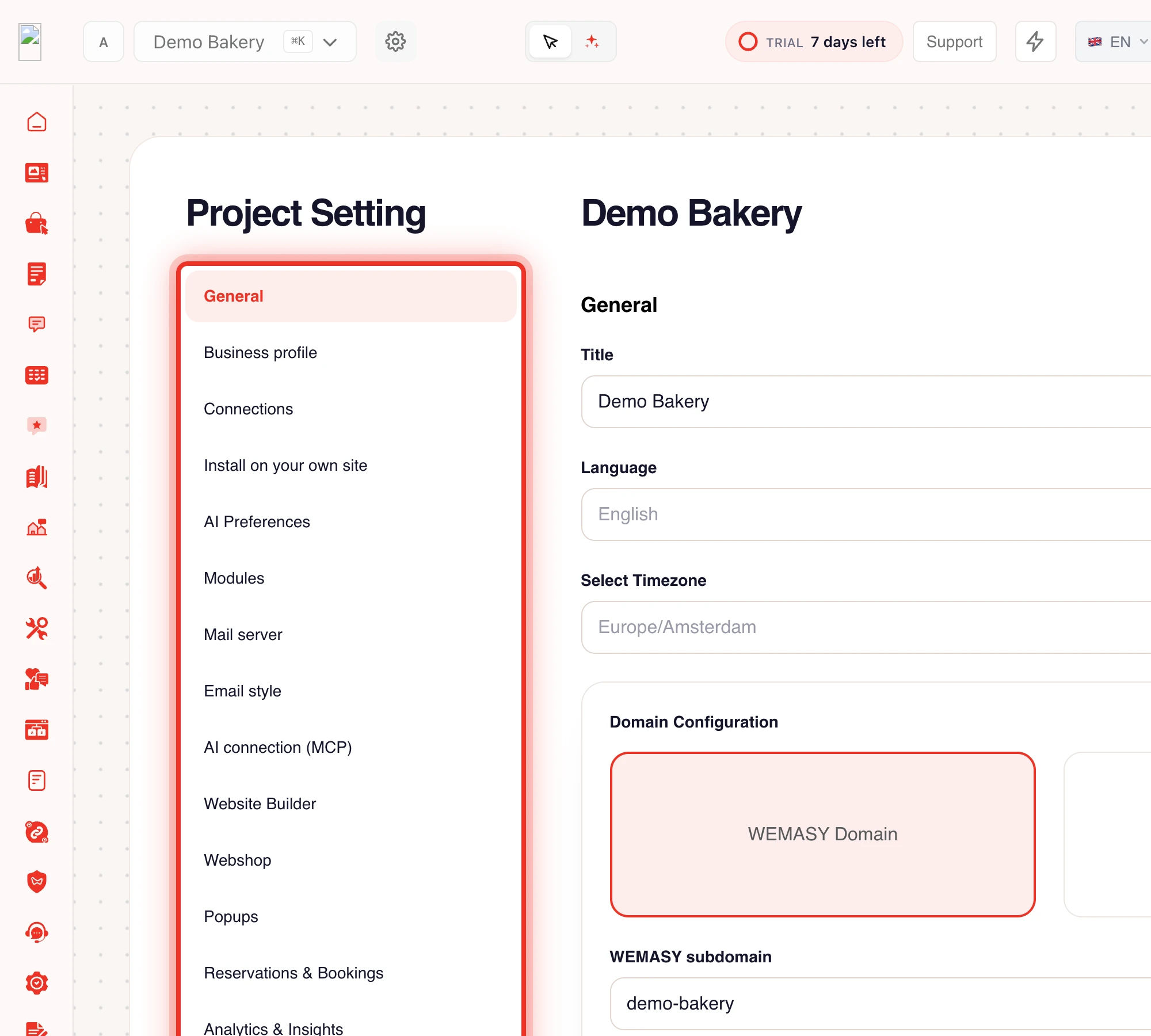
The tabs in project settings
These tabs are always there, in this order:
- General: title, language, time zone, domain, site identity, form email, tracking code, and the danger zone. See below.
- Business profile: your company facts, such as address, phone, and opening hours, used by your website, Google, and the AI chat.
- Connections: every outside account the project uses, such as Google or Meta, with its status.
- AI Preferences: tone of voice, look, and business facts the AI uses when it builds pages.
- Modules: extras your website uses, such as online booking or a QR menu.
- Usage: how much of your plan this project uses, and your AI credits.
- Mail server: send form emails and newsletters through WEMASY or through your own SMTP server.
- Email style: the logo, colors, font, and footer of every email the project sends.
- AI connection (MCP): connect your own AI tool to this project on a paid plan.
Below these, you see a tab for each product the project uses that has its own settings, for example Website Builder or Analytics & Insights.
What is on the General tab
- Title, Language, and Select Timezone: the basics of your website.
- Domain Configuration: choose a WEMASY subdomain or your own domain. See Connecting a domain to your project.
- Site Identity: logo, favicon, and the Disable Cookie Consent switch. See Site identity and favicon.
- Email Settings: the Email To address that receives form submissions.
- Tracking Code: the code that runs WEMASY tools on a website built elsewhere.
- Automation notifications: whether this project emails you a daily or weekly summary.
- Domain unlocks: earlier domains that are still held for this project after a domain change.
- API Access: tokens for the Projects API.
- Danger Zone, for the owner only: mark the project as a theme, change the website availability, and transfer ownership.
Click Save at the bottom of the form after you change the basics or site identity. Domain changes have their own Save domain settings button.
Who can change what
The owner and collaborators with full rights can change every setting. A collaborator with only the Website right can change the website title, logo, and favicon, but not the domain, mail, cookie banner, or language. Accounts with an unverified email address cannot change the domain or the form email until they verify.
Tip: The page remembers the tab in the web address, so you can bookmark a tab such as Usage and open it directly next time.