

Site identity is how visitors recognize your website: the title in the browser tab, the logo in your header, and the small favicon icon in the tab. In the WEMASY Website Builder you set all of it once in Customization, and every page that shows your logo follows along.
Open Site Identity
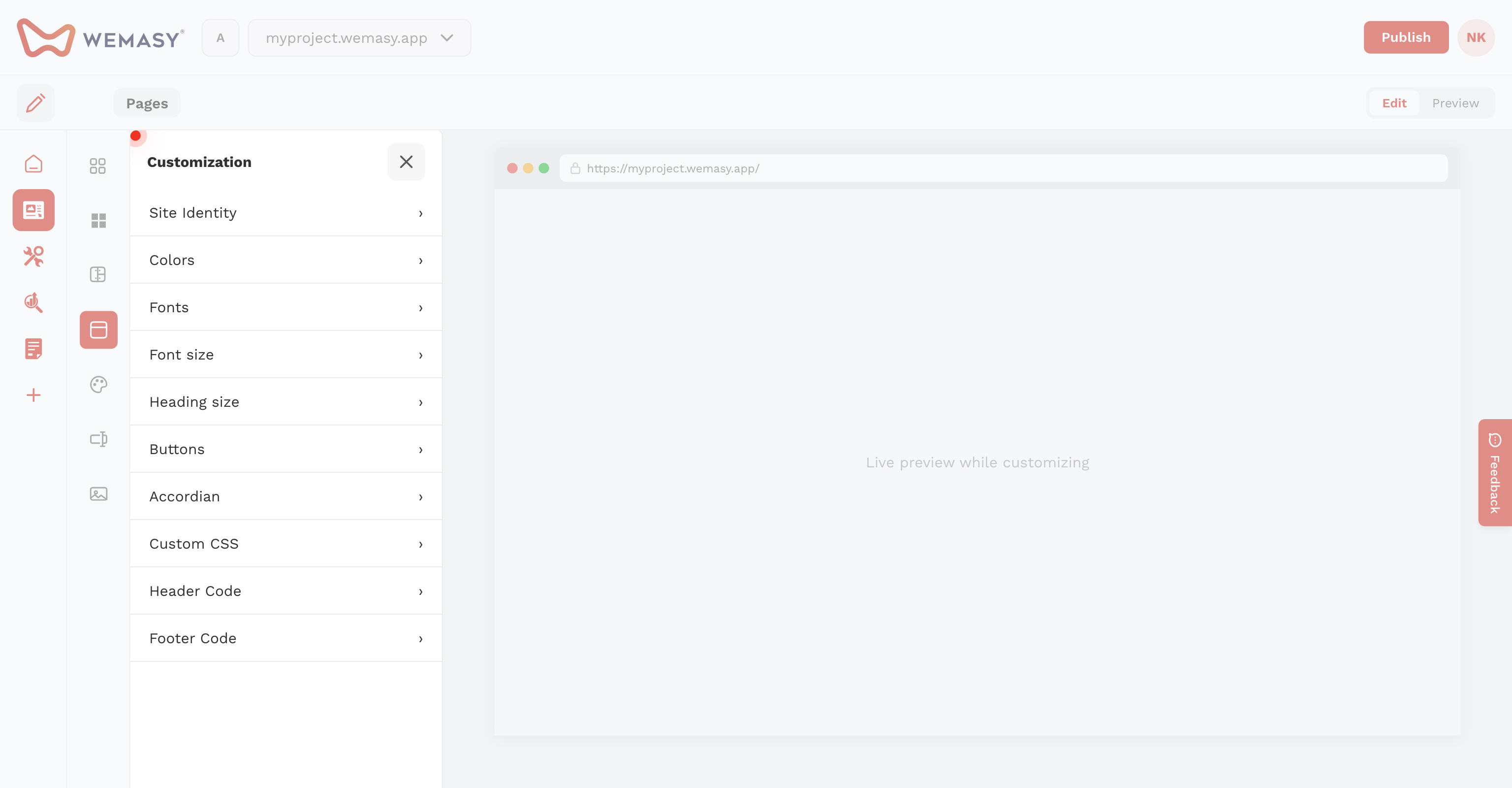
- Open Website Builder.
- Click Customization in the left sidebar.
- Click Site Identity.
Set your title, logo and favicon
- Type your Website title. This is the name of your site. Your published pages show it after the page title in the browser tab.
- Under Logo, upload your logo or pick one from the media library.
- Under Favicon, upload a small square icon, such as your logo mark.
- Click Save.
Headers that use the Site Logo element show the new logo right away, on every page. Publish your website so visitors see it too.
Business type and niche
The same panel shows Business type and Niche. These describe what kind of business the site is for, such as a shop or a local service, and the closest niche within it. WEMASY uses them to tailor the suggestions and progress steps it shows you while you build. Pick the closest match.
Cookie consent bar
Below the favicon you find Disable Cookie Consent. Leave it off to show the cookie consent bar on your published site. Switch it on only when you handle cookie consent another way, for example with your own consent tool in the header code. More about the bar: Cookie consent bar.
Also in project settings
The website title, logo and favicon are project settings, so you can also change them in your project settings. Both places save to the same values. See Site identity and favicon.
Tip: use a logo with a transparent background, so it looks good on light and dark headers.
Frequently asked questions
My new logo does not show in the header
Check that your header uses the Site Logo element, which follows the project logo. An Image element shows the picture you chose for it, not the project logo. Replace it with Site Logo or change the image.
Why does my old favicon still show?
Browsers keep favicons for a long time. Publish your website, then open it in a private window to see the new icon.