

The Scroll element is a box with a maximum height. When its content is taller, visitors scroll inside the box instead of the whole page. Use it for long terms, a changelog, a list of reviews or opening hours for many locations, so the page itself stays short.
Add a scroll container
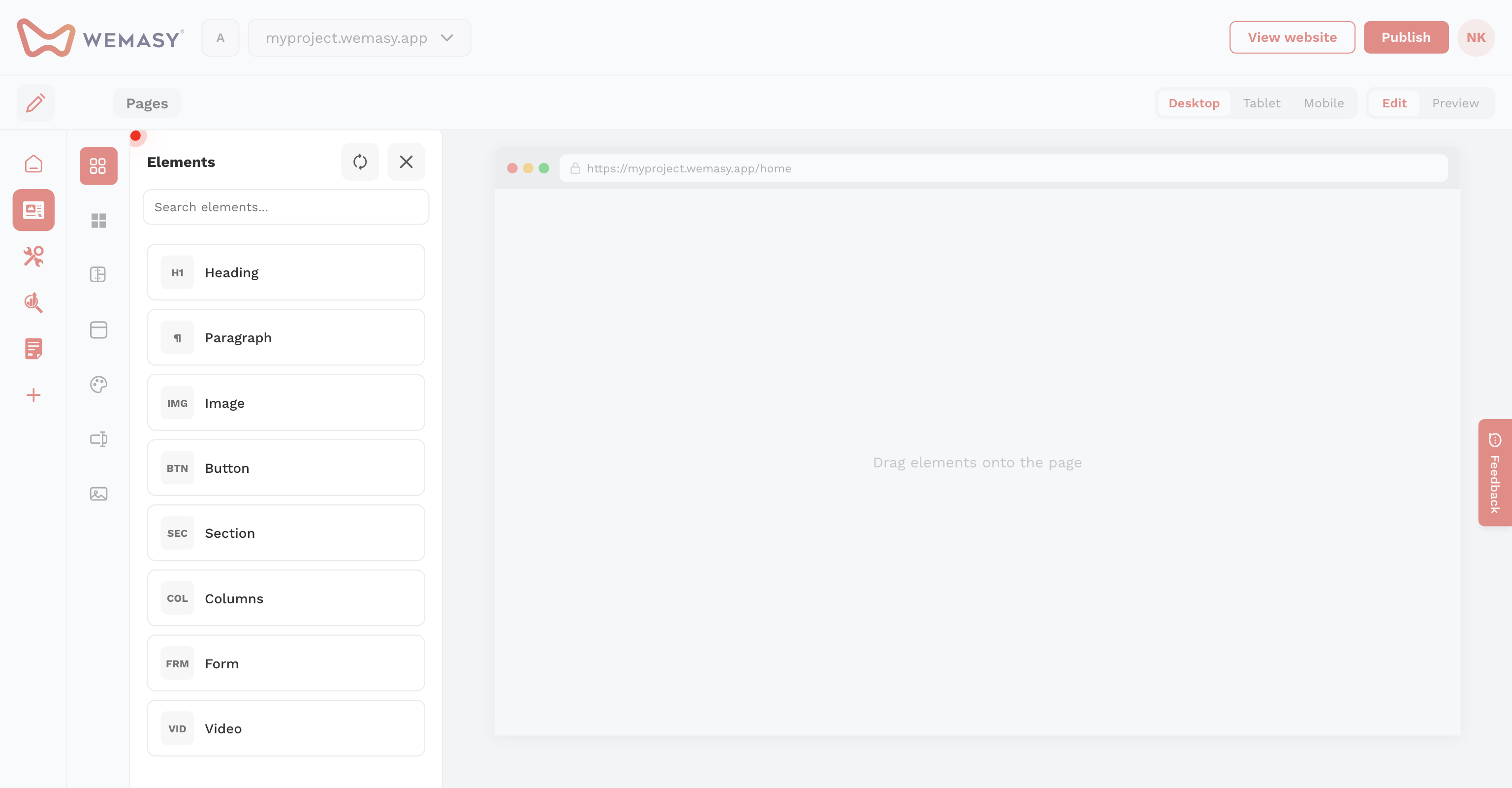
- Click Elements in the left sidebar.
- Drag Scroll into a section.
- Drag other elements, such as Paragraph or Review elements, into the scroll container.
- Open the element settings.
- Set the maximum height.
Maximum height per device
- Desktop Max Height
- Tablet Max Height
- Mobile Max Height
Type a value such as 400px or 50vh (half the screen height). Content scrolls when it is taller than this height. Leave a field empty to use the value of the larger device.
See the effect
The scroll effect is only visible on the live website. In the editor the container shows all its content, so you can edit it easily. Click View website to try the scrolling.
When to use it
- Use it for content that is useful but not the main message, such as full terms.
- Do not put your most important content in a scroll box: visitors may not notice they can scroll.
- For questions and answers, an Accordion element is often clearer.
Tip: sections can also scroll inside with Enable Inner Scroll in their settings. See Columns and section styling.
Frequently asked questions
What does 50vh mean?
vh is a share of the screen height: 50vh is half the height of the visitor's screen. It adapts to every device.
Can I put any element inside the scroll container?
Yes. Drag text, images, reviews or other elements into it, as in a normal section. Keep the content simple so it stays easy to read in a small box.