

The Paragraph element holds the text of your pages: headings, sentences, lists and links. You type directly on the canvas, and a toolbar gives you formatting such as bold, headings, colors and links. Most sections use one or more Paragraph elements.
Add text
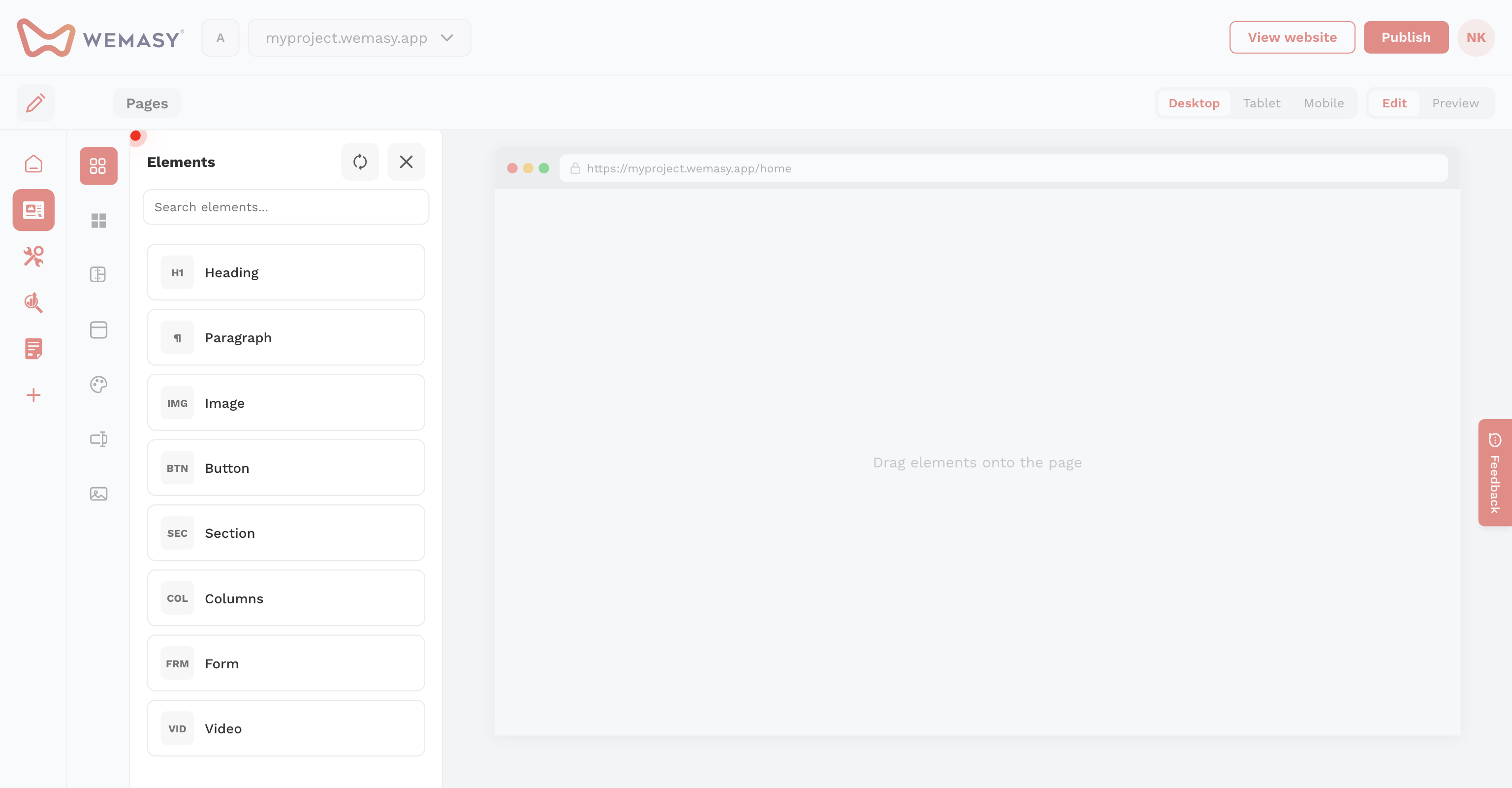
- Click Elements in the left sidebar.
- Drag Paragraph into a section or column.
- Click in the element. It says Start typing... when it is empty.
- Type or paste your text.
Changes are saved automatically.
Format text
Select text to use the toolbar:
- Bold, Italic, Underline and Strikethrough.
- Heading 1 to Heading 6, or Paragraph for normal text.
- Bulleted list, Numbered list and Quote.
- Align left, Align center, Align right and Justify.
- Text Color and Text Background Color, with your Project colors on top.
- Font size, Font weight and Font Family (Normal for the body font, Primary for the heading font).
- Undo and Redo.
Links, images and tables
- Link: link selected words to a page or address. See Buttons, links, and animations.
- Image: place a small image inside the text, with an Image Description.
- Table: Create Table, then add or delete rows and columns and merge cells.
Rewrite with AI
When AI is on for your account, the toolbar has an AI button. It opens Rewrite with AI, where you ask for a shorter, friendlier or more professional version and apply the draft you like. See AI buttons in the Website Builder.
Use headings well
Use one Heading 1 per page for the main title, then Heading 2 for sections. Search engines read this order. Heading sizes are set for the whole site in Customization.
Tip: when you paste text from another program, paste it as plain text where you can, then format it here. That keeps your site's fonts and colors consistent.