

The media library holds every image, video and document of your project. You upload a file once and use it on any page, product or post. The library also shows where a file is used, so you do not delete a picture that is still on your site.
Open the media library
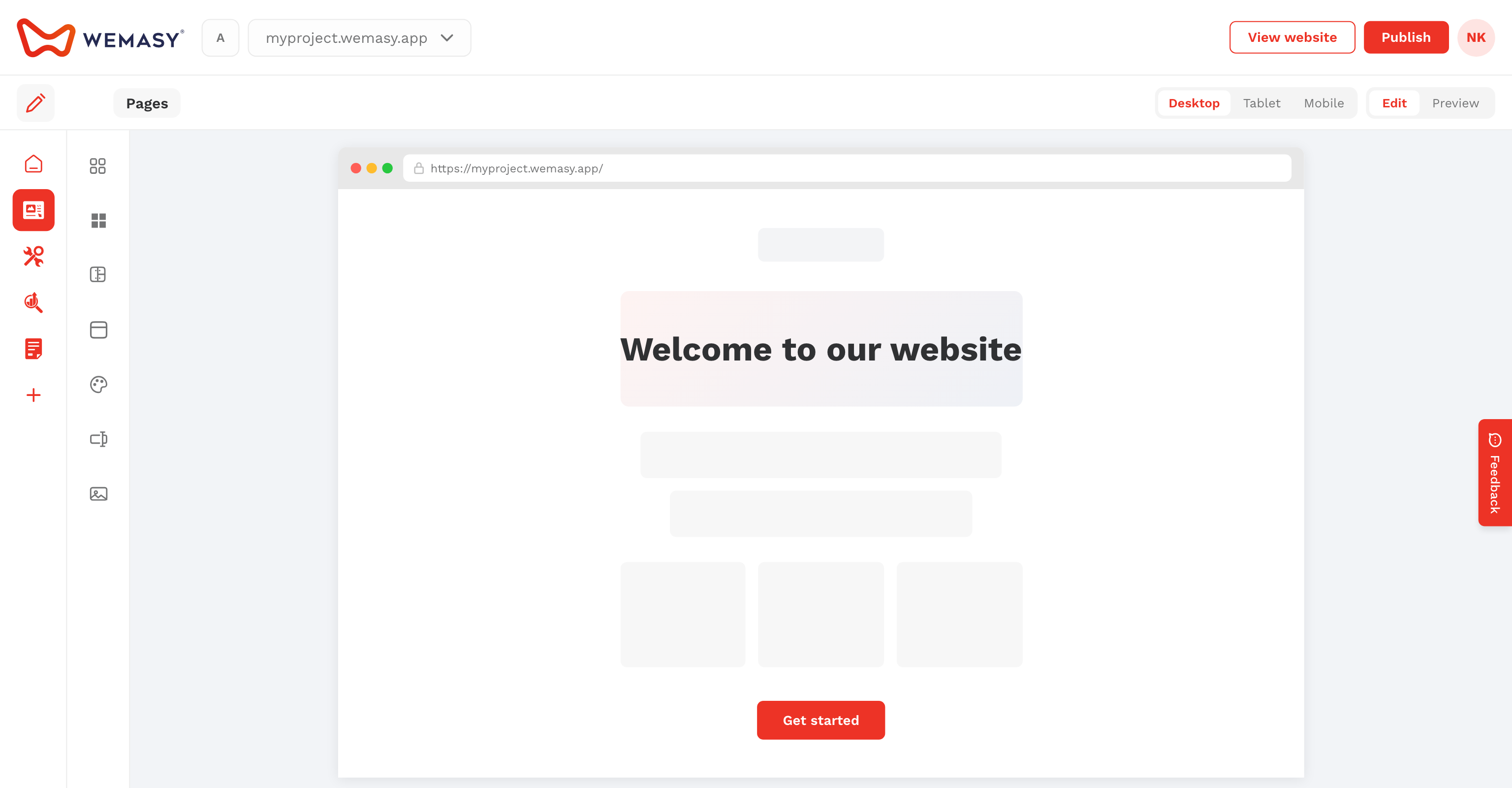
- Open Website Builder.
- Click Media Library in the left sidebar.
The library also opens when you choose an image in an element, for example in an Image element or a product.
Upload files
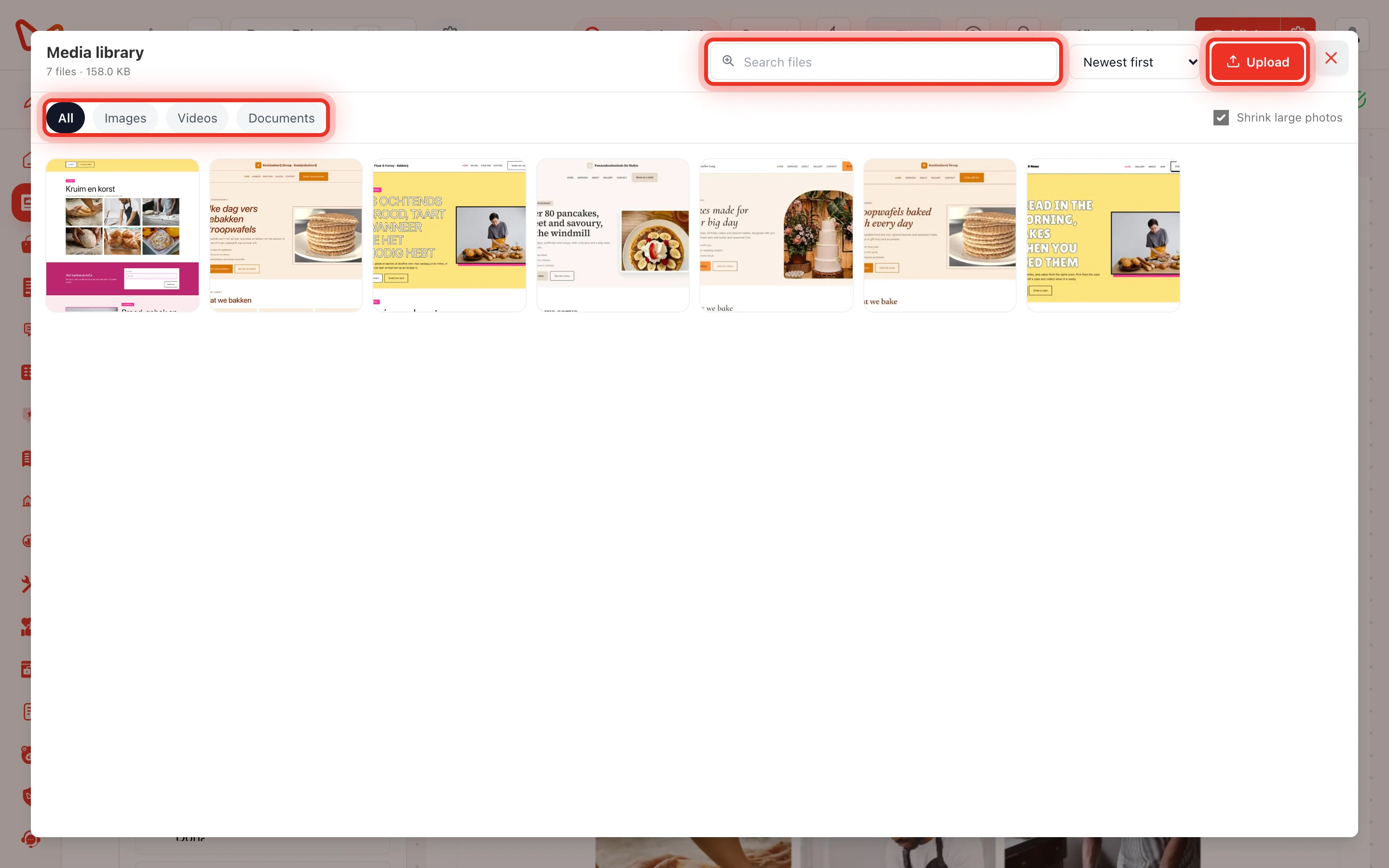
- Click Upload, or drag files into the window. The window shows Drop to upload.
- Keep Shrink large photos on. Photos larger than 2560 pixels are made smaller before upload, in the same format, so your pages load faster.
- Wait until the upload finishes. A failed file shows its name with upload failed.
Find a file
- Filter by All, Images, Videos or Documents.
- Type in Search files.
- Use Sort: Newest first, Oldest first, Largest first, Smallest first or Name A-Z.
- Filter by label with All labels.
- Click Load more at the bottom to see older files.
File details
Click Details on a file to see and change:
- Title: a name for the file in your library.
- Alt text: describe what is in the picture. Screen readers and search engines read it.
- Caption: text shown under the image, if your design uses it.
- Labels: add a label and press Enter to group files.
- File URL with a Copy button, plus dimensions, size, type and upload date.
- Used: in how many places the file is used, or Not used on your site.
Label or delete several files
- Click Select on the files you want.
- Click Add label to label them all, or Delete to remove them.
When a file is still used, WEMASY warns you how many places will stop showing it. Click Clear to undo your selection.
Edit an image
Click Edit image to crop, rotate, add a filter, resize or remove a plain background. The edit is saved as a new image, so the original stays. See Editing images in the media library.
Tip: fill in alt text for every image you use. It helps visitors who use a screen reader and helps your pages in search results. See Image element.