

The Image element shows one picture on your page, such as a photo of your shop, a product shot or an illustration. You choose the image from your media library, describe it for search engines, and decide how big it is, how it fits its space and what happens when someone clicks it.
Add an image
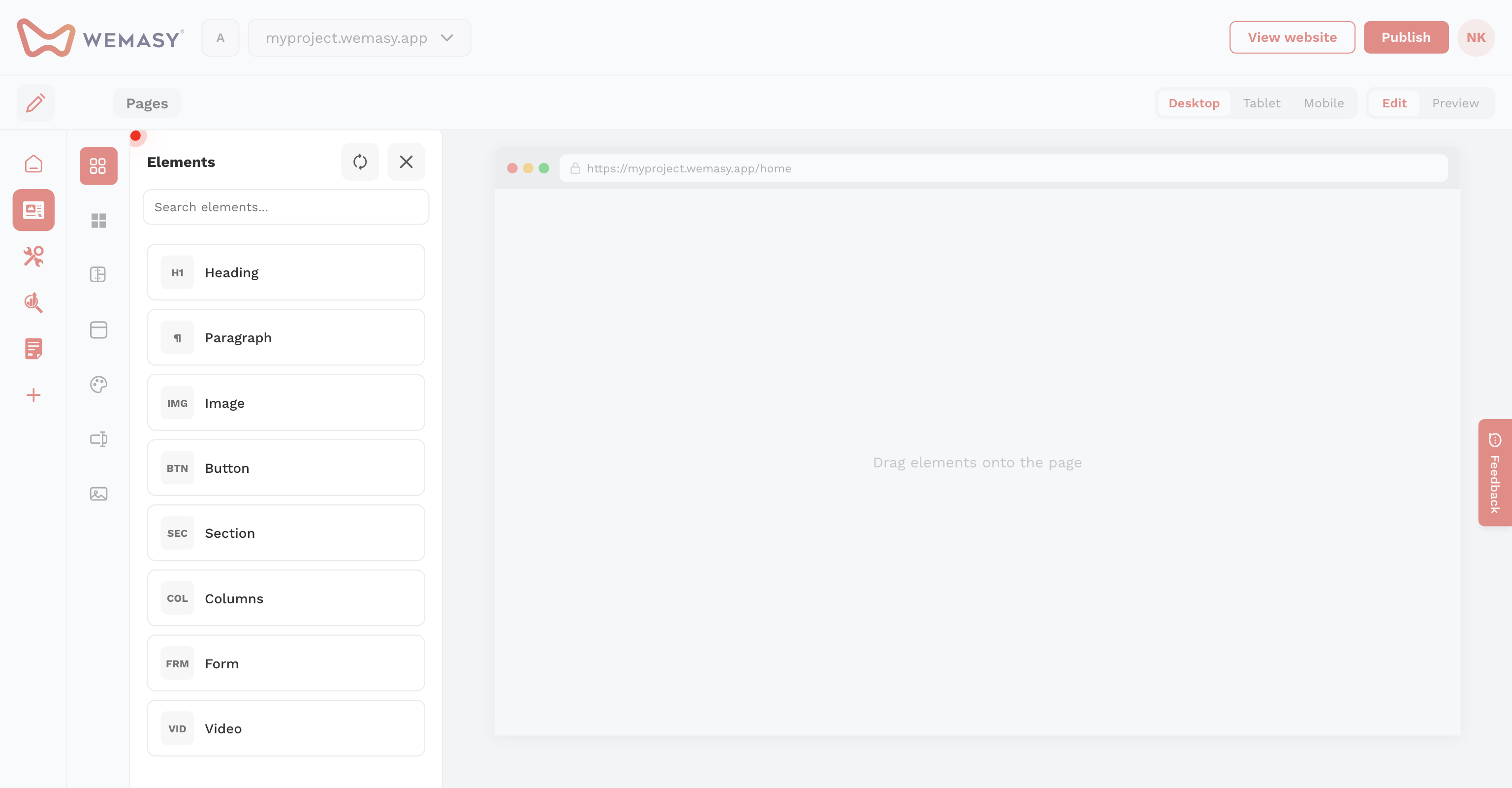
- Click Elements in the left sidebar.
- Drag Image into a section or column.
- Click the placeholder Add your image.
- Upload an image, pick one from the media library, or paste an image address under Or paste image URL and click Apply.
When you click the image on the canvas, a small toolbar appears with Replace, Link, Alt and More for quick changes.
Image settings
- Alt Text: describe what is in the picture. Screen readers and search engines read it.
- Width, Height and Aspect Ratio: the size and shape. Automatic keeps the shape of the image.
- Fit: Cover (crop to fill), Contain (show whole image), Stretch to fill, Original size or Scale down.
- Radius, Border, Border Color and Shadow for the frame.
- Alignment: Left, Center or Right.
Make the image clickable
Set Click Event:
- None: nothing happens.
- Link: opens the address in Link URL, for example a product page.
- Full Screen: opens the image large on the screen.
Another image on tablet or mobile
The image you choose is used on every screen size. To show a different image on small screens, for example a taller crop, switch the device view above the canvas to Tablet or Mobile and choose an image there. Leave it empty to keep the desktop image. Size and layout settings can be changed per device the same way.
Transparent PNG images
When you upload a PNG, the Advanced upload options let you keep Maintain transparency of .png images on, or pick a Background color as replacement for transparency.
Tip: edit or crop an image before you place it with the editor in the Media library. For several images in a grid, use the Gallery element.