

This article walks you through the importer form in WEMASY: from connecting a feed to mapping its fields and setting a schedule. An importer reads a CSV, JSON or XML file from a web address and turns each entry into an item of a structure.
Before you start
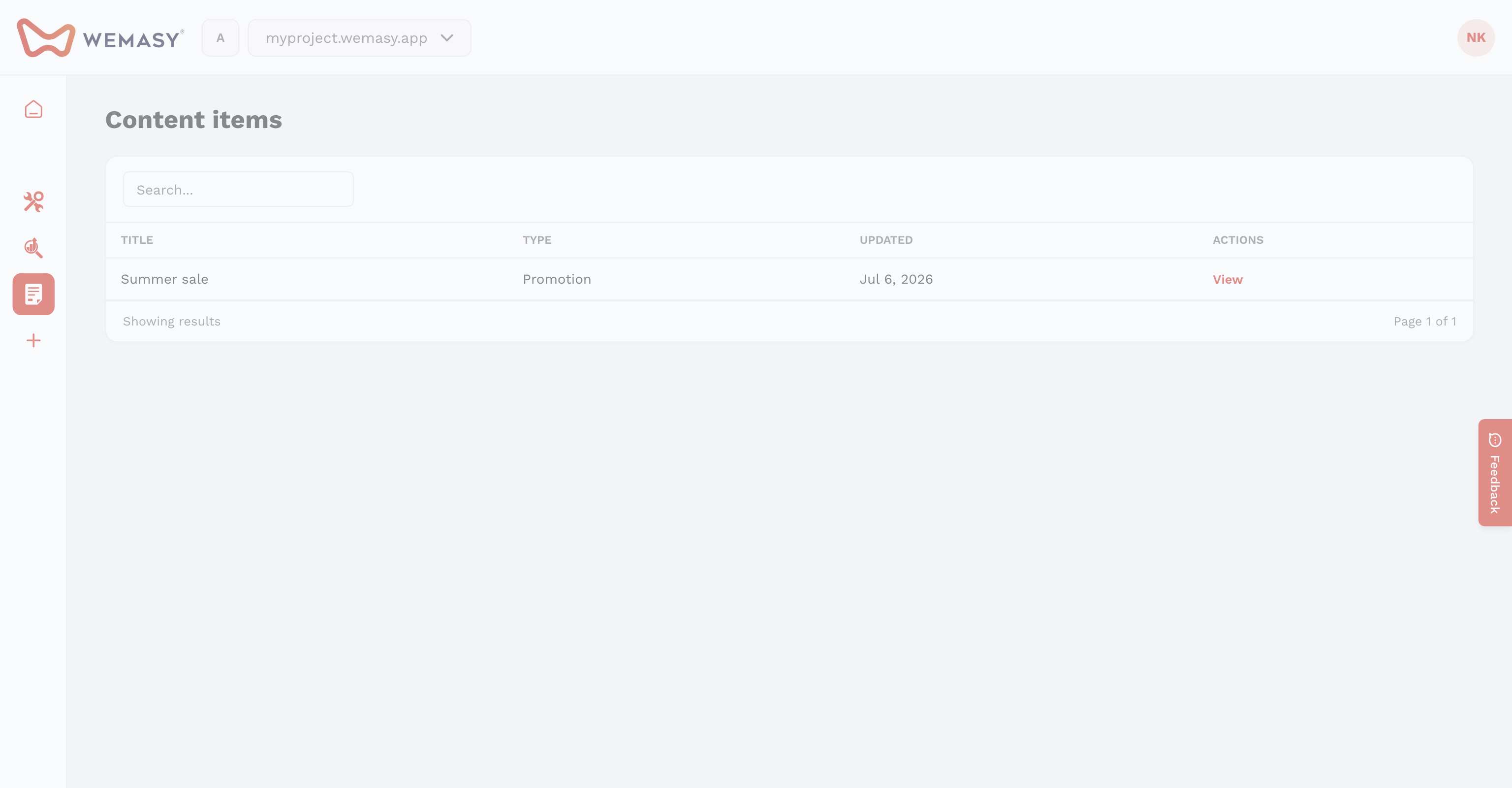
- Create the structure the items should go into. See Working with structures.
- Make sure your file is available at a public web address.
General tab: connect the feed
- Open the Importer from the three-dots menu next to Pages and click Create new.
- Type a Title and an Import Identifier.
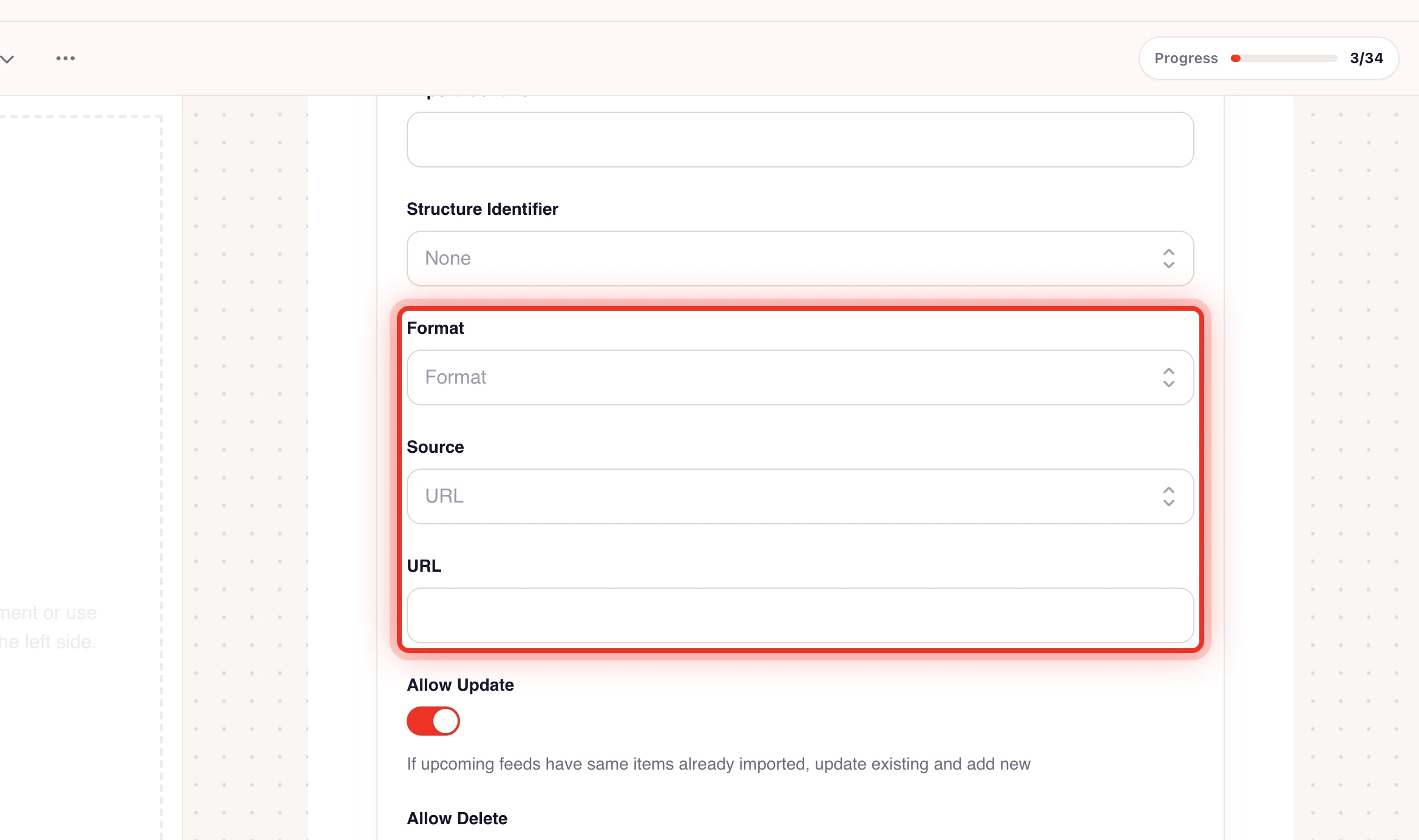
- Choose the Structure Identifier: the structure that receives the items.
- Choose the Format: CSV, JSON or XML.
- Keep Source on URL and paste the address of the file in URL.
- Click Update to load the file.
Select the items and map the fields
- Check the loaded Data.
- For JSON and XML, fill in Items Selection: the group that holds the entries, for example channel.items. Click Update.
- Under All Fields, scroll through the table to see the fields in the file.
- Under Import Fields, choose which file field fills Title, URL, Unique Identifier, Intro, Content, Image and Category.
The Unique Identifier matters most: it is how the importer recognizes an entry it imported before.
Updates and deletes
- Allow Update: if the next feed has items that were already imported, they are updated and new ones are added.
- Allow Delete: if an item is no longer in the feed, it is deleted from the structure.
Schedule tab: run automatically
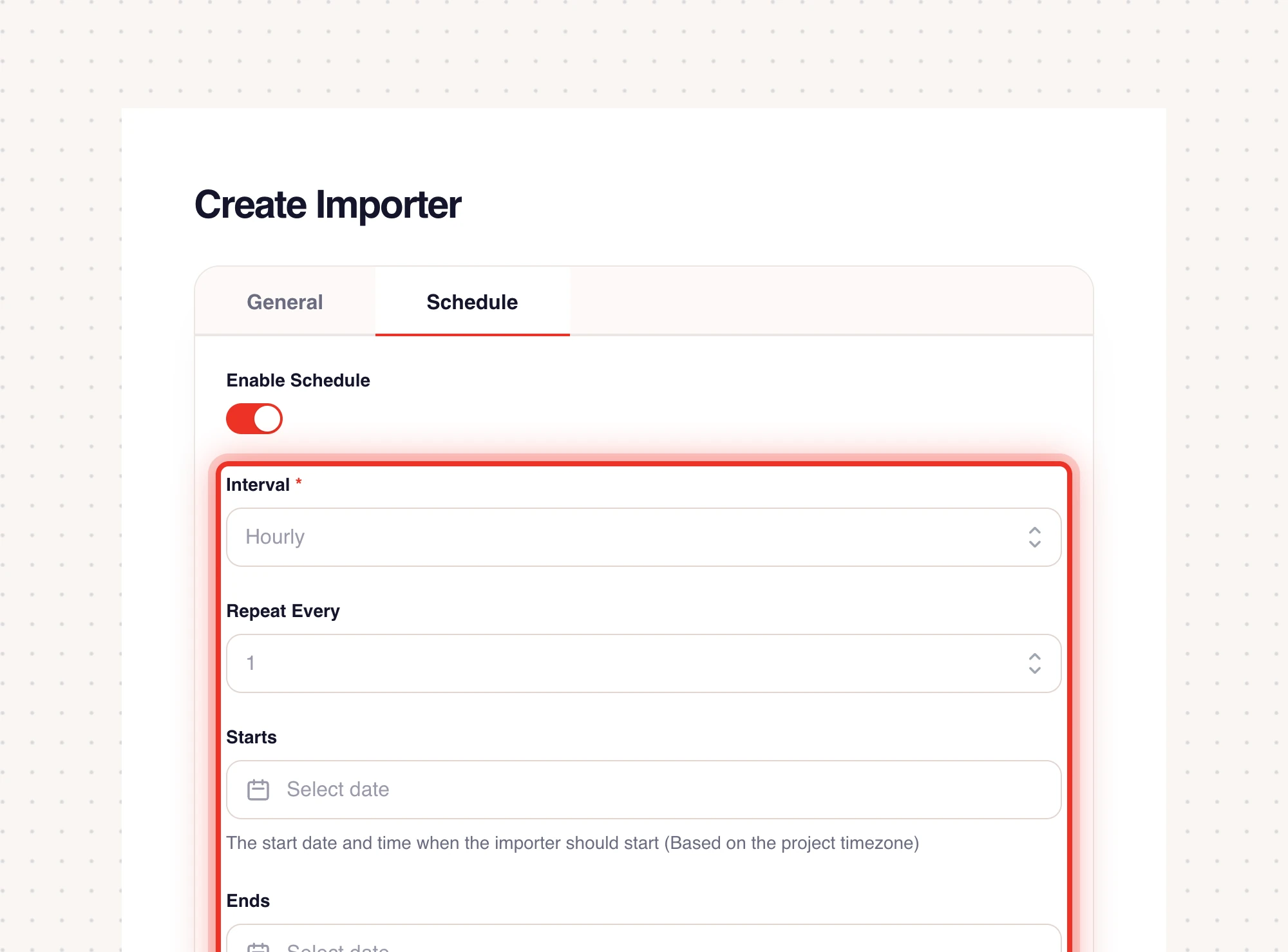
- Open the Schedule tab.
- Switch on Enable Schedule.
- Choose an Interval: Hourly, Daily, Weekly, Monthly or Selected Dates.
- Set Repeat Every, and for weekly runs the days under Only on.
- Set Starts and, if needed, Ends. Times follow the time zone of your project.
- Check the Summary and click Save.
Tip: switch on Allow Delete only when the feed always contains every item. A broken or partial feed would otherwise remove items from your site. Running and managing importers: Data importer for structures.