

The colors in Customization are the palette of your whole website. Buttons, backgrounds, text and accordions use these colors, so when you change the palette, every page that uses the default colors changes with it. You can start from a ready preset and fine-tune it to your brand.
Open Colors
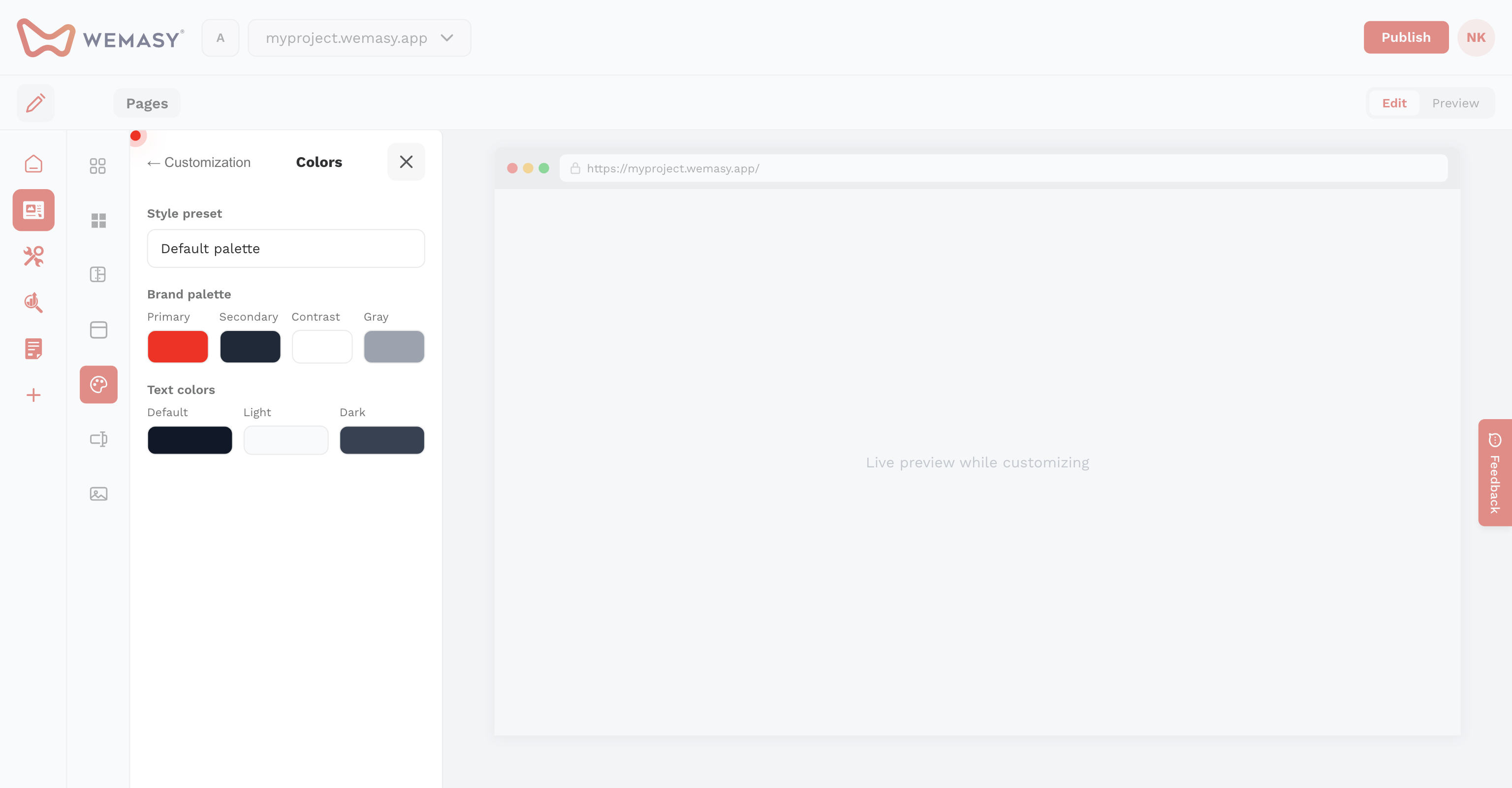
- Open Website Builder.
- Click Customization in the left sidebar.
- Click Colors.
Choose a preset
Under Choose a style you see ready-made palettes, such as WEMASY, Professional, Royal, Natural, Elegant, Playful, Fresh, Warm and Minimal.
- Click a preset. It is applied to your site and the canvas shows the new colors.
- Look at a few pages to check the result.
Set your own brand colors
- Click Edit Palette, or Customize on the active preset.
- Change the four color roles: Primary, Secondary, Contrast and Gray.
- Click Save changes, or Cancel to keep the old palette.
Each role is a full range of lighter and darker shades that WEMASY makes from the color you pick. Primary is your main brand color, used for featured buttons and highlights. Secondary is a second accent. Contrast is used for strong backgrounds, and Gray for neutral areas and borders.
Change one shade
- In the customize view, click Advanced.
- Click any shade to change it, as the panel says: Click any shade to change it.
- Use Reset next to a role to go back to the generated shades.
- Click Save changes.
Here you also set the Text colors: Default text, Light text and Dark text. Sections and elements that use the default, light or dark text option take these colors.
Tip: elements can also use one specific color, for example a single button. Those choices keep their color when you change the palette. For a site that stays consistent, use the palette colors where you can. See Button styles in customization and Fonts in customization.
Frequently asked questions
Do color changes show on my live site right away?
You see them in the builder right away. Visitors see them after you publish your website.
One section did not change color. Why?
That section or element probably has its own color set in its settings, or uses custom CSS. Open its settings and choose a palette color instead.