

With WEMASY you can take donations on your website, for example for a foundation, a club or a school project. Donors pick an amount and pay online. The money goes straight to your own Mollie or Stripe account: WEMASY never holds or pays out donations. This article explains how to set it up, where you see your donations, and what a donor receives.
Before you start
- Switch on the Webshop for your project. Donations use the payment settings of the webshop.
- Connect your own payment provider, such as Mollie or Stripe, under Payment Settings. See Webshop settings and payments.
Without a connected provider, the donation form shows on your site but cannot take donations yet.
Add a donation form to your site
- Open the page where people should donate in the Website Builder.
- Click Elements and drag Donation into a section.
- Set the amounts, for example 10, 25, 50.
- Publish your website.
All settings of the element are in Donation element. You can also ask the WEMASY AI to place a donation form for you.
See your donations
- Open Webshop from the product switcher.
- Click Donations in the menu.
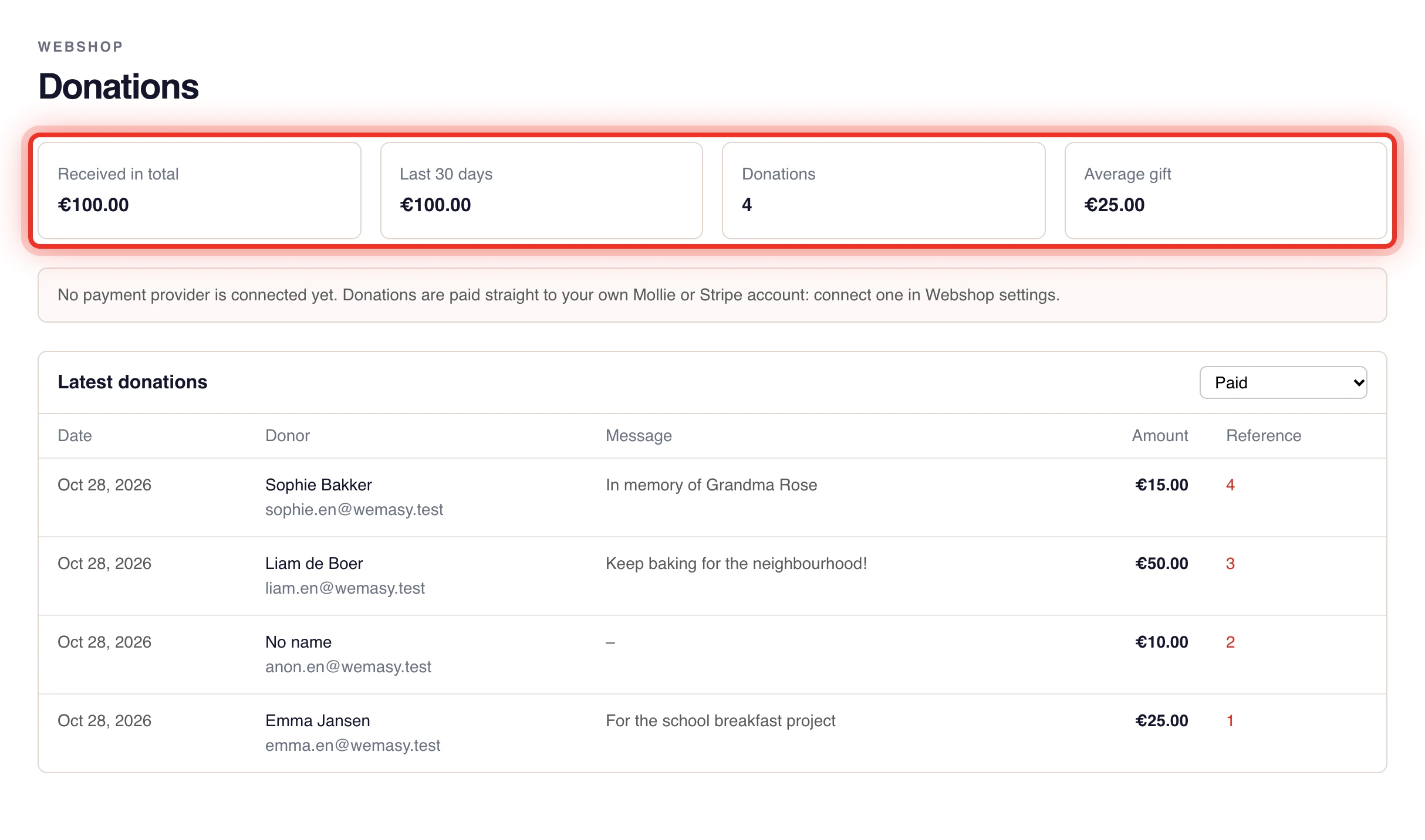
At the top you see Received in total, Last 30 days, the number of Donations and the Average gift. Under Latest donations each donation shows the date, the donor, their message, the amount and a reference that links to the order. Donors who left no name show as No name.
By default the list shows paid donations. Choose All (also not paid) to also see donations that were started but not paid. Every donation is also an order under Orders. See Managing orders.
What the donor receives
When the payment is in, the donor gets a thank you email from your website, with the amount, the date and the reference. It uses the name and the email style of your site, and replies go to you. The email is in Dutch when the donation was made on a Dutch site, and in English otherwise.
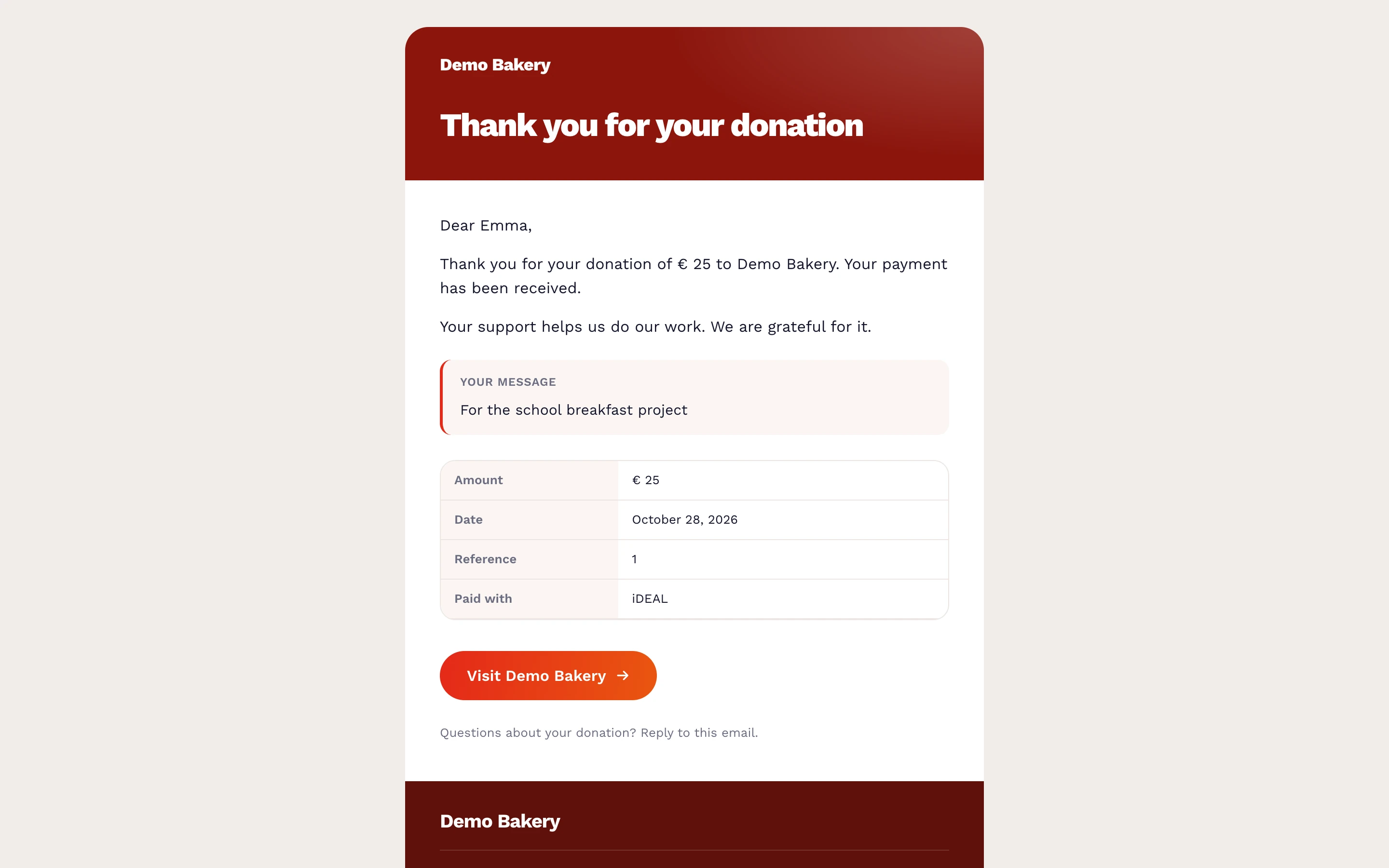
The email confirms the payment. It is not a tax receipt and makes no claim about tax deduction. If your donors need a receipt for their taxes, send it yourself.
When does the money arrive?
Your payment provider pays the money out to your bank account on its own schedule. Check the payouts in your Mollie or Stripe dashboard.
Frequently asked questions
Is VAT charged on a donation?
A gift is usually outside the scope of VAT, so donations carry 0% VAT by default. Check this with your accountant.
Can I take donations without online payment?
Yes, but then no money comes in through the site. Put your bank details on the page, or use a form that sends you the details of the donor so you can send a payment request yourself.
The overview says no payment provider is connected
Donations are paid straight to your own Mollie or Stripe account. Connect one under Payment Settings in the webshop settings, then try a test donation.