

Every checkout and quote request on your site becomes an order in the WEMASY Webshop. In Orders you see who ordered what, whether it is paid, and you move the order through its statuses until it is completed.
The order list
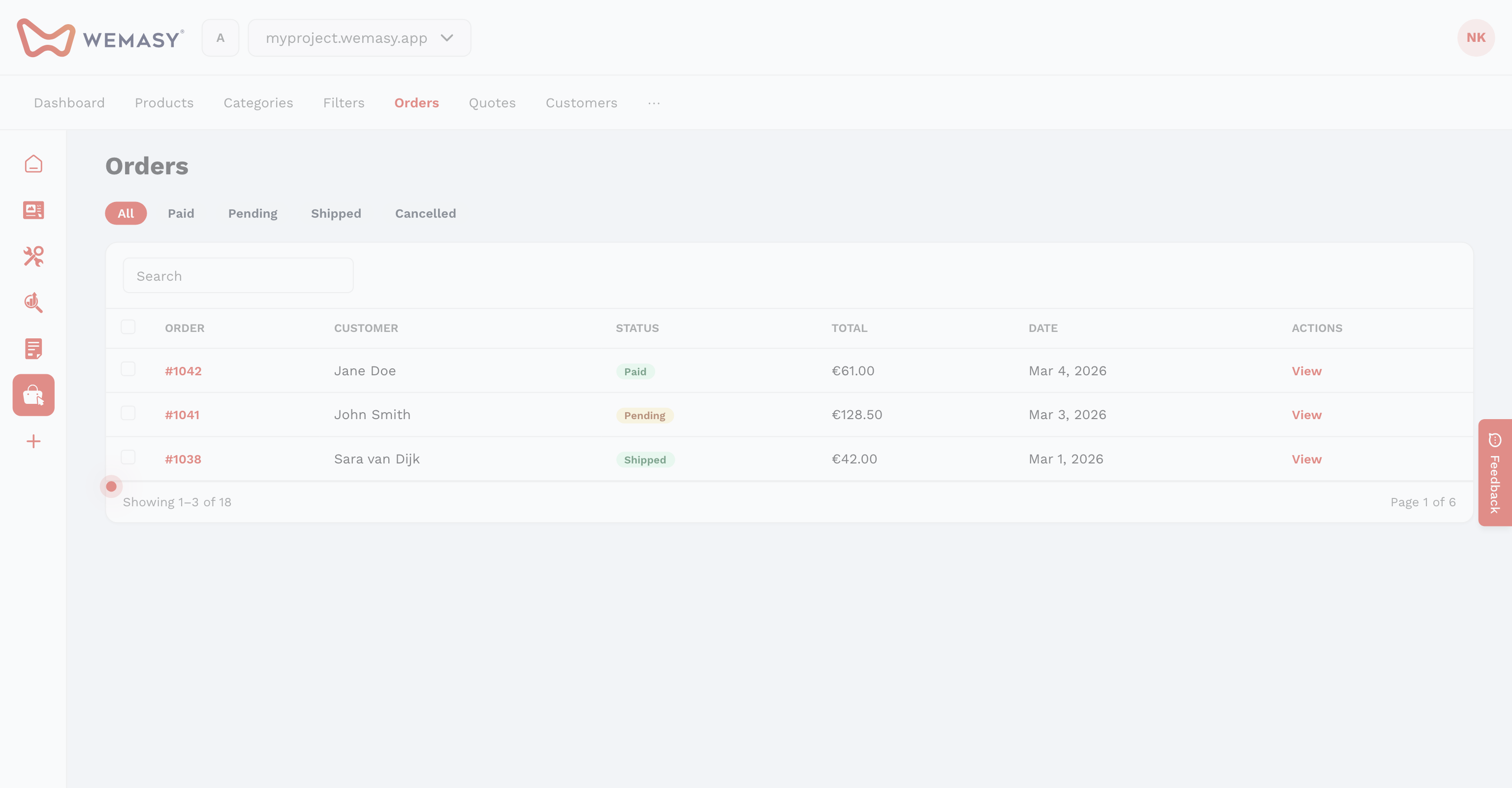
Open Webshop and click Orders. The list shows the order, date, status, billing and shipping details, EU VAT, total, and payment method. Filter on a status such as Pending, Processing, or Completed, or click Export to download the orders.
Create an order yourself
Sell to a customer in your shop or on the phone? Make the order yourself, and WEMASY sends the payment link.
- Open Webshop, click Orders and then Create order.
- Add the products. Search by name; sold-out products are marked. Set the quantity of each.
- Fill in the customer's first name, last name and email address, and a phone number if you like.
- Choose the delivery, or No shipping when the customer takes the order along.
- Check the total. Tax, discounts and shipping are added exactly as at checkout.
- Click Create and send payment link, or Create order only.
With a payment link, the customer gets an email and pays on the payment page with your payment methods. Without online payments set up, they see your bank transfer details instead. After you create the order you can Copy the payment link, send it again, or open the order.
No payment method set up yet? Connect one in the Webshop settings first, or mark the order as paid yourself when the customer pays you directly.
Open an order
- Find the order in the list.
- Open the actions menu on the row.
- Click View.
The order shows the Order Number, Order Date, Paid on, Invoice Number, invoice and delivery details, the delivery method, payment details, notes from the customer, and the products with totals including and excluding VAT.
Order statuses
- Pending: the order exists but payment is not done.
- Processing: the payment is received.
- On Hold: waiting for something, for example a question to the customer.
- Completed: delivered or done.
- Cancelled, Refunding, Refunded, and Failed.
Change the status
The actions you see depend on the current status:
- A pending order: Mark as Paid (for example when a bank transfer arrived) or Mark as Cancelled.
- A processing order: Mark as Completed, Mark as Refunding, Mark as Cancelled, or Mark as on Hold.
- An order on hold: Mark as Paid, Mark as Cancelled, or Mark as Refunding.
Each action asks you to confirm. WEMASY emails the customer about the new status, such as on hold, processing, completed, or cancelled.
Add an internal note
- Open the order.
- Type in Vendor Comment.
- Click Update Comment.
Only you and your team see this note.
Tip: For shipping labels, invoices, refunds, and quotes, see Orders, fulfillment, and quotes and Invoices, packing slips, and order emails. Paid orders with files also show download activity, see Digital products and downloads.
Frequently asked questions
A customer paid by bank transfer. What do I do?
Open the order and use Mark as Paid. The order moves to Processing and the customer gets an email.
Can I delete an order?
No. Use Mark as Cancelled so the order stays in your records.