

Creating a form in WEMASY takes two parts: the form settings (its name and what happens after a submission) and the fields, which you add in the form builder. This article covers the settings and how to manage your forms in the list.
Create a form
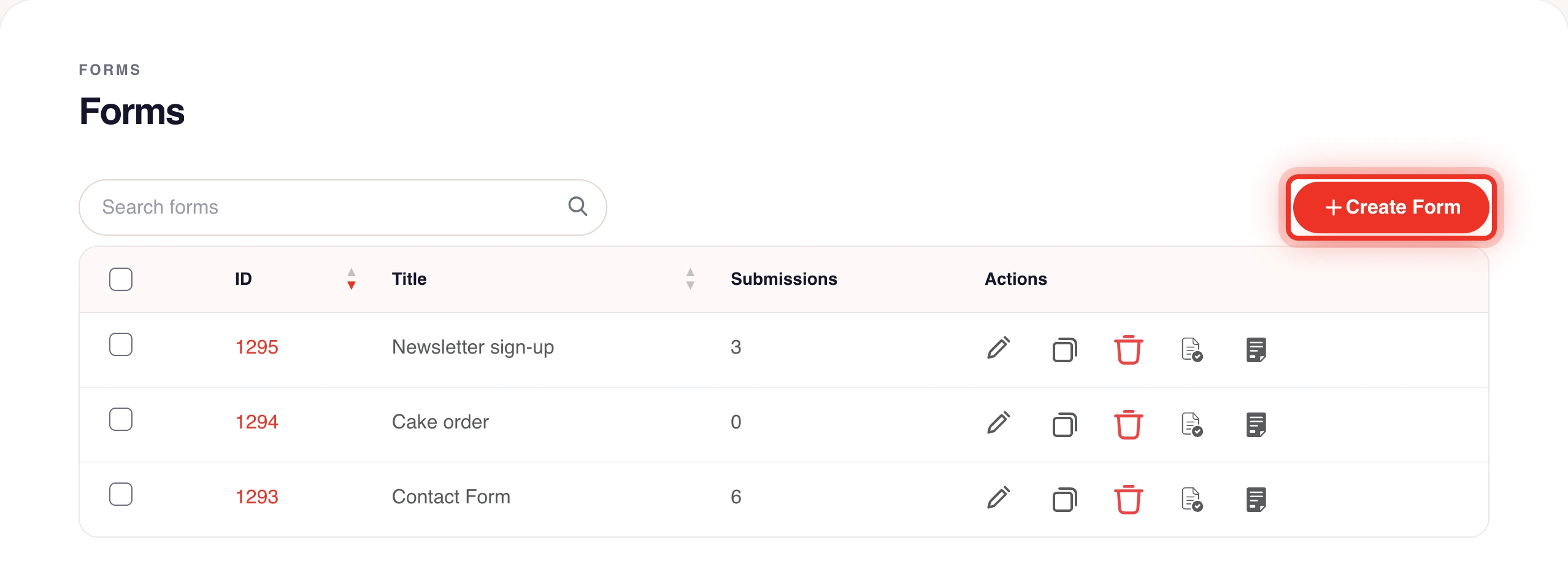
- Open Forms from the product switcher.
- Click Forms in the top menu.
- Click Create Form.
- Enter a Title. Only you see it, in the dashboard and in the notification emails.
- Optional: enter a Redirect after submit, for example
/thank-you, to send visitors to a thank-you page. - Optional: set up Email to owner, Email to user and Webhook. You can also do this later.
- Click Create form. The form builder opens.
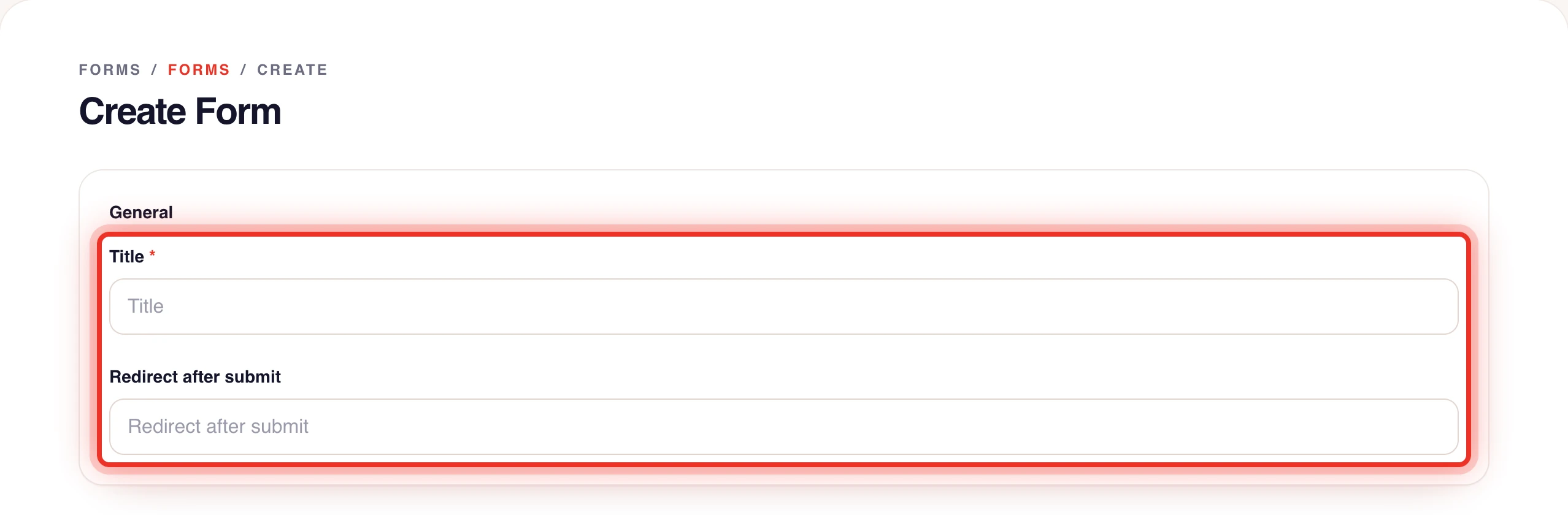
The settings on this screen
- General: the Title (required) and Redirect after submit. Without a redirect, the visitor stays on the page and sees a success message.
- Email to owner: tick Notify owner to receive an email for every submission. This box is off for a new form, so tick it if you want emails.
- Email to user: tick Notify user to send the visitor a confirmation. Also off for a new form.
- Newsletter: add people who submit to a newsletter list. This section only shows when your project has Newsletter & Campaign.
- Webhook: send each submission to another system.
The emails and the webhook are explained in Email notifications and webhooks.
Add the fields
A new form has no fields. In the form builder, drag in the fields you need and add a Submit Button. See Form builder and fields.
Edit, duplicate or delete a form
Each row in the Forms list has actions:
- Edit: change the settings. Click Update form to save. The Form builder button at the top opens the fields.
- Form builder: open the fields directly.
- Form submissions: see the submissions of this form only.
- Duplicate: make a copy with the same fields and settings. The copy gets "copy" after its title.
- Delete: remove the form after you confirm.
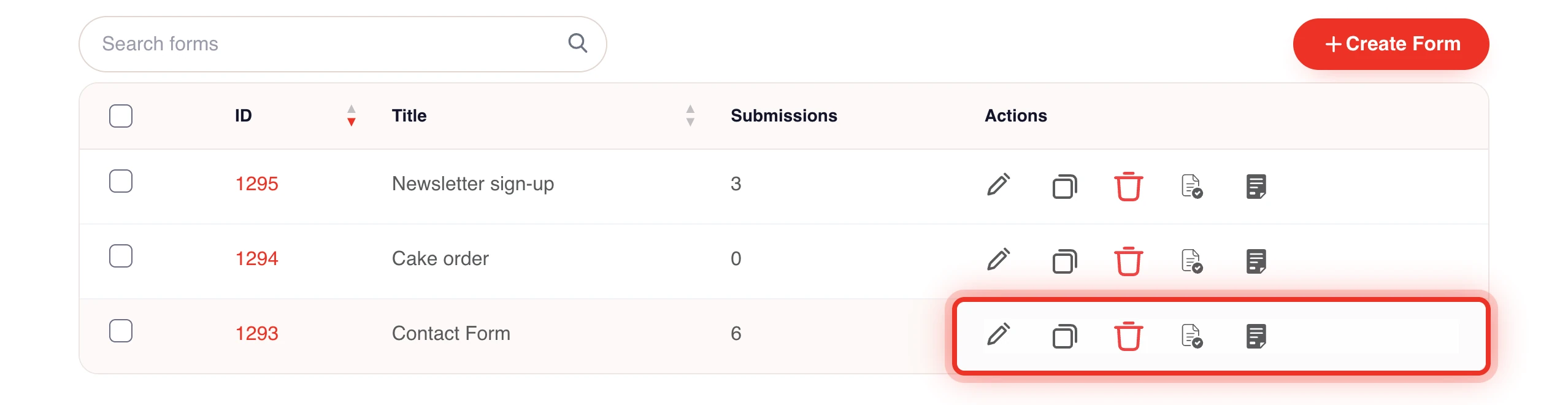
To duplicate or delete several forms at once, tick them in the list and choose the action.
Frequently asked questions
Are there ready-made form templates?
Yes. Open Form Templates in Forms and pick one of the Contact Forms, Survey Forms or Registration Forms. WEMASY creates the form with its fields and opens it in the form builder, where you change it like any other form. You can also duplicate a form you already have, or describe the form to the AI on the Forms overview.
Does deleting a form remove it from my website?
Yes. A page that shows a deleted form no longer has a form to show, so place another form on that page first.