

Not every address needs its own mailbox. With an alias, mail to an extra address such as sales@ or quotes@ lands in a mailbox you already have. With forwarding, a copy of every incoming message goes on to another address. This article shows how to set up both in E-mail Hosting, and how to send form submissions to the right inbox.
Create an alias
An alias is an extra address without its own inbox. It does not count as a mailbox.
- Open E-mail Hosting from the product switcher.
- Click Aliases in the menu.
- Click New alias.
- Enter the Alias address, for example sales@yourbusiness.com.
- Under Delivers to, enter the mailbox that should receive the mail. It must be a mailbox on the same domain as the alias.
- Click Save.
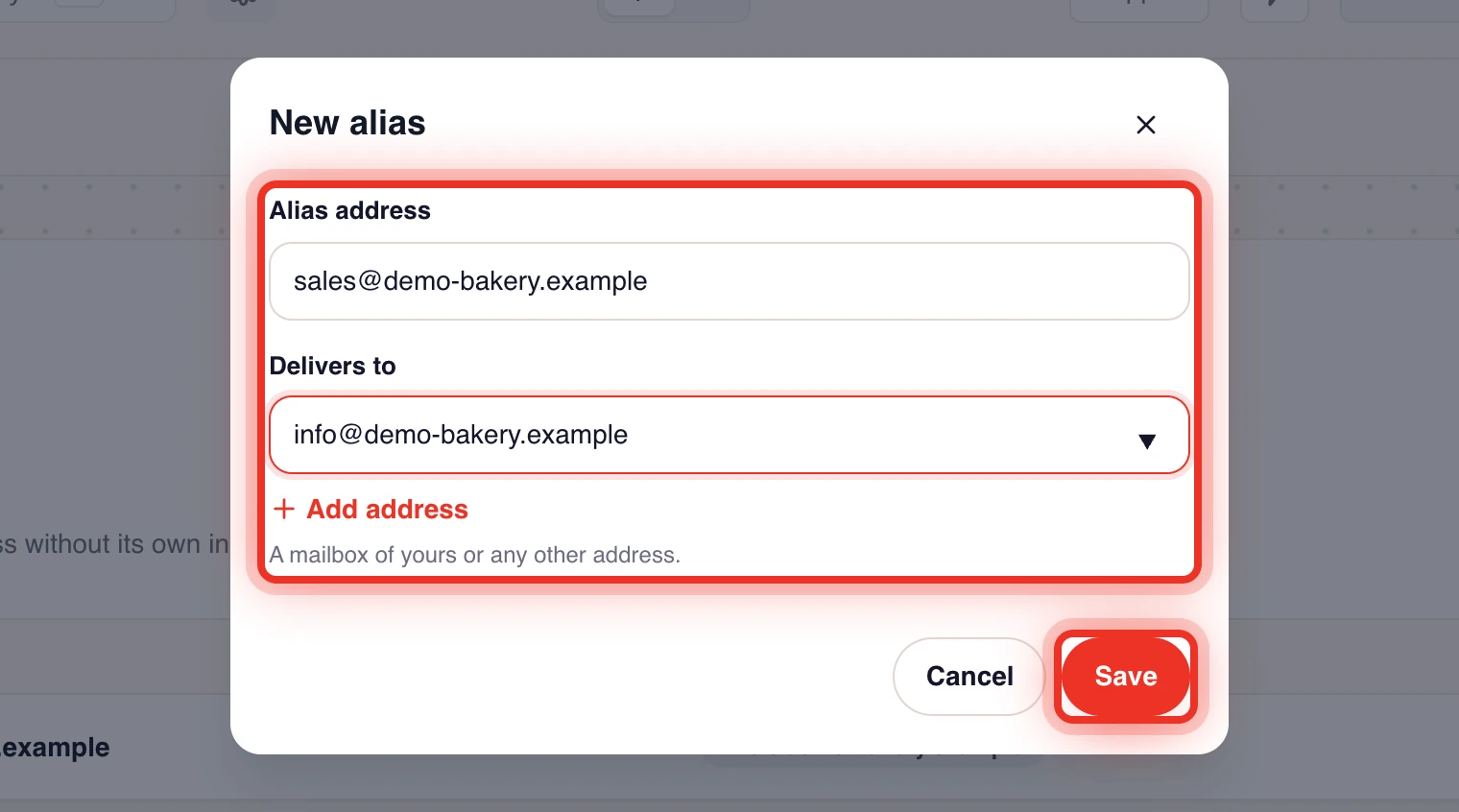
An alias delivers to one mailbox of your own, on the same domain. To get a copy in another inbox as well, set forwarding on that mailbox, see below. The alias appears in the list with the address it delivers to and the status On. Send a test email to the alias to check that it arrives.
Change or remove an alias
- Click the alias in the list. The Edit alias window opens.
- Change the address under Delivers to, or untick Active to pause the alias.
- Click Save, or click Delete to remove the alias.
Forward incoming mail
Forwarding sends a copy of every incoming message to another address, for example your personal inbox. The mail also stays in the mailbox. You set forwarding in webmail, signed in with the mailbox.
- Click Mailboxes and open the mailbox with the settings icon.
- Click the Webmail tab and click Open webmail.
- Sign in with the mailbox address and its password.
- Open the settings of webmail and add the address to forward to.
- Save, and send a test email to check that the copy arrives.
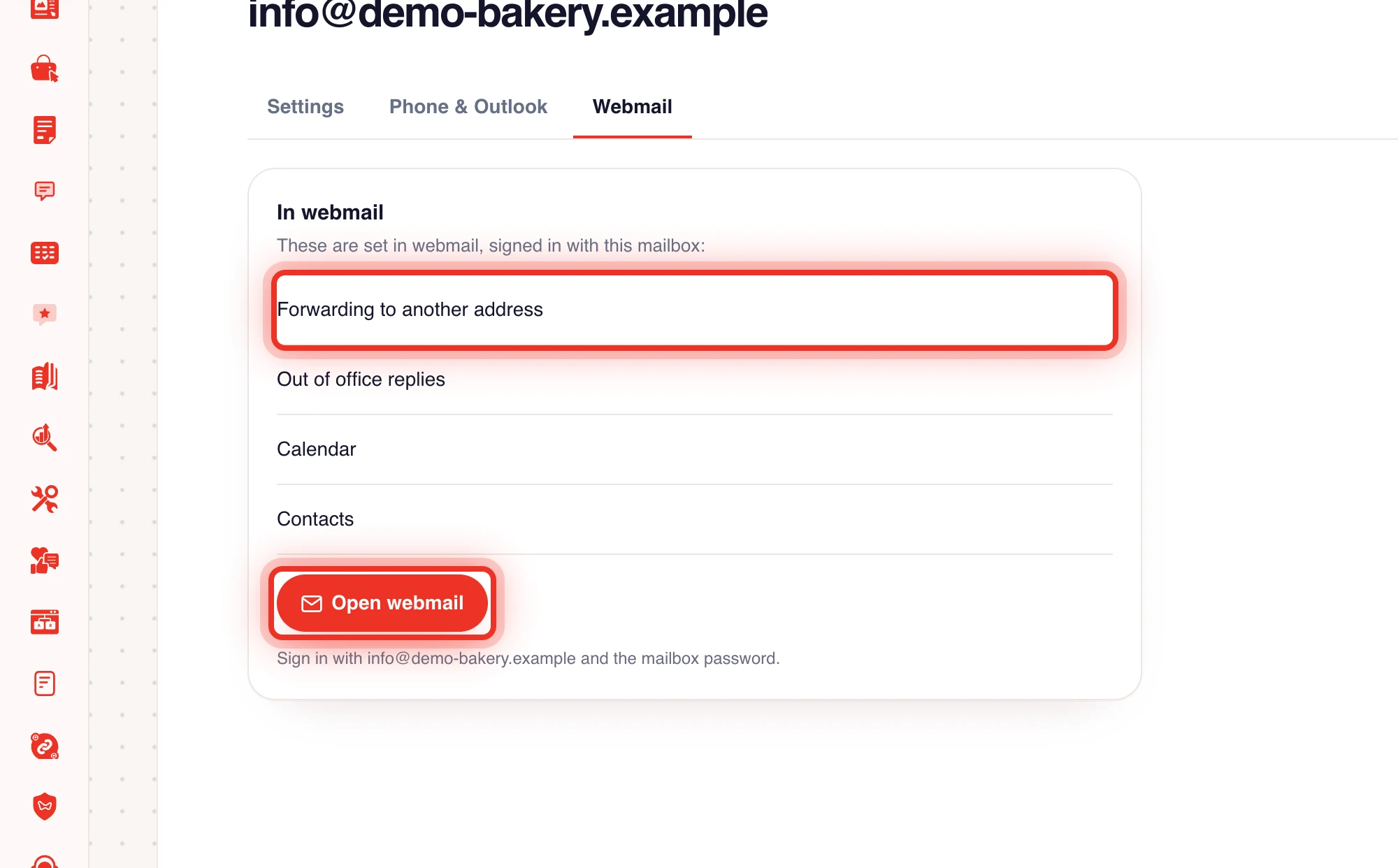
In the same place you set an out of office reply. For more about webmail, see Webmail and device sync.
Send form submissions to the right address
Often you want form submissions from your website to land in a shared inbox, such as info@. Create the mailbox or alias first, then choose that address for your forms. See Default email for form submissions, and for the settings of a single form, Email notifications and webhooks.
Frequently asked questions
Alias or mailbox: which do I need?
Use an alias when the mail can land in an inbox you already read. Create a mailbox when someone needs their own inbox, password and calendar. See Creating email accounts.
Can I redirect my whole domain to another website?
Yes, that is a different thing from email forwarding. See Redirecting a domain to another website in the domain registration articles.