

Every WEMASY mailbox works in webmail in your browser and in the mail app on your phone or computer. Mail, calendar and contacts stay in sync on all your devices. This article shows how to open webmail and how to connect a mailbox to your iPhone, Android phone, Outlook or Mac Mail.
Open webmail
Webmail holds your mail, calendar and contacts. You sign in with your mailbox address and the mailbox password.
- Open E-mail Hosting from the product switcher.
- Click Mailboxes and open the mailbox with the settings icon.
- Click Open webmail.
- Sign in with the mailbox address and its password.
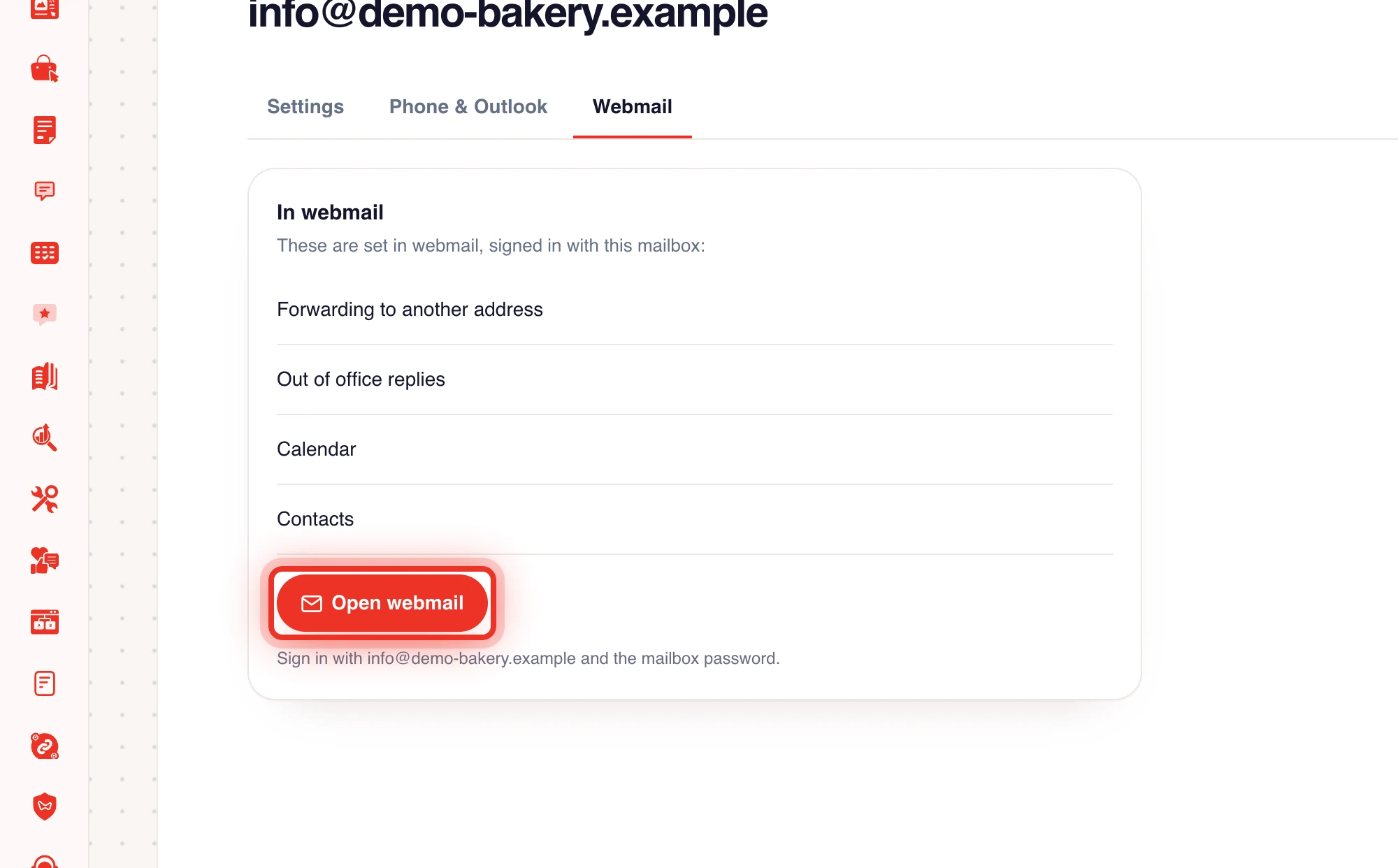
You can also click Open webmail on the Overview. Bookmark the webmail page to go there directly next time.
Connect your phone or computer
Most mail apps find the settings by themselves when you enter your address and password. The Phone & Outlook tab of a mailbox has everything you need.
- Open the mailbox and click the Phone & Outlook tab.
- Follow the steps under Step by step for your device.
- If your app asks for server settings, copy them from Settings for any mail app with Copy.
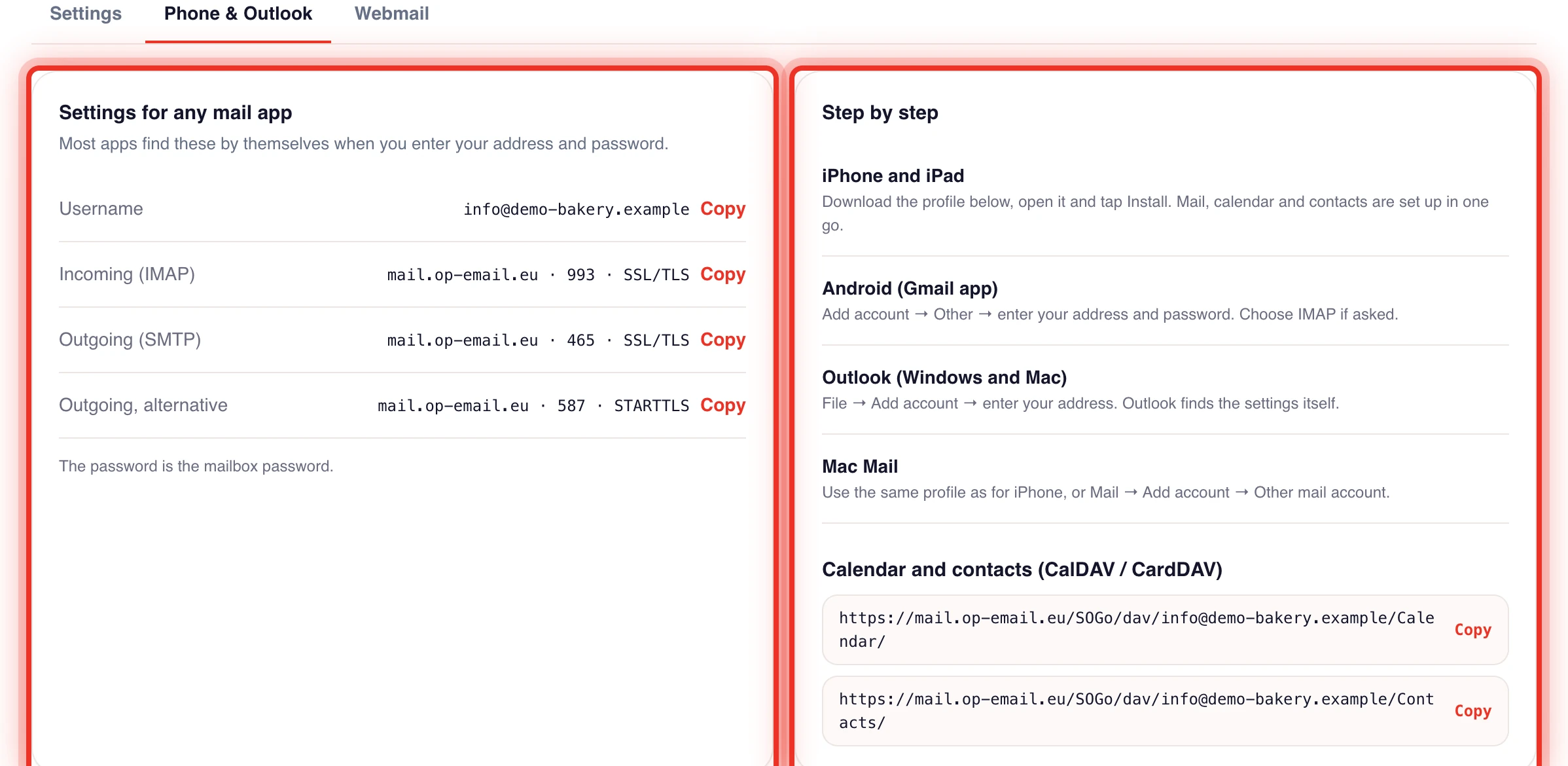
The steps per device:
- iPhone and iPad: add a mail account in the settings of your device with your address and password. If it asks for servers, use the settings from Settings for any mail app.
- Android (Gmail app): add an account, choose Other, and enter your address and password. Choose IMAP if asked.
- Outlook (Windows and Mac): choose File, Add account, and enter your address. Outlook finds the settings itself.
- Mac Mail: add an account with Other mail account and enter your address and password.
The settings list shows the Username, the Incoming (IMAP) and Outgoing (SMTP) servers with their ports, and an Outgoing, alternative server. The password is always the mailbox password.
Sync your calendar and contacts
Under Calendar and contacts (CalDAV / CardDAV) on the same tab you find two addresses. Add them in your calendar and contacts app if it did not set them up by itself. Changes you make on your phone then show in webmail, and the other way around.
Change the password
On the Settings tab of the mailbox, click Change password. Phones and mail apps are signed out and ask for the new password. See Creating email accounts.
Tip: Do you want the form emails and newsletters of your website to come from your mailbox address too? Connect its outgoing server in the project settings. See Sending email through your own mail server.
Frequently asked questions
My phone keeps asking for the password. What should I do?
The password was probably changed. Enter the new mailbox password on your phone. If you do not know it, set a new one with Change password on the Settings tab.
Where do I set an out of office reply?
In webmail, signed in with the mailbox. The Webmail tab of the mailbox lists what you set there: forwarding, out of office replies, calendar and contacts.