

DNS records decide where your domain leads: your website, your email provider, or a verification for another service. For a domain registered in WEMASY with WEMASY DNS, you manage the records on the domain's detail page. DNS templates save a set of records once, so you can apply it to several domains and update them all at the same time.
Edit the DNS records of a domain
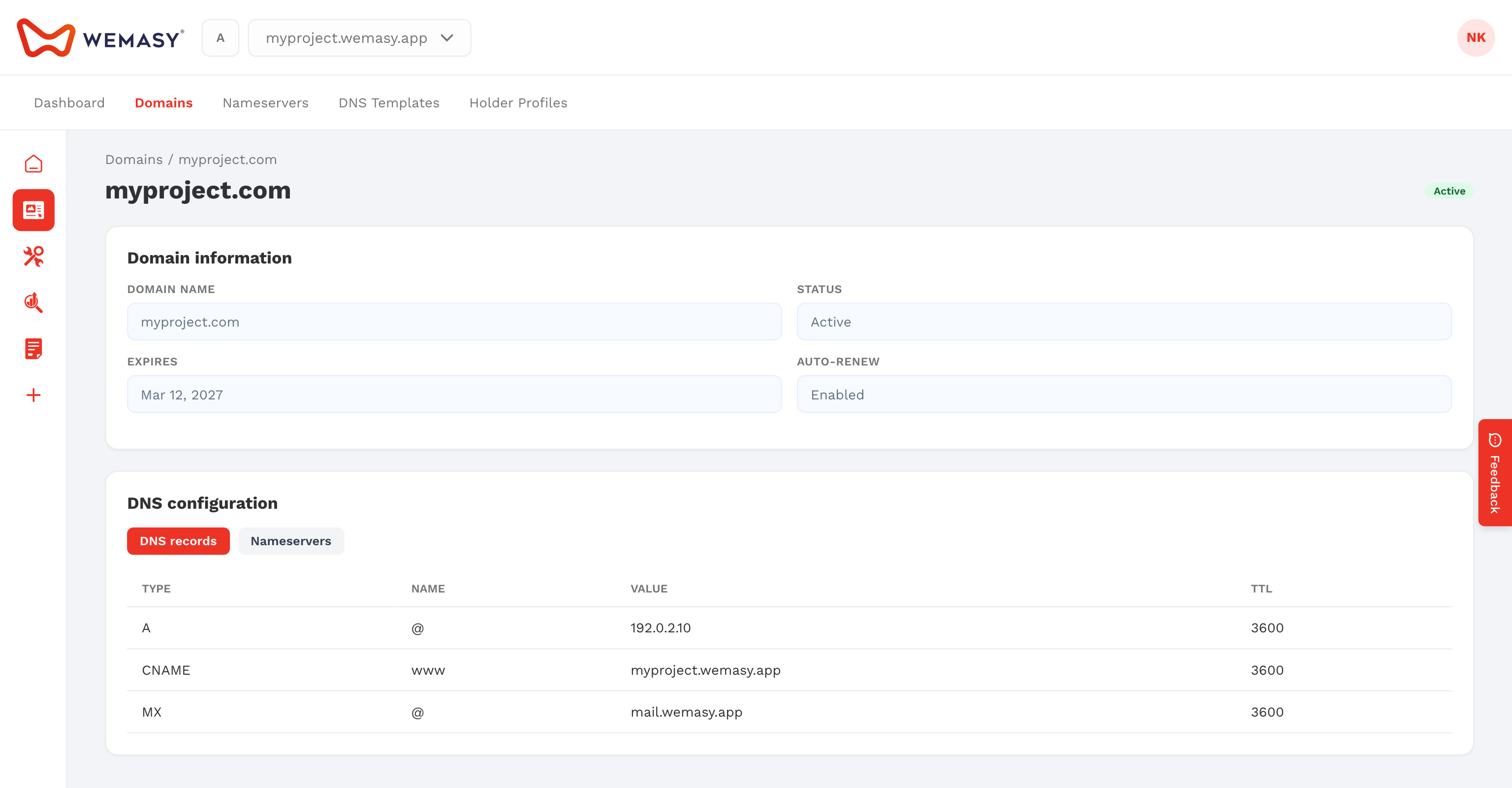
- Click your avatar in the top right corner and select Domains.
- Click Domains in the left menu.
- Click the domain you want to change.
- Under DNS Configuration, click DNS.
- Choose Inline DNS Records.
- Click Add record.
- Choose the Type and fill in the Name, Value and TTL.
- Click Save DNS Configuration.
Use @ as the name for the domain itself, or a subdomain name such as www or mail. A few rules help you avoid errors:
- A and AAAA records hold an IP address, without http:// or a port.
- CNAME points to another hostname. The root (@) cannot use a CNAME.
- MX points to a mail server and needs a priority. A lower number is preferred, and 0 is allowed (Microsoft 365 uses it).
- TXT holds text, for example for SPF, DKIM or a domain verification.
- The TTL is in seconds. The default is 3600.
A record that cannot be saved shows the reason on its own row, so you can fix it there.
Click Sync from registrar if you want to load the records as they are at the registrar now.
Add a set of records in one click
Above the records, Quick Install offers ready sets of records, for example for Google Workspace or Microsoft 365 email. Click a set, check how many records it adds, and click Install. Then click Save DNS Configuration.
Create a DNS template
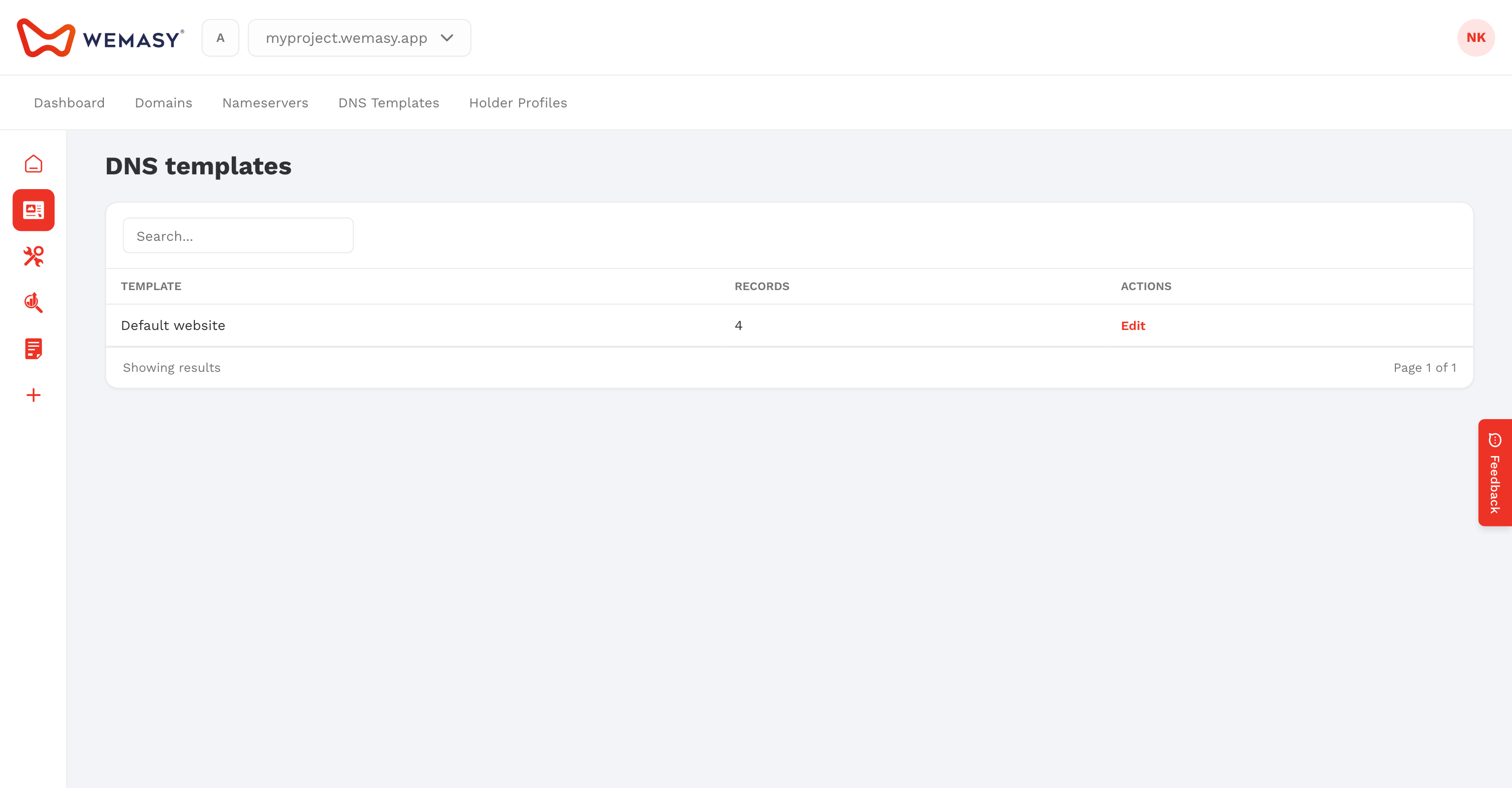
- In Domains, click DNS Templates in the left menu.
- Click Create DNS Template.
- Enter a Template Name and, if you like, a Description.
- Fill in a row for each record the template needs, with its type, name, value and TTL.
- Turn on Set as Default Template if new domains should get this template automatically.
- Click Create Template.
Apply a template to a domain
- Open the domain and click DNS under DNS Configuration.
- Choose DNS Template.
- Pick the template under Select DNS template.
- Click Save DNS Configuration.
A domain linked to a template shows its records from the template. To change them, click Go to template, or click Unlink template to edit the records on this domain only. When you save a template that is linked to domains, WEMASY lists the domains it will update. Click Save & Update Domains to push the new records to all of them. You cannot delete a template while domains are still linked to it.
Custom nameservers and WEMASY hosting
If the domain uses Custom Nameservers, the DNS records in WEMASY are not active and are hidden. Manage them at the company that runs those nameservers. If the domain is connected to a project on WEMASY hosting, the section shows Connected to WEMASY Hosting. The records for your website are managed for you there. You can still add your own records next to them, for example for email:
- Under Connected to WEMASY Hosting, click Add DNS Record.
- Choose the type, fill in the name and the value, and save.
WEMASY keeps the records for your website as they are, so your site stays online.
For nameserver groups, see Holder profiles and nameservers. For DNS problems, see DNS configuration guide.