

Menus are the navigation of your website: the links in your header, your footer or a sidebar. In WEMASY you build a menu once in the Website Builder, with links to pages, blog items, products or any other address, and then show it wherever you need it.
Open Menus
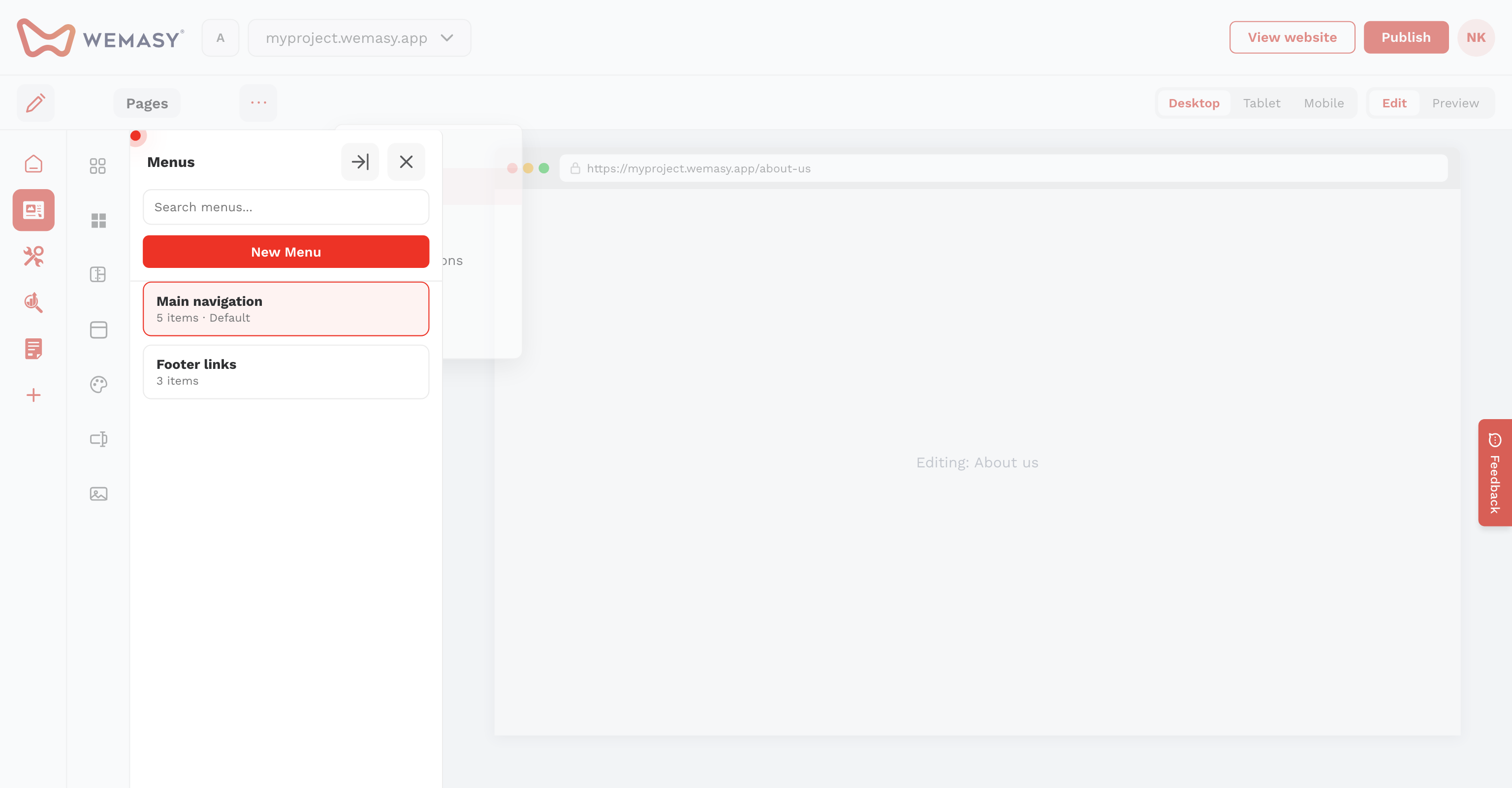
- Open Website Builder.
- Click the three-dots menu next to Pages in the bar above the canvas.
- Click Menus.
The panel lists your menus. Click a menu to edit it, or use its three-dots menu to Delete it.
Create a menu
- Click New Menu.
- Type a Title, for example Main menu or Footer menu.
- Click Add Menu Item.
- Under Select a page or add custom link, pick a page from the list.
- Fill in the Title of the item, the text visitors see.
- Add more items the same way.
- Save the menu.
What you can link to
The page list is grouped into Pages, Structure Items, Structure Categories, Products and Product Categories. Only pages that are indexed appear in the list. To link anywhere else, type the address in the same field and add it as a custom link, for example /contact#form or a full https address.
Build submenus
Every menu item can have its own items. Add items inside an item to make a dropdown, and inside those again for deeper levels. Drag items to change their order. How deep a submenu opens on the site is set in the Menu element.
Show the menu on your website
- Switch on Set as default menu to make it the primary navigation of your site. Theme headers use the default menu. See Default menu and default layout.
- Or place a Menu element in your header, footer or any section and select this menu.
Menu items can also get their own style, an icon or builder content for a large dropdown. See Menu styling and mega menus.
Tip: keep the main menu short, five to seven items. Put the rest in a footer menu.
Frequently asked questions
My new page is not in the page list
The list only shows indexed pages. Check that the page is Active and that Do not index in search engines is off, or add it as a custom link with its URL.
I left the menu editor and my changes are gone
When you leave with unsaved changes, WEMASY warns you first. Choose to stay, then save the menu before you leave.