

Custom CSS lets you change the look of your website beyond the options in the panels, for example a special hover effect or a different spacing on one section. The CSS you add in the WEMASY Website Builder applies to every page of your site. This is an advanced feature: you need to know some CSS.
Open the Custom CSS editor
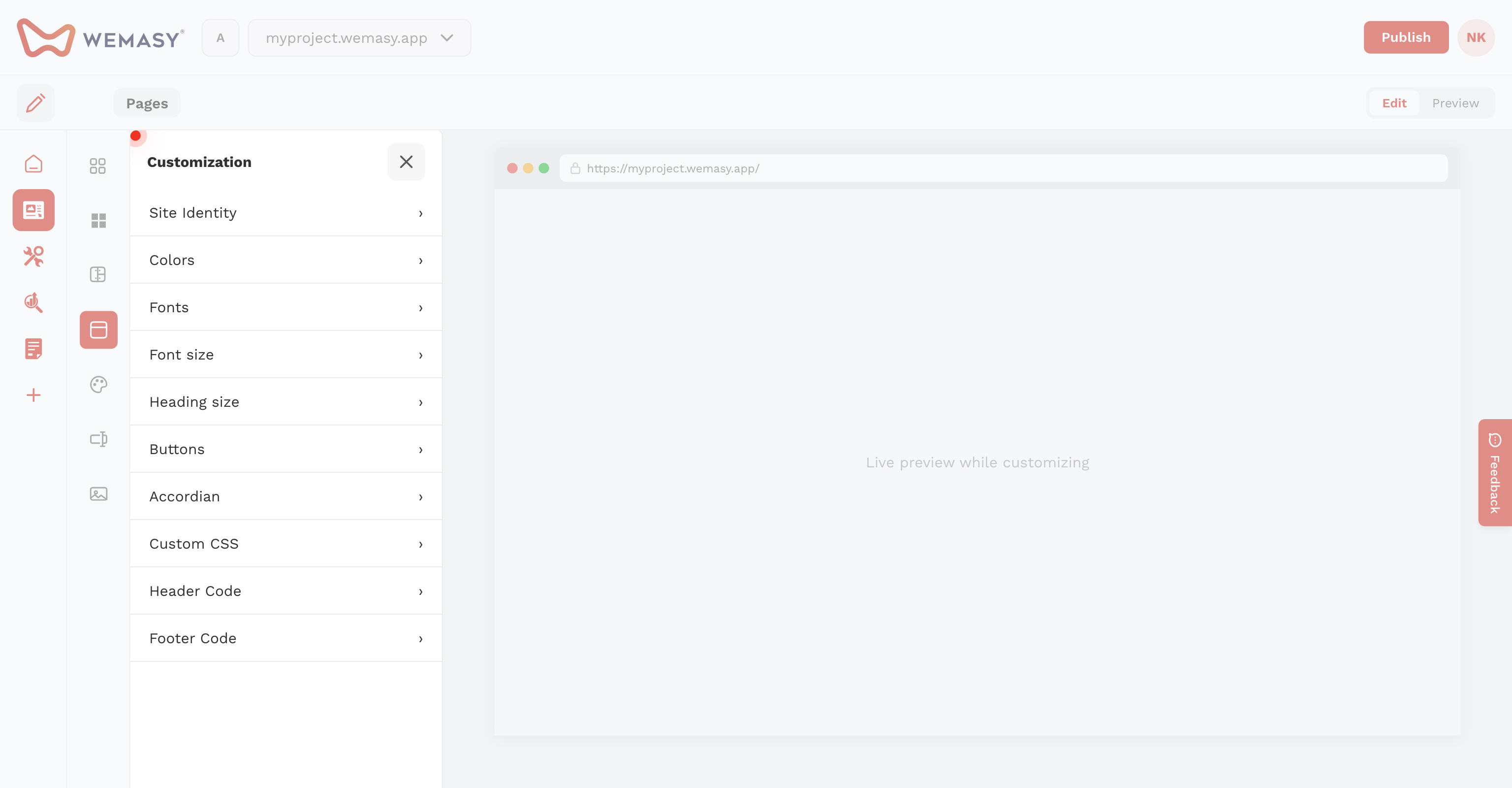
- Open Website Builder.
- Click Customization in the left sidebar.
- Scroll down and click Custom CSS.
A code editor opens at the bottom of the screen, below the canvas. Drag the handle in the middle of its top bar to make it taller or smaller.
Write and save your CSS
- Type your CSS rules in the editor.
- Click Save in the top right of the panel.
- Check the result on the canvas.
- Close the panel with the close button next to Save.
Your published site loads this CSS on every page after you publish.
Target one section or element
To style one specific part of a page, give it a class or an ID first.
- Open the settings of the section or element on the canvas.
- Fill in its Div Class or Div ID field, for example promo-banner.
- Use that name in your CSS, for example .promo-banner or #promo-banner.
A whole page can also get an ID: set Page Element ID on the Advanced tab of the page settings. See Page settings and SEO.
Also in project settings
The same CSS can be edited in your project settings, on the Site Builder tab under Custom CSS. Both places change the same code.
Use the panels first
Colors, fonts, sizes, buttons and accordions have their own panels in Customization. Settings made there stay easy to change later and work with themes. Use CSS only for what the panels cannot do. See Colors in customization and Button styles in customization.
Tip: keep a copy of your CSS somewhere safe before big changes, so you can paste it back if something goes wrong.
Frequently asked questions
My CSS has no effect
Check that you clicked Save, that the class or ID in your CSS matches the one in the element settings, and that no typo breaks the rules above it. A more specific selector can be needed when the element already has a style.
Does WEMASY support help with my custom CSS?
Support can tell you where to add CSS and which classes exist, but cannot write or debug larger custom designs for you.