

Long forms are easier to fill in when you split them up. The Layout fields in the WEMASY form builder let you put fields side by side in columns, group them, spread them over tabs, or turn the form into steps with a progress bar. Layout fields hold other fields and can be placed inside each other.
The layout fields
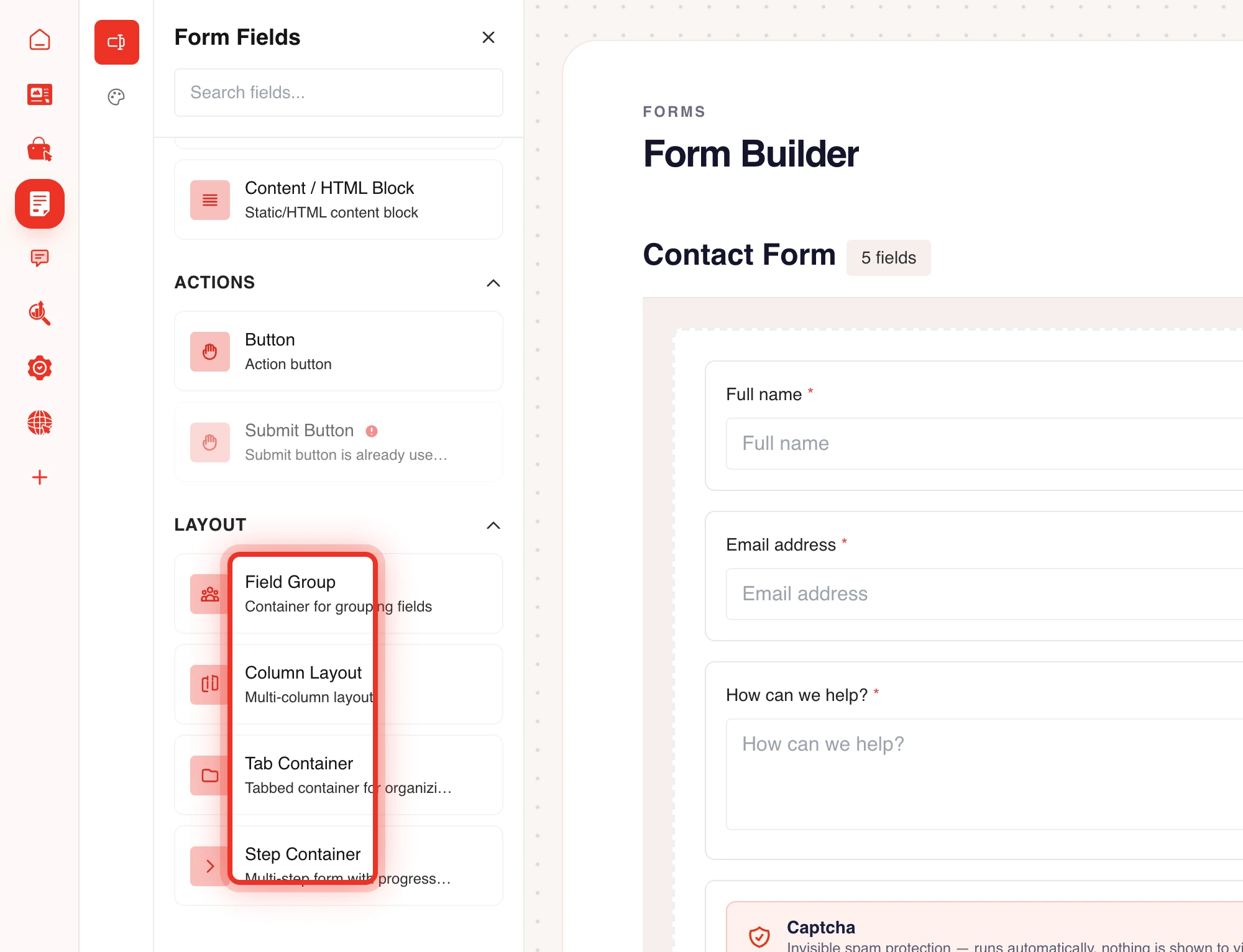
- Field Group: a container for fields that belong together, such as an address.
- Column Layout: fields side by side, for example first name and last name.
- Tab Container: fields spread over tabs the visitor clicks between.
- Step Container: a multi-step form with progress tracking and next and previous buttons.
Put fields in columns
- Open the form in the Form builder.
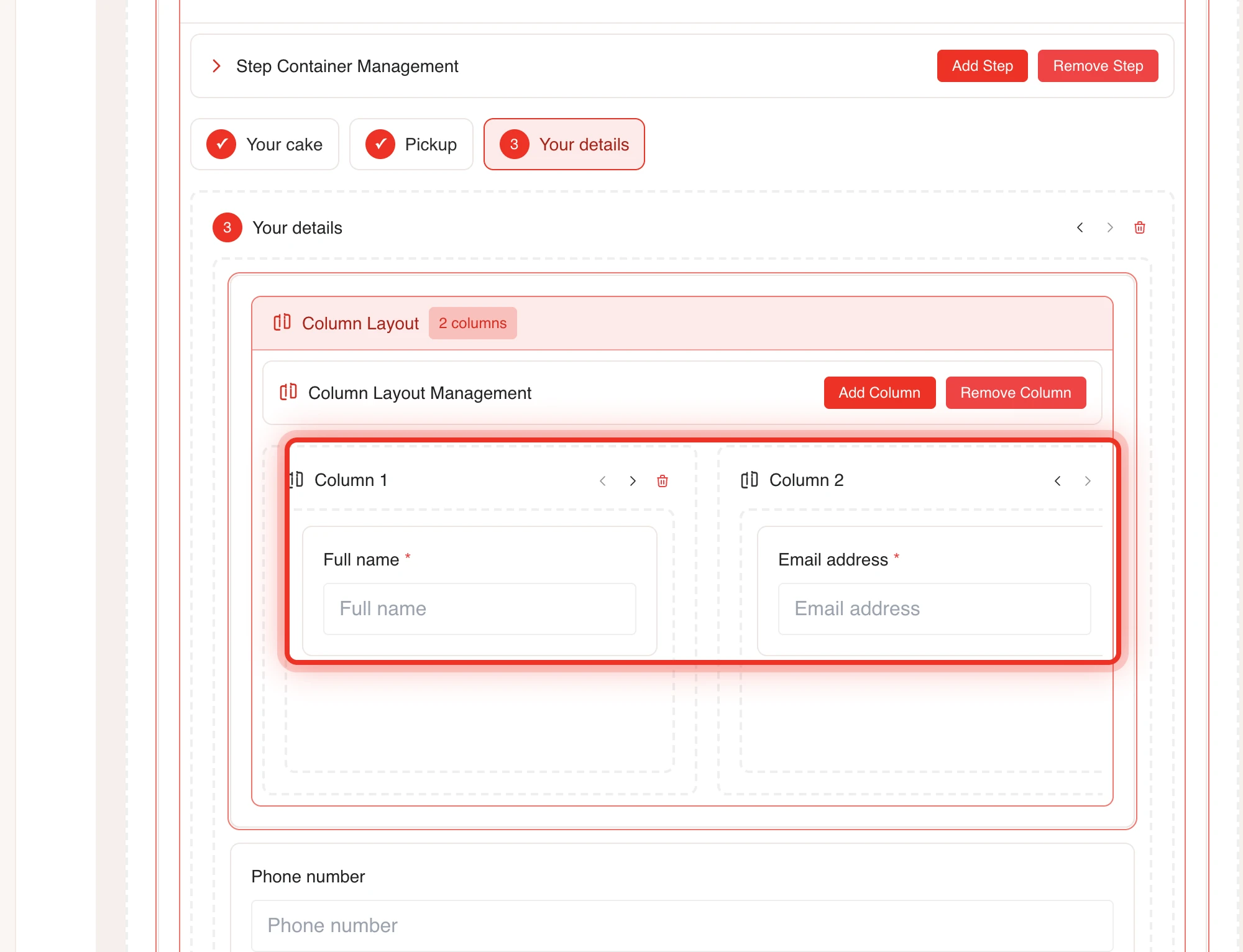
- Drag Column Layout from the Layout category onto the canvas.
- Click the column layout and choose the Number of Columns, or use Add Column and Remove Column.
- Drag a field into each column.
Tick Enable flex wrap to let the columns move under each other on small screens.
Build a multi-step form
- Drag Step Container onto the canvas.
- Click the step container to open its properties.
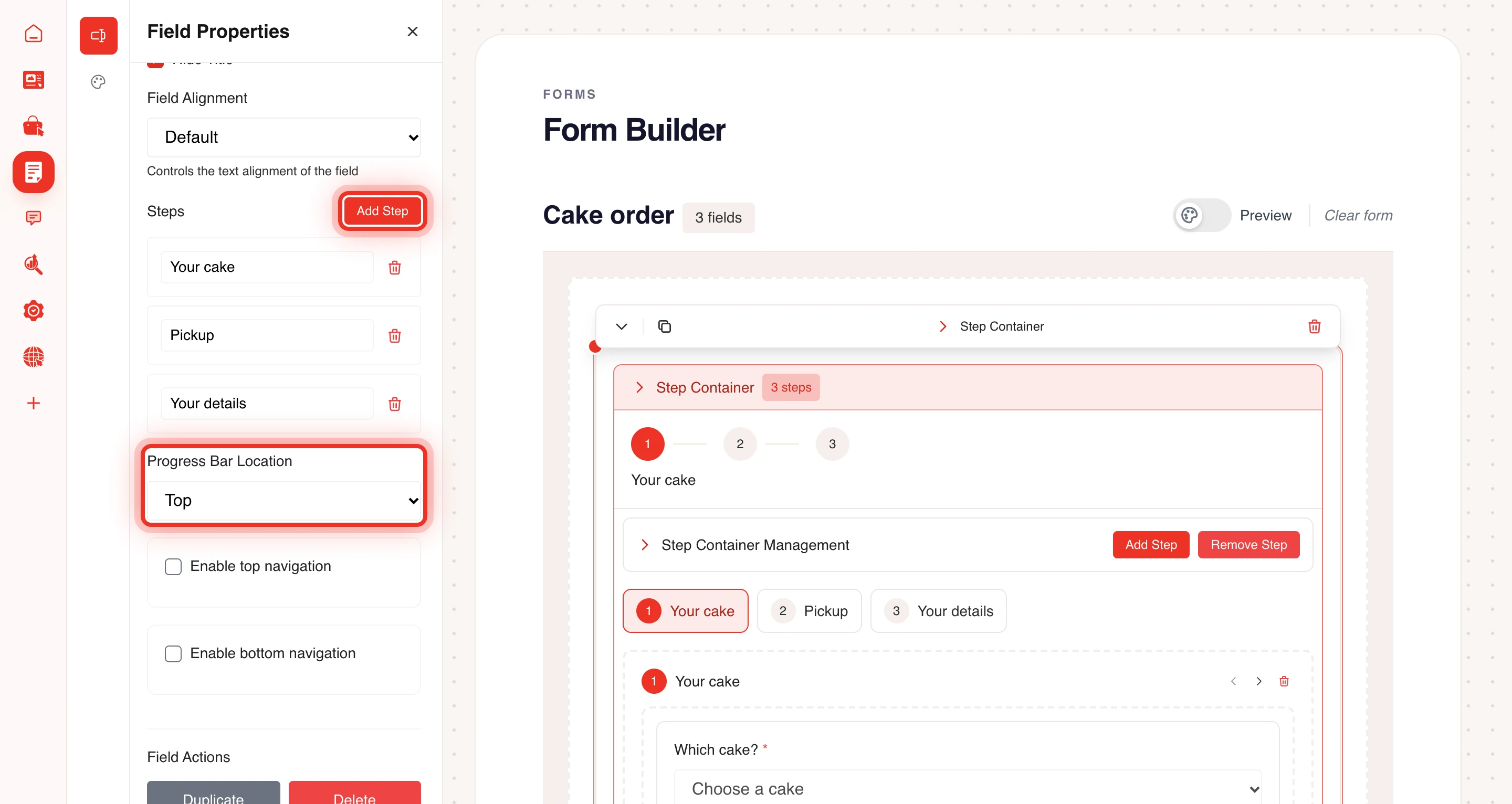
- Click Add Step for every step you need and give each a Step title.
- Drag the fields of each step into that step.
- Choose the Progress Bar Location: Top or Hidden.
- Set the navigation with Enable top navigation and Enable bottom navigation, and the texts of the Previous Button and Next Button.
- Put the Submit Button in the last step.
Use tabs
- Drag Tab Container onto the canvas.
- Click Add Tab for each tab and enter a Tab title.
- Drag fields into each tab.
A Button field can move the visitor to a step or tab. On the button's Advanced tab, choose the action Go to Step or Go to Tab.
Validation in steps
Required fields and validation rules work in every container. Read Required fields and validation rules to set them up. Use Preview in the builder to walk through all steps before you publish.
Tip: Put the easy questions in the first step. Visitors who started a form are more likely to finish it.