

Filters let you look at one group of visitors, such as visitors from one country or one campaign. Exclusions remove traffic from all your reports, for example your own visits or visits from your office. Together they keep your numbers focused on the visitors that matter.
Filter a report
Most pages in Analytics & Insights have a filter bar with the date field. Use it to narrow down what you see.
- Open the page you want to filter, for example Sessions.
- Open the filter in the filter bar.
- Choose what to filter on, for example country, browser, device type, referrer, a UTM value, a visited page or a conversion.
- Choose how to compare, for example Equals, Contains or Not Equals.
- Enter or pick the value.
- Click Apply Filters.
The page now only shows visits that match. Clear the filter to see all visits again.
Save filters you use often
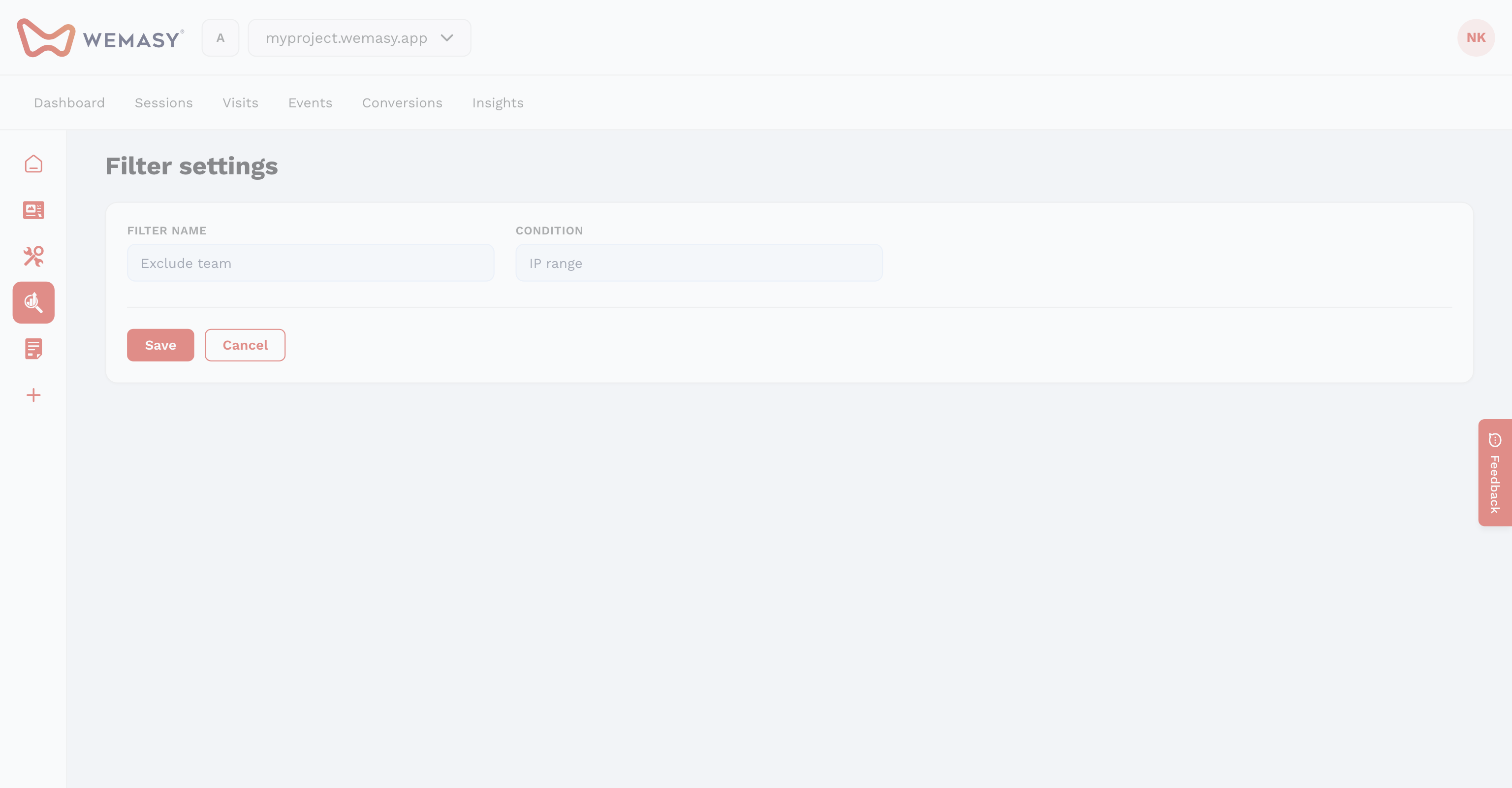
On Filter Settings you keep filters you want to reuse, so you do not have to build them again.
- Open the three dots menu in Analytics & Insights.
- Select Filter Settings.
- Click Add New Filter.
- Give the filter a label.
- Add the conditions.
- Save the filter.
Your saved filters are listed on the Filter Setting page. Use Edit to change one or Delete to remove it. Saved filters can be picked from the filter bar on the analytics pages.
Exclude your own visits
When you or your team visit your website, those visits count too. Exclude your IP address so they stay out of the numbers.
- Find your public IP address, for example by searching "what is my IP" in your browser.
- Open the three dots menu in Analytics & Insights.
- Select Exclude Settings.
- Add your IP address under the IP addresses.
- Save the exclusion.
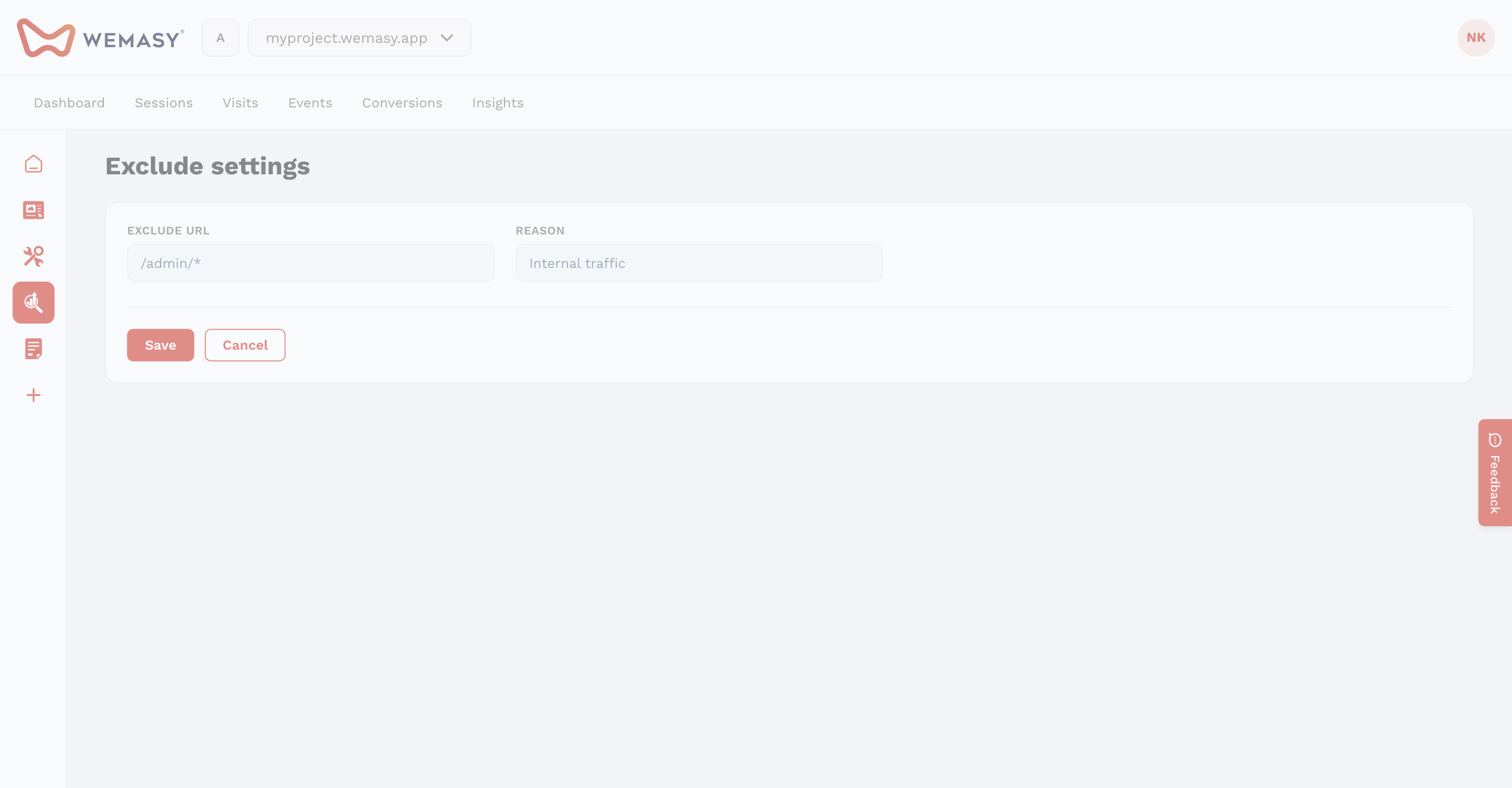
Excluded traffic does not appear in sessions, events or conversions. Repeat this for every location you work from, such as your office and your home.
Exclude countries
On the same Exclude Filter Setting page you can pick countries to leave out, for example a country you do not serve that sends a lot of unwanted traffic. Pick the countries and save.
Remove all exclusions
To start over, click Delete Existing Filters on the Exclude Filter Setting page and confirm. This cannot be undone.
Tip: exclude your own IP address on the day you publish, before you start testing your website. Then your test visits never mix with real visitors.
Related: what WEMASY collects with and without visitor consent is explained in Analytics privacy and visitor consent. To compare filtered groups side by side, use Custom insights dashboards.
Frequently asked questions
My IP address changes. What can I do?
Many home connections get a new IP address now and then. Check your IP address again when your own visits show up, and add the new one to Exclude Settings.
Does an exclusion delete data?
Exclusions hide matching traffic from your analytics views and reports. To count that traffic again, remove the exclusion.