

Insights let you compare groups of visitors side by side. Each group is a data source with its own filters, for example "visitors from the newsletter" next to "visitors from ads" next to "all visitors". You save the set as an insight and open it again whenever you want to check how the groups compare.
Open Insights
- Open Analytics & Insights.
- Open the three dots menu at the end of the menu.
- Select Insights.
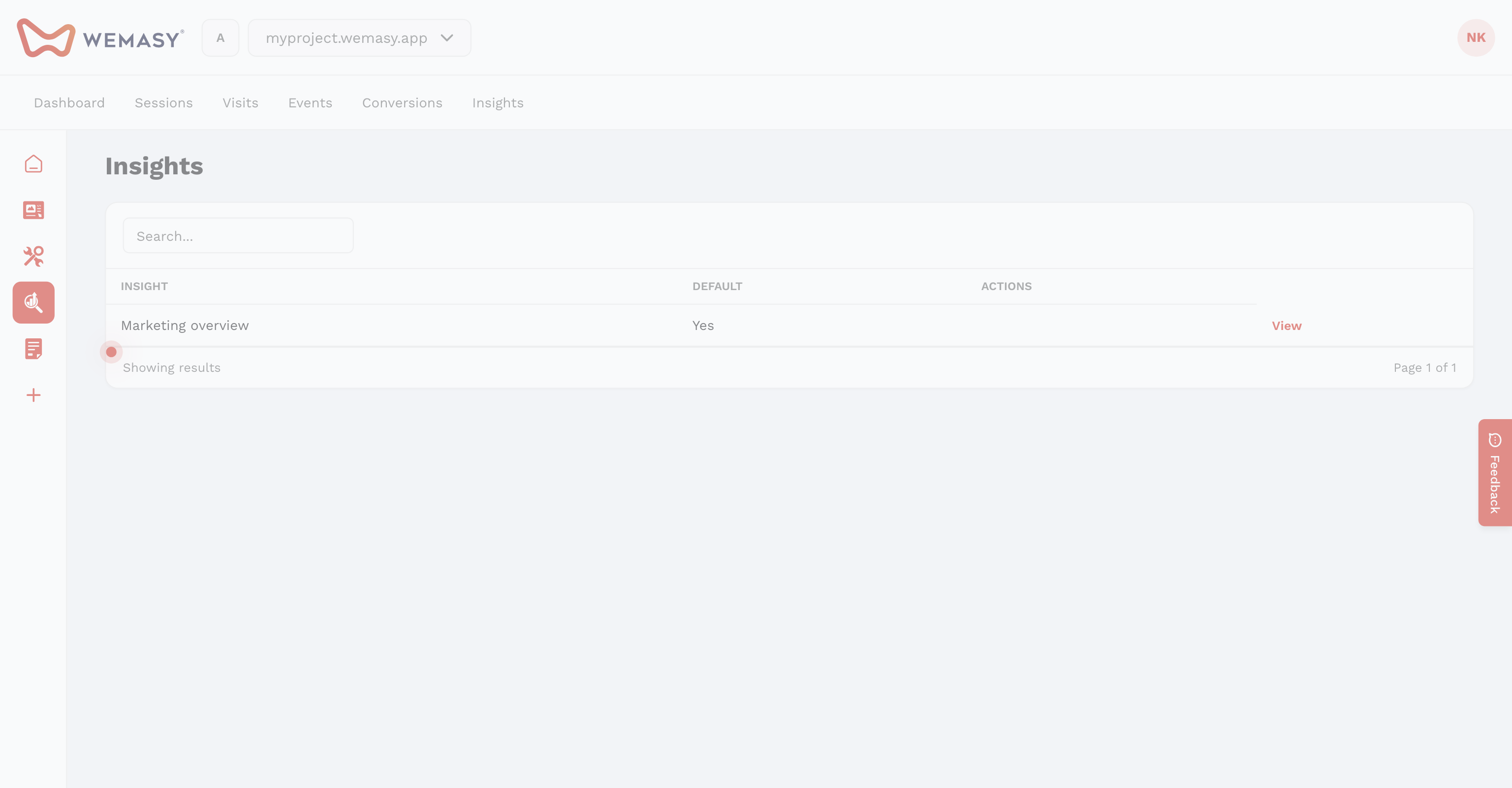
The Insights page lists your saved insights. It is empty until you create the first one.
Create an insight
- Click Create Insight.
- Enter a Label for the insight, for example "Campaigns compared".
- Click Add Data to add the first data source.
- Enter a Data Label, for example "Newsletter".
- Add at least one filter, for example a UTM source that equals "newsletter".
- Click Add Data again for each other group you want to compare.
- Click Save.
Every data source needs a label and at least one filter with a value. If one is missing, WEMASY shows which part to complete.
View an insight
- Find the insight in the list.
- Click View.
- Pick a period in the date field.
The insight shows the numbers of each data source next to each other. You can add a filter at the top and click Apply Global Filters to apply it to every data source at once.
Use an insight on the Overview page
- Go to the Overview page.
- Click More options.
- Open Select Insight and pick an insight.
Each data source becomes a tab above the key numbers. On the All tab, click the eye icon of a data source to hide or show it. Click the plus icon (Add DataSource) to add a group, and use Save or Save As to store your changes.
Set a default insight
On the Insights page, click Set Default on the insight you use most and confirm. The default insight loads on the Overview page when you open More options.
Edit or delete an insight
Click Edit to change the label, the data sources or their filters. Click Delete and confirm to remove the insight. Deleting an insight does not delete any visit data.
Ideas for insights
- Phone visitors against computer visitors, to see if your website works as well on a phone.
- One campaign against all traffic, to see if the campaign brings better visitors.
- Visitors who opened your pricing page against visitors who did not.
Tip: keep the filters in one insight similar, so only the thing you compare differs between data sources. For filter options, see Filter and exclude settings. For the numbers themselves, see Analytics dashboard overview.
Frequently asked questions
Why can I not save my insight?
Every insight needs a label, and every data source needs a data label and at least one filter with a value. Fill in the parts that are marked and save again.
Does an insight change my data?
No. An insight is a saved view with filters. Your visits, recordings and conversions stay the same when you create, edit or delete an insight.